

AutoClipper ✓
With AutoClipper you can produce clips at scale every day.
Free + from $12/mo
Verdict
A quick read before you dig into the full page.
- Best if
- With AutoClipper you can produce clips at scale every day
- Skip if
- Preset customization limited
- Pick this when
- Subtitles in 40+ languages
Considering CapCut Online Creative Suite instead? Compare side by side
Overview
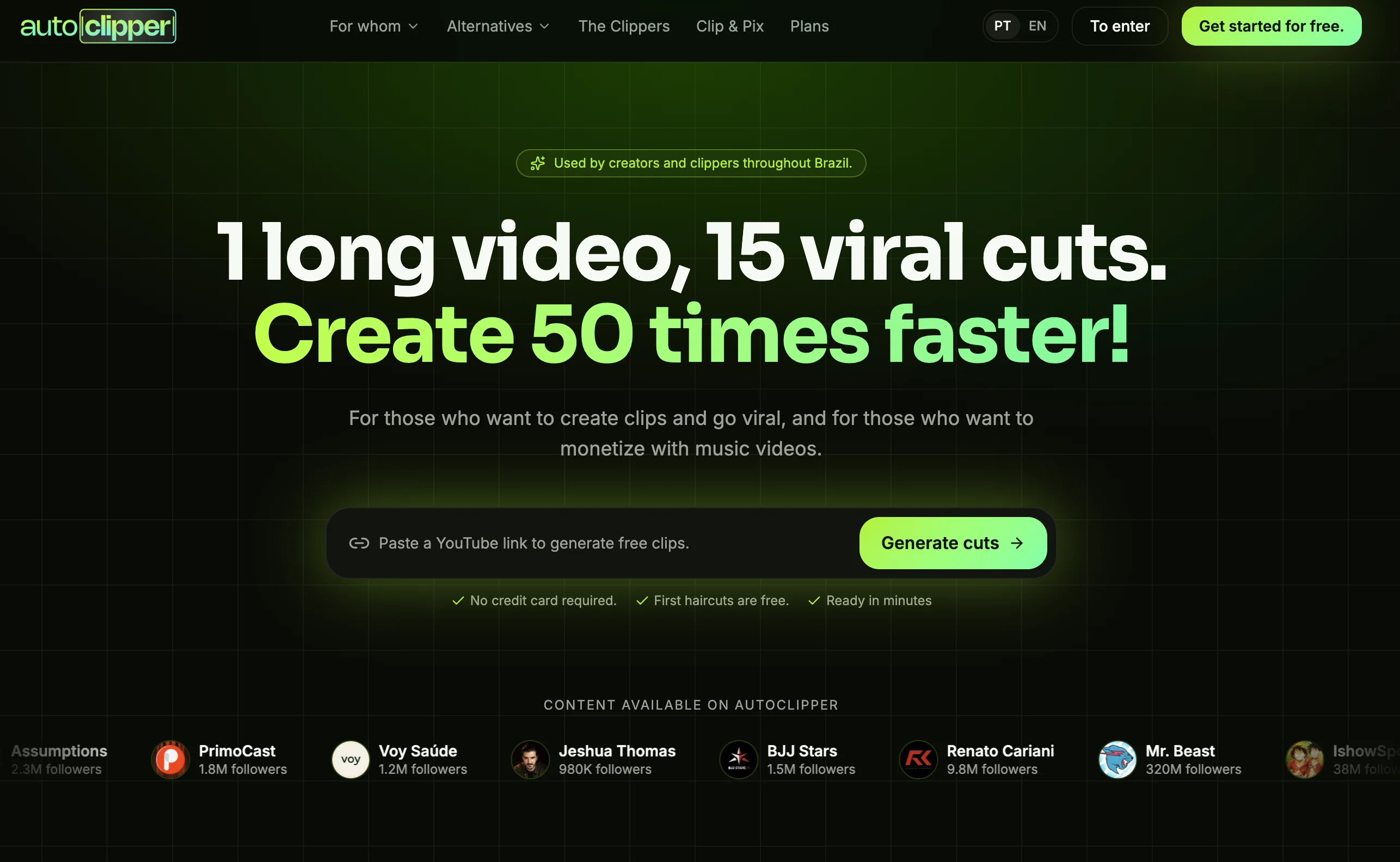
AutoClipper is an AI-powered video editing tool that automatically turns long-form content—such as podcasts, livestreams, and interviews—into short, engaging clips optimized for platforms like TikTok, Instagram Reels, and YouTube Shorts.
It uses advanced algorithms to analyze videos, detect high-engagement moments, and generate ready-to-publish clips with captions and vertical formatting.
Designed for creators, agencies, and social media teams, AutoClipper enables fast, scalable content production without manual editing, helping users grow their audience through consistent, high-quality short-form videos.
Best for
Short scenarios where AutoClipper tends to shine.
-
With AutoClipper you can produce clips at scale every day.
Example outputs 1
Sample generations and before/after results for AutoClipper.
Access & connections
Where you can use AutoClipper, and what it plugs into.
Platforms
Integrations
Capabilities
What this tool accepts, produces, and is strongest at.
Input
- Video
Output
- Video
Supported features
- Clipping
Pros & cons
Pros
- Subtitles in 40+ languages
- Silence detection in videos
- Video enhancing effects
- Interface easy to use
- No prior editing knowledge needed
- Supports long video editing
- Videos processed directly from YouTube
- Caption customization
Show 15 more
- Unique style presets
- Quick editing experience
- Simple and affordable pricing
- Free tier availability
- Flexible editing
- Good for voice-heavy videos
- No pre-cutting of videos
- Add b-rolls, watermarks
- In-user control of text, styles
- Option to break long videos
- Direct access to C-level
- Good free tier
- High request/price ratio
- Flexible video editing
- Support up to 4K 60fps
Cons
- Limited to voice-focused videos
- Preset customization limited
- No indicated support for raw footage editing
- Youtube only for external video importing
- No mentioning of collaborative capabilities
- No indicated support for sound effects addition
- No video effect options mentioned
- No detailed layering functions
Show 2 more
- No specified integration with other platforms
- Doesn't offer mobile app version
Compare alternatives
Similar tools in the catalog — with a clear reason to open each one.

CapCut Online Creative Suite ✓
FreemiumUnleash creativity with CapCut's all-in-one online suite
Free + from $28.5/mo
Full comparison
ClipFinder ✓
FreemiumTurn hours of streams and VODs into viral clips automatically.
Why look Offers a public API
Full comparison
Gling - AI Video Editing Software for YouTube ✓
FreemiumAI-powered video editing for YouTube creators.
Why look Typically cheaper
Full comparison
Captions ✓
PaidAI-powered creative studio for studio-grade videos.
Why look Typically cheaper
Full comparison

People also view
Tools that often show up alongside AutoClipper in collections and comparisons.

Jupitrr ✓
FreemiumVoice-recorded & podcast-based personalized videos

Viesus enhancing PDFs and images ✓
Free TrialEnhancing and Upscaling for images and PDFs

UniFab Studio ✓
PaidSharper Details, Smoother Motion, Enhanced in Every Frame

Topaz Labs | Photo AI 4 ✓
PaidMake every shot perfect with AI-powered photo enhancement.

Reshot AI ✓
PaidProfessionally reshoot your photos with AI.

AI Portrait - Remaker ✓
Free TrialConvert photos into artistic AI portraits instantly.

Photoeditor ✓
PaidEnhanced image editing with object and text removal.

Jumper ✓
FreemiumJump to the best parts of video editing.
Releases 1
Imported reviews 1
the limit is too low
FAQ 12
What is AutoClipper?
It analyzes your content to find the most interesting or high-impact moments, then turns them into ready-to-share vertical videos, often adding captions and formatting optimized for platforms like TikTok, Instagram Reels, and YouTube Shorts.
What features does What is AutoClipper offer for video editing?
Can AutoEditor generate subtitles automatically?
Does AutoClipper support editing of long videos?
In some versions (like the desktop app), there can be a built-in editor with timeline controls, overlays, and adjustments, but this is mainly for editing the generated clips, not for comprehensive long-form video editing like in Premiere Pro or Final Cut.
Can I directly import videos from YouTube to AutoClipper?
You can either upload a video file or simply paste a YouTube link, and the tool will process it automatically. Once you provide the link, AutoClipper analyzes the video, detects key moments, and generates short clips from it.
What kind of videos does AutoClipper work best with?
This includes content like podcasts, interviews, webinars, livestreams, talking-head videos, educational content, and commentary-style videos. These formats are ideal because the AI can easily detect meaningful highlights, emotional moments, or key insights to turn into short clips.
It performs especially well when the video has clear audio, consistent speaking, and structured topics, since that makes it easier to generate accurate captions and identify engaging segments.
Can AutoClipper detect and cut off silence or non-relevant content in videos?
Its AI analyzes the content to find engaging moments, which naturally excludes pauses, dead air, filler speech, or low-value segments. As a result, the clips it generates are already trimmed to include only the most relevant and impactful parts.
How can I customize my videos with AutoClipper?
It allows you to modify captions by changing fonts, colors, sizes, and animation styles so they match your brand or preferred look. You can also apply templates that control the overall design of the video, including layout, colors, and text presentation.
In terms of editing, you can fine-tune each clip by adjusting the start and end points, choosing different segments, or refining what the AI selected. Some versions also let you control framing, so you can ensure the subject stays centered or adjust how the video is cropped for vertical formats.
Can I save my unique styles as presets in AutoClipper?
However, there’s no clear indication that you can save fully custom styles as reusable presets (like a “one-click saved style”). Instead, it focuses on applying templates and brand settings across clips, which already helps maintain consistency without needing to recreate the style each time.
Does AutoClipper offer affordable pricing plans?
It includes a free plan, which lets you test the tool with limited processing time, a small number of exported clips, and a watermark. 
Its main paid plan is around $14.99 per month, which gives you significantly more processing time, unlimited clip exports, and additional features like branding options and faster exports.
Can I access a free tier to get started with AutoClipper?
AutoClipper offers a free plan that lets you try the tool without paying. This plan includes limited usage, such as a set amount of video processing time, a small number of exported clips per month, and a watermark on the final videos. 
It’s designed as a starting point so you can test how the AI clipping, captions, and formatting work before upgrading to a paid plan.
Does AutoClipper enhance videos by adding b-rolls, watermarks, and other effects?
Its main focus is on clipping, captioning, formatting, and optimizing short videos, rather than heavily enhancing them with additional visual layers. While you can customize things like captions, layout, and branding (such as adding logos or basic styling), there’s no strong evidence that it automatically adds B-roll footage or advanced effects like some other AI editors do.
In contrast, other AI video tools specifically highlight features like automatic B-roll insertion, transitions, sound effects, and overlays as part of their editing workflow , which suggests that those capabilities are not the primary focus of AutoClipper.
Related tools
Recommended

AI Video Cut ✓
Free TrialTransform long videos into viral shorts with AI.

KeywordSearch ✓
FreemiumDiscover and target YouTube audiences.

Similarvideo ✓
Free TrialCreate marketing videos 10x faster with AI.

BypassGPT.co ✓
PaidHumanize AI text to bypass detection tools.

PicLumen ✓
FreemiumPic the future: Free AI images in one click.

TurboScribe ✓
Freemium🎯 3 free transcripts every day. 🔥 Unlimited transcription starting at $10/mo.