
AI Video
Image-to-Video AI: A Workflow for Product Demos
Turn a reference image into a planned product-video sequence with shot comparisons, original motion prompts, troubleshooting, and five video tutorials.
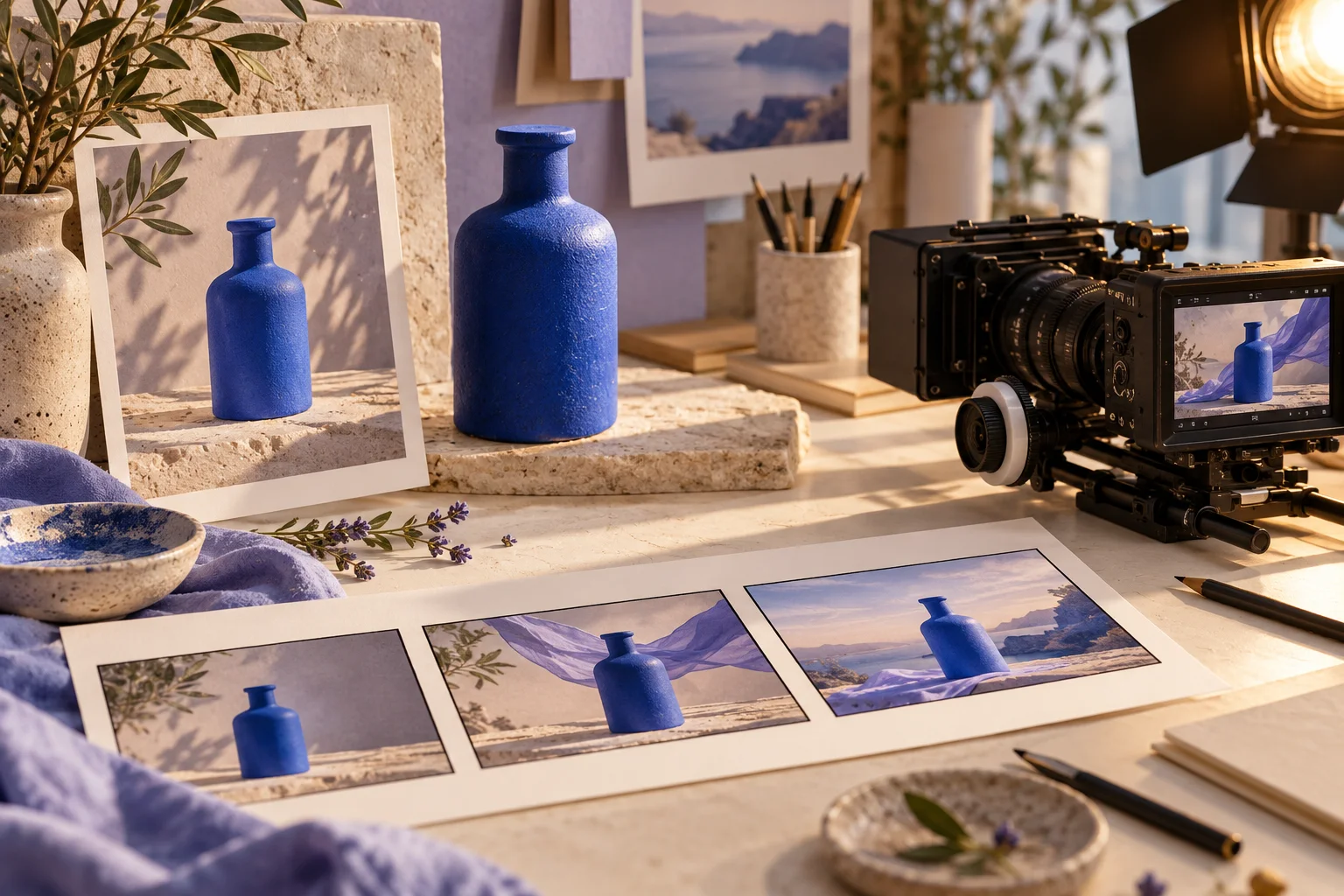
Original AI-generated editorial illustration.
Quick answer: start with an approved reference image, plan three short shots, describe one clear movement per shot, and inspect the generated frames before editing. This is a more manageable way to build a product demo than asking a generator to invent a complete advertisement in one pass.
Research checked: 30 October 2026. This is an editorial production workflow informed by the linked official documentation. The example prompts are original starting points, not tested performance claims. Our blue-bottle artwork is AI-generated illustration; the six-attempt exercise below is a plan you can reproduce, not a claim that we rendered those videos.
Why image-to-video is a useful skill now
The practical appeal is reuse: an approved product photograph can become the visual starting point for several motion ideas. Runway published a dedicated image-to-video guide in September 2026, and current Flow documentation separates first-frame, first-and-last-frame, and reference-based workflows. These are concrete signs that input control is an important part of current creative tools. Sources: Runway's image-to-video guide and Google Flow's feature matrix.
For a creator or small business, the useful outcome is a repeatable process. You want to understand why one attempt worked, preserve that decision, and change only what the next shot needs. The goal is not to create the longest possible clip or imitate a viral demo. It is to deliver a coherent piece of content that accurately represents the subject.
If you are still choosing software, read Veo vs Runway vs Kling. This article focuses on production decisions after you have chosen a tool.
Compare three ways to turn images into a video
| Approach | What you control directly | Useful for | Main tradeoff |
|---|---|---|---|
| Conventional slideshow or motion graphics | Existing stills, transitions, timing, text | Catalogs, explainers, exact product information | Motion is usually an editorial effect rather than new scene action |
| AI image-to-video | A reference image plus a motion request | Atmospheric product shots and creative B-roll | Later frames may introduce unwanted changes |
| Filmed footage plus editing | Real recorded action and selected takes | Demonstrating an actual mechanism or physical result | Requires access to the subject, capture time, and production setup |
These approaches can be combined. A product demo may use a generated establishing shot, a real close-up of the mechanism, and conventional text overlays. If factual proof is the point of a shot, prioritize real footage or an exact diagram over invented action.
For example, a generated bottle scene can communicate a visual mood. It should not be treated as proof that the real bottle is leakproof, impact-resistant, or insulated. Keep the demonstration's factual claims separate from its creative presentation.
Step 1: write a small, testable brief
Start with an outcome that can be reviewed in one sitting: a 12–15 second product teaser assembled from three short shots. Decide where it will appear, the intended audience, and the single point the viewer should remember. Avoid changing the brief halfway through generation because one unexpected result looks exciting.
Our example brief is a calm teaser for an unbranded blue bottle. The required visual properties are its color, cylindrical body, rounded shoulders, and cap. The creative goal is a deliberate reveal, not a demonstration of an unverified product function.
- Deliverable: one short edited sequence, plus the source clips.
- Primary message: a clean, considered product presentation.
- Visual constraints: consistent silhouette, color, cap, and setting across shots.
- Sound plan: add an approved music bed or sound design during editing unless generated sound is part of the test.
- Acceptance rule: reject a clip if the object changes shape or the requested camera movement obscures it.
Step 2: prepare the reference image
Choose an image with a clearly separated subject, a readable outline, and enough space for the planned framing. Inspect it before generation. A malformed edge in a still image is a weak foundation for a moving sequence. Runway's prompting documentation specifically recommends a high-quality input without visual artifacts. Source: Runway's image-to-video prompting guide.
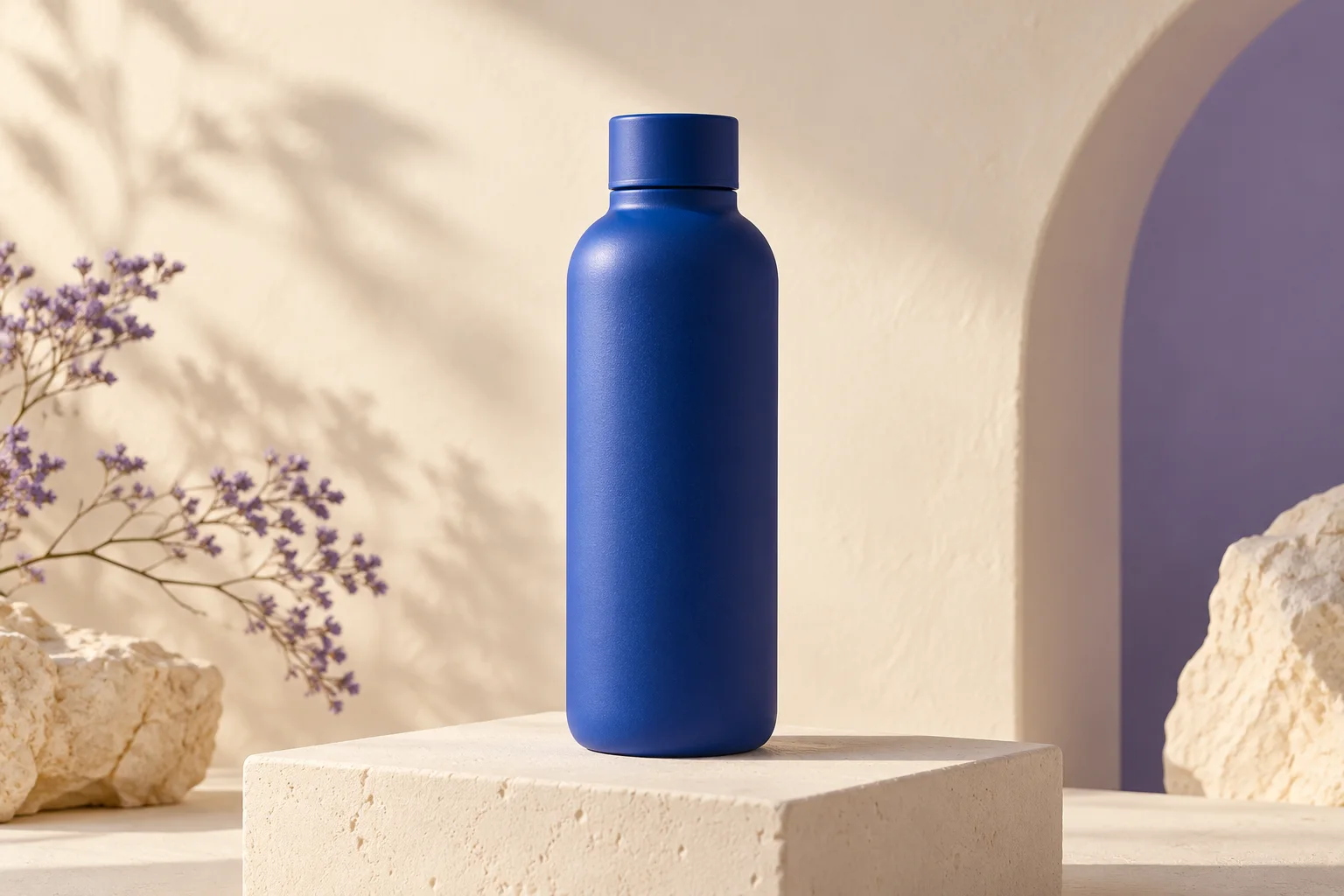
The illustration below demonstrates a simple reference composition. It is a fictional object, not a photograph of a real product. For actual commerce work, use accurate approved product material and review the generated clip against that reference.
Before uploading, choose the aspect ratio you intend to deliver. If you need both horizontal and vertical versions, plan them separately. A broad landscape composition does not automatically become a strong vertical shot when cropped. Keep important details away from the outer edges and allow room for interface overlays or captions at the editing stage.
Step 3: choose the control method, not just the brand
Your input choice should follow the problem. A first-frame workflow is useful when you want to preserve the starting composition. First-and-last-frame control is worth testing when the ending matters. Reference or element features may help when the same subject must recur through different shots; they still require visual inspection.
| Your production need | Option to investigate | What to confirm before spending credits |
|---|---|---|
| A subtle move from one approved still | Runway Gen-4.5 image-to-video | The active image-to-video mode, format, and duration |
| A defined beginning and ending | A Flow mode with first-and-last-frame support | Both frames and the chosen duration are supported together |
| The same subject across planned cuts | Kling VIDEO 3.0 element and multi-shot controls | Reference setup and shot behavior in the selected mode |
| Exact existing screenshots and text | Conventional editing or motion graphics | Readability at the final display size |
These are workflow candidates, not claims of equal capability or guaranteed consistency. The underlying controls are documented in Runway's Gen-4.5 help, Flow's current feature matrix, and Kling's VIDEO 3.0 guide.
Step 4: make a three-shot plan
Write down the purpose of each shot before writing its prompt. This keeps your sequence from becoming three variations of the same attractive camera move. The timing below is a suggested editing plan; choose generation durations supported by your selected tool and trim afterward.
| Shot | Purpose | Starting composition | Motion request | Intended edit length |
|---|---|---|---|---|
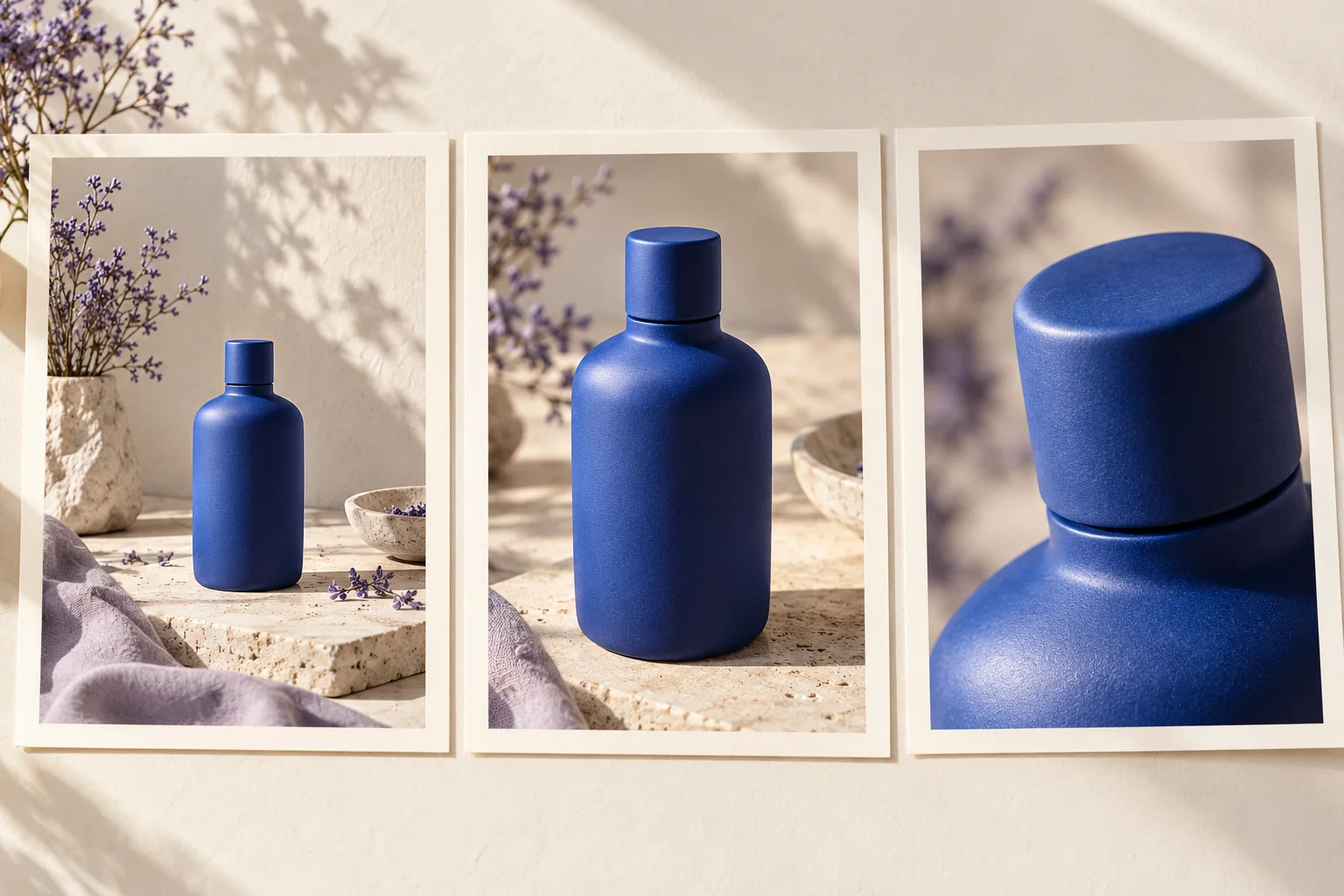
| Establish | Let the viewer recognize the subject | Entire bottle with breathing room | Gentle push-in | About 4 seconds |
| Detail | Show material and form | Closer three-quarter framing | Small lateral move | About 4 seconds |
| Resolve | Leave a clear final impression | Stable hero composition | Hold or minimal movement | About 4 seconds |
The storyboard below illustrates changes in framing. It does not imply that a single input will produce all three exact views. Prepare separate approved frames where needed, especially when a close-up reveals details that the wide image does not contain.
Step 5: use motion prompts you can diagnose
Runway's official Academy guide emphasizes motion, camera work, and progression when prompting from an image. That is a helpful starting principle: let the reference establish the visible scene, then explain what should change over time. Source: Runway Academy prompting guide.
These prompts are original editorial examples. Adapt them to the selected model's instructions and evaluate the resulting frames; they are not guaranteed recipes.
Prompt A: a restrained product reveal
The camera slowly pushes toward the bottle at a steady speed. The bottle remains stationary on the plinth. The lighting stays soft and stable. The shot ends on a clear medium view of the product.
What to inspect: the bottle's shoulders and cap should remain recognizable, and the camera move should not become a large orbit. If the subject distorts, simplify the move before adding more descriptive language.
Prompt B: controlled lateral movement
The camera slides a short distance from left to right, keeping the bottle centered. The bottle stays still. Its shape and surface remain consistent. The background shifts gently with the camera movement.
What to inspect: the subject should not start rotating just because the camera moves. If the generator confuses those actions, try a smaller move or a locked-camera version as a baseline.
Prompt C: an ending designed for the edit
A locked camera holds on the bottle. The subject and background remain still. A subtle change in the soft reflection adds a small sense of life while the composition stays stable.
What to inspect: the ending needs a usable hold. A visually dramatic final second is less useful if it prevents a clean cut or makes an added caption difficult to read.
Step 6: iterate with a six-attempt experiment
Try two motion variants for each of the three shots. Keep the reference frame and output settings unchanged within each pair. This gives you a small experiment with a clear question: which version better serves the shot's purpose?
Do not interpret six attempts as enough to measure a model's general quality. The point is to make your own decisions traceable. Record the input filename, prompt, model name, settings, credit cost shown in the app, and the reason you accepted or rejected the result.
| Symptom | First adjustment to try | What to avoid changing at the same time |
|---|---|---|
| Object shape drifts | Reduce motion or shorten the useful segment | Reference image, model, and prompt all together |
| Camera spins unexpectedly | Replace the move with a small push-in | Adding multiple new camera terms |
| Scene changes mid-clip | Ask for one continuous shot and simplify action | Extending the narrative with extra events |
| Output feels static | Add one explicit, observable movement | Vague requests such as “make it cinematic” |
| Final frame is unusable | Generate a dedicated ending shot | Trying to rescue every second of a weak clip |
These are troubleshooting hypotheses, not guaranteed model behavior. If a revision fails, keep the note. A failed attempt is still useful when it tells you which assumption to change next.
Step 7: edit and review the finished sequence
Select the best section of each clip rather than forcing every generated second into the timeline. Match the visual rhythm to the message, then add exact text and captions in the editor. Use approved brand artwork as an overlay if it needs to be precise, rather than relying on the generator to reconstruct it.
Review at normal speed and pause at the beginning, middle, and end of each shot. Then watch the exported file on the type of screen your audience will use. Tiny details that look impressive in a large preview may disappear in a phone feed, while a distracting shape change can become much more obvious in motion.
- Check continuity between adjacent shots: object shape, color, placement, and lighting direction.
- Check whether sound supports the edit instead of covering awkward cuts.
- Check that captions are legible and do not cover the product.
- Check that the content accurately represents what is being offered.
- Keep source files and prompts so a later revision does not require starting again.
Five videos for the production workflow
These selected videos add demonstrations and production context. They are credited external resources, not our own tests. Some third-party videos contain promotions; use the official documentation for current capabilities and costs. A tutorial's interface may differ from yours.
Begin with Runway's official image-to-video walkthrough
Use this Academy resource to orient yourself in the workflow before testing your own reference image. It is the most directly relevant starting point for the Runway route in this guide.
Explore references in Google Flow
This beginner tutorial by Learn AI Tools introduces an ingredients-based workflow. Treat it as a UI orientation aid and check current support for your selected Flow model.

Study a product-ad workflow with Kling
Jon Law's product-ad tutorial is relevant to the kind of small commercial brief discussed here. The title is the creator's framing, not a promise that every attempt will match an agency production.

Review camera and timing ideas in Runway
Skills Factory's short Gen-4.5 tutorial offers another way into camera and prompt concepts. Its description includes an affiliate promotion; no coupon or price in that video is part of our recommendation.

See how generative tools sit inside a larger production
Google's behind-the-scenes film is useful context for thinking beyond the generation button. It is a project-specific making-of resource, not a step-by-step bottle-demo tutorial or a benchmark of the tools above.

Frequently asked questions
Can I turn one product photo into a complete video?
You can use one photo as the starting point for a short generated clip. A finished product video often benefits from several prepared shots, precise text overlays, and editing. Start with one successful shot before expanding the sequence.
Is image-to-video better than a slideshow?
It depends on what the viewer needs. A slideshow is a good option when the original photos and exact information are the content. Image-to-video is worth testing when generated movement adds something useful. Neither approach wins every brief.
How do I keep the same product across shots?
Use approved references, keep the setup consistent, and review identifying details through the full sequence. Explore reference or element features where available. If exact fidelity remains difficult, combine generated atmosphere with real product footage or stills.
Why does my product change shape?
The generator is synthesizing later frames, not simply moving a rigid cutout. Complex movement can expose details that are ambiguous in the reference. Try a simpler move, a clearer image, or a shorter usable segment, and judge the result rather than assuming a prompt solved it.
Should I add text inside the generation prompt?
For exact prices, product names, captions, or disclaimers, add text during editing so you can control spelling, timing, and readability. This also makes it easier to revise the message without regenerating the underlying clip.
Can I create both landscape and vertical versions?
Plan each composition around its destination and confirm that your selected mode supports the needed ratio. Reframing a wide shot can remove the very detail that makes the scene work. Preview the final export rather than relying only on the generation window.
How many retries should I budget for?
Set a small limit before you begin, record why attempts fail, and revise the brief when the same failure repeats. There is no universal success rate. Our six-attempt exercise is a manageable learning plan, not an estimate of what a client deliverable will cost.
Were these example videos generated for this article?
No. This article contains original illustrative images and prompt examples, plus five embedded videos from credited channels. It does not present the artwork as Veo, Runway, or Kling test output or claim that the prompts have been benchmarked.
Continue your research
Compare the selection criteria in Veo vs Runway vs Kling, then explore the directory entries for Runway, Google Flow, and Kling. Pick one brief, one tool, and one reference image for the first trial. Expand only after you can explain which decision improved the result.