
Presentation narration 2026 Rank: #2535
OralSlides ✓
Turn PowerPoint into AI-narrated videos instantly.
Verdict
A quick read before you dig into the full page.
- Best if
- Turn PowerPoint into AI-narrated videos instantly
- Skip if
- Limited language options
- Pick this when
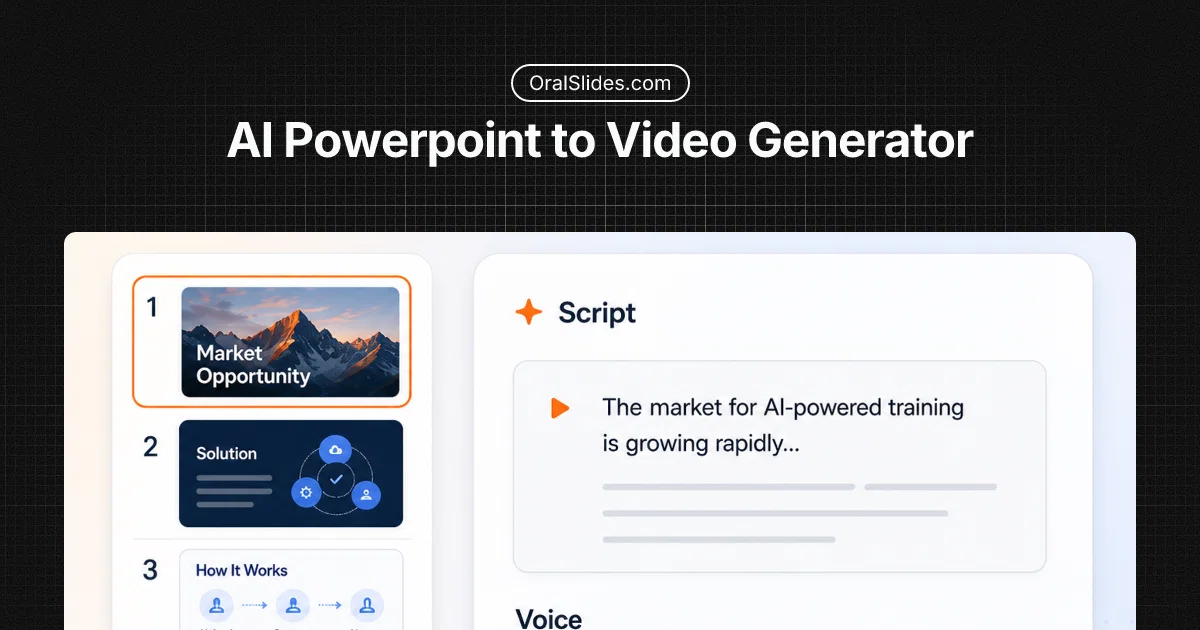
- Transforms PPTs into videos
Considering OpenDeck instead? Compare side by side
Overview

OralSlides is built for sales presentations, product demos, customer education, employee training, internal communications, online courses, and investor updates. Its transparent page-based credit model makes every PowerPoint-to-video project easy to understand and scale.
- Coherent Ai-generated Narration Scripts
- Natural Multilingual Ai Voices
- Automatic Narration And Slide Timing
- Optional Embedded Subtitles
- High-quality Mp4 Export
Access & connections
Where you can use OralSlides.
Platforms
Capabilities
What this tool accepts, produces, and is strongest at.
Input
- Image
- Text
Output
- Video
Highlights
- SOTA
Supported features
- Teaching Humans
Pros & cons
Pros
- Transforms PPTs into videos
- Preserves original PowerPoint deck
- Includes narration and voice timing
- Exports as MP4 video
- Flexible subscription plans
- Scalable service
- Can adjust service needs
- Four-step video creation process
Show 25 more
- Supports various file formats
- Allows script editing
- Multiple voice and language options
- Slide-aware scripts
- Natural voiceover
- Page credit system
- Free trials available
- Editorial control maintained
- Comparison with competitor tools
- No need to rebuild slides
- No opaque usage units
- Fast PPT to MP4 conversion
- Tool for diverse team roles
- PowerPoint-first narration
- Enables small script edits
- 1080P MP4 export
- High response rate for presentations
- Multiple built-in voices
- Subtitles option available
- Easy updates on presentations
- Create videos without studio setup
- Facilitates remote team consumption
- No timeline editor required
- Easy for learner replay
- Enables spoken internal updates
Cons
- Subscription based
- No freeform voice recording
- Limited voice options
- Limited language options
- Script based on slides only
- Reliant on PowerPoint format
- Narration less natural than human
- Editing script can be tedious
Show 2 more
- Cannot add custom animations
- Exports only in MP4 format
Compare alternatives
Similar tools in the catalog — with a clear reason to open each one.

Releases 1
FAQ 8
How does OralSlides understand my presentation?
🛠️ 4
tools
wrote:
OralSlides uses multimodal AI to examine each slide as a visual composition, including its text, charts, diagrams, images, layout, and visual hierarchy. It also uses context from surrounding slides to create narration that follows the overall story of your deck.
How do I turn a presentation into a video?
🛠️ 4
tools
wrote:
Upload your deck, review and edit the AI-generated narration, choose a voice, and export the result as an MP4. Scripts and audio are generated in small batches so you can review progress as each group of slides is completed.
What presentation files can I upload?
🛠️ 4
tools
wrote:
You can upload PowerPoint PPTX files and PDF presentations. OralSlides renders the existing pages and uses them as the visual track for your narrated video.
Will OralSlides redesign or change my slides?
🛠️ 4
tools
wrote:
No. OralSlides keeps your existing slide visuals instead of rebuilding the presentation. The exported video uses still images of your slides, so complex PowerPoint animations and transitions are not included.
Can I edit the narration or update one slide?
🛠️ 4
tools
wrote:
Yes. Edit a script manually or ask AI to rewrite it, then review the proposed changes before accepting them. If one slide changes, you can regenerate audio for that slide without recreating every other track.
What can I control when exporting the video?
🛠️ 4
tools
wrote:
Export your presentation as a 720p or 1080p MP4, optionally burn the narration into the video as subtitles, and preview the result before downloading. Paid plans can also remove the OralSlides watermark.
How do page credits work?
🛠️ 4
tools
wrote:
One selected slide uses one page credit for script and audio generation. New accounts receive 3 free credits. If your balance does not cover the whole deck, you can choose which slides to process instead of being blocked from uploading it.
What languages and voices are available?
🛠️ 4
tools
wrote:
OralSlides supports Mandarin Chinese, English, French, German, Russian, Italian, Spanish, Portuguese, Japanese, and Korean. The options shown in the voice picker represent different voice styles, not language restrictions. Your narration is generated in the language of the script, and you can preview each voice before creating audio for the deck.
Related tools
Recommended

ChatGPT ✓
FreemiumAsk anything, create anything, and move from idea to action.

ElevenLabs ✓
FreemiumCreate lifelike AI voices for compelling storytelling.

Claude ✓
FreemiumBuilding reliable, interpretable AI systems

Grok ✓
FreemiumConversational AI for understanding the universe.

Kling ✓
FreemiumCreate high-fidelity videos from text with lifelike motion and real-world physics

KREA ✓
FreemiumIntuitive AI for image and video generation