
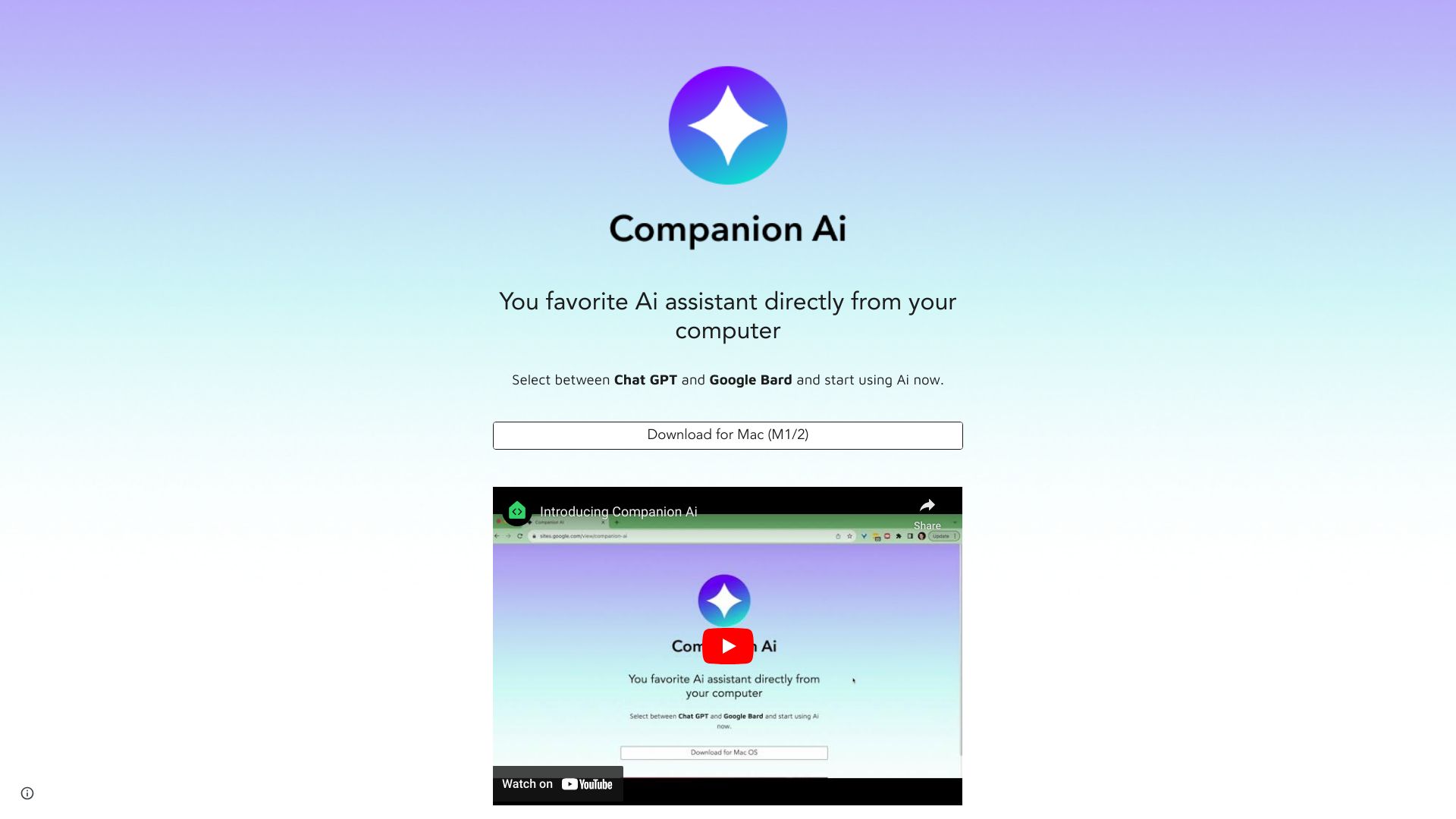
Companion Ai
Desktop app for accessing Chat GPT and Google Bard.
Source rating 5.0
(60)
0 views
0 saves
Unknown
Verdict
A quick read before you dig into the full page.
- Best if
- Desktop app for accessing Chat GPT and Google Bard
- Pick this when
- Desktop app for accessing Chat GPT and Google Bard
Overview
Companion AI is a desktop application that allows users to access AI assistants like Chat GPT and Google Bard directly from their computer. It aims to help users write, create, code, and more by providing easy access to these AI tools.
Access & connections
Where you can use Companion Ai.
Platforms
Capabilities
What this tool accepts, produces, and is strongest at.
Highlights
- Access to Chat GPT and Google Bard
- Desktop application for easy access
- Auto-updates
FAQ 5
What is Companion AI?
Companion AI is a desktop application that allows users to access AI assistants like Chat GPT and Google Bard directly from their computer. It aims to help users write, create, code, and more by providing easy access to these AI tools.
How to use Companion AI?
Download the application for Mac (M1/2). Select your preferred AI companion (Chat GPT or Google Bard) via the tray bar icon. Configure the app to start automatically with your Mac in System Settings.
How do I select between Chat GPT and Google Bard?
Right-click the "spark ✨" icon on your tray bar to open the menu of options. Click the "Select companion" option to open the selector page.
How do I make Companion Ai start with my Mac?
Click the "apple 🍎" menu at the top left corner of your screen, select "System Settings...", look for "General > Login Items". Click the ➕ button under the "Open at Login". Look for the location where you have Companion Ai installed (usually under the Applications folder). Select the "Companion-Ai" application.
How do I hide/show Companion Ai?
Simply click the "spark ✨" icon on your tray bar to show/hide Companion Ai.
Related tools
Recommended

Companion Ai