

Repository
videosdk-whatsapp-ai-calling-agent
This project is designed to be a streamlined alternative to complex setups, removing the need for middleware like n8n by connecting Twilio directly to the VideoSDK SIP Gateway usin · License unknown · Install via pip · Maintenance unknown
- License
- Unknown
- Resource
- Description
- 🚀 Use Case Examples
- Production-ready templates across Customer Support, Healthcare, Tech Support & more
- ⚡ Feature Examples
- Always up-to-date examples showcasing the latest VideoSDK Agent features
Specs
- ResourceDescription
- 🚀 Use Case ExamplesProduction-ready templates across Customer Support, Healthcare, Tech Support & more
- ⚡ Feature ExamplesAlways up-to-date examples showcasing the latest VideoSDK Agent features
- 📖 AI Agents DocsFull guides, concepts & API references to get you started
README



Prerequisites
Before you begin, ensure you have the following:
- Python 3.12+
- Docker installed and running on your local machine.
- A VideoSDK Account. Sign up here.
- A Twilio Account with a phone number that is approved for WhatsApp Business.
- A Google AI Studio API Key for the Gemini model.
Getting Started
Follow these steps to get your AI WhatsApp agent live.
1. Clone the Repository
git clone https://github.com/videosdk-community/videosdk-whatsapp-agent.git
cd videosdk-whatsapp-agent
2. Set Up Your Environment
Create a virtual environment and install the required Python packages.
# Create and activate virtual environment
python3 -m venv .venv
source .venv/bin/activate  # On Windows, use: .venv\Scripts\activate

# Install dependencies
pip install -r requirements.txt
3. Create a Deployment ID & Configure Manifest
3.a Create Deployment ID via API
This project includes a sample HTTP request file in the http-req/ directory. You can use the popular VS Code extension REST Client to run this request directly from your editor.
Request File: http-req/create-deployment-id.http
POST https://api.videosdk.live/ai/v1/ai-deployments
Authorization: VIDEOSDK_TOKEN
Content-Type: application/json

{
    "name": "AI Whatsapp Agent",
    "description":"AI Telephony Agents - Inbound/Outbound Calls"
}
3.b Configure the Deployment Manifest (videosdk.yaml)
Open the videosdk.yaml file. You only need to set your deployment.
# videosdk.yaml
version: "1.0"
deployment:
  id: "your-unique-deployment-id-goes-here" # <-- CHANGE THIS
  entry:
    path: main.py
secrets:
  VIDEOSDK_API_KEY: "specify-your-videosdk-token"
  VIDEOSDK_SECRET_KEY: "specify-your-videosdk-token"
_Note: After deployment VIDEOSDK_API_KEY, VIDEOSDK_SECRET_KEY & VIDEOSDK_ROOM_ID are loaded from your environment, Room Id is generated dynamically and will be automatically added to main.py_
4. Deploy the AI Agent
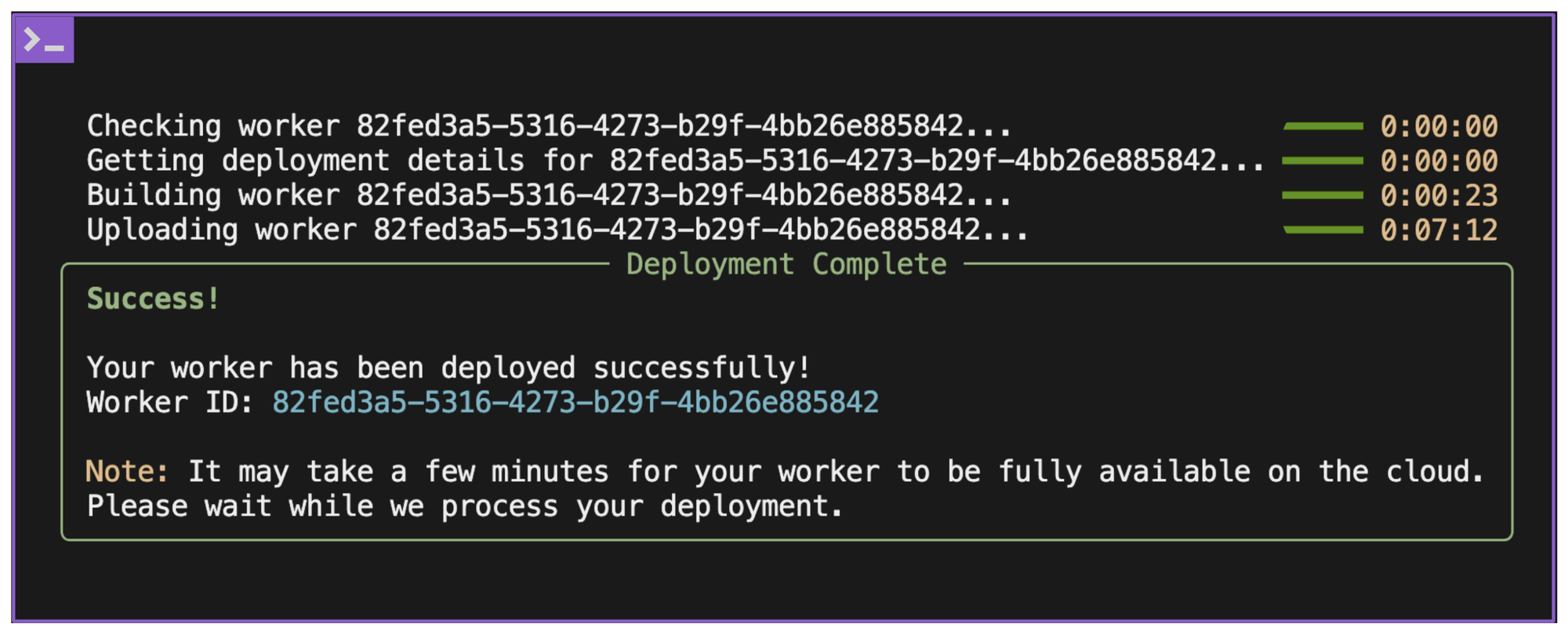
Now, deploy your agent to the VideoSDK cloud with a single command:
videosdk deployOnce the deployment is successful, the CLI will confirm the Deployment ID. This is the unique ID you set in the videosdk.yaml file. Keep it handy for the final step!
5. Configure VideoSDK & Twilio
This is where we connect the public phone number to your deployed agent.
Part A: VideoSDK Inbound Gateway
- Go to your VideoSDK Dashboard.
- Navigate to Telephony -> Inbound Gateways and click "Add Inbound Gateway".
- Give it a name (e.g.,
WhatsApp Agent Gateway). - VideoSDK will generate a unique SIP URI. Copy this URI.
Part B: Twilio TwiML Bin
-
Go to your Twilio Console.
-
Navigate to Develop -> TwiML Bins and create a new bin.
-
Give it a "Friendly Name" (e.g.,
Forward to VideoSDK). -
In the TwiML code section, paste the following XML, replacing
YOUR_VIDEOSDK_SIP_URIwith the URI you copied from the VideoSDK dashboard:<Response> <Dial> <Sip>YOUR_VIDEOSDK_SIP_URI</Sip> </Dial> </Response> -
Save the TwiML Bin.
-
Navigate to Phone Numbers -> Manage -> Active numbers and select your WhatsApp-enabled number.
-
Under the "A Call Comes In" section, select TwiML Bin and choose the bin you just created. Save the configuration.
Part C: VideoSDK Routing Rule
- Go back to your VideoSDK Dashboard.
- Navigate to Telephony -> Routing Rules and create a new rule.
- Configure the rule as follows:
- Direction:
Inbound - Gateway: Select the
WhatsApp Agent Gatewayyou created. - Room Type:
Dynamic(This is crucial for handling multiple calls). - Agent Type:
Cloud - Deployment ID: Select the unique ID of the agent you deployed.
- Direction:
- Save the Routing Rule.
7. You're Live!
That's it! Your AI voice agent is now live. Make a voice call to your number from WhatsApp to see it in action.
VideoSDK Agents
Build and deploy production-ready AI voice & video agents with VideoSDK. This repo is your central hub for agent templates, feature examples, and everything you need to ship real-world AI-powered applications.
| Resource | Description |
|---|---|
| 🚀 Use Case Examples | Production-ready templates across Customer Support, Healthcare, Tech Support & more |
| ⚡ Feature Examples | Always up-to-date examples showcasing the latest VideoSDK Agent features |
| 📖 AI Agents Docs | Full guides, concepts & API references to get you started |
⭐ If this helps you, star this repo and
videosdk-live/agents— it keeps us motivated to ship more!