

Repository
ai-telephony-demo
Build a fully functional AI telephony agent using [VideoSDK Agent](https://github.com/videosdk-live/agents). We will cover the complete workflow, from running the agent locally to · License unknown · Install via pip · Maintenance unknown
- License
- Unknown
- Resource
- Description
- 🚀 Use Case Examples
- Production-ready templates across Customer Support, Healthcare, Tech Support & more
- ⚡ Feature Examples
- Always up-to-date examples showcasing the latest VideoSDK Agent features
Specs
- ResourceDescription
- 🚀 Use Case ExamplesProduction-ready templates across Customer Support, Healthcare, Tech Support & more
- ⚡ Feature ExamplesAlways up-to-date examples showcasing the latest VideoSDK Agent features
- 📖 AI Agents DocsFull guides, concepts & API references to get you started
README



Project Structure
This simple structure is our final goal for the worker. By following along, you'll create this complete project from scratch.
worker/
├── main.py                 # The core logic for your AI voice agent
├── requirements.txt        # Python package dependencies
└── .env.example            # Environment variables
Prerequisites
- Python 3.12 or newer
- VideoSDK Account with a
VIDEOSDK_API_KEYandVIDEOSDK_SECRET_KEY - Google API key (for Gemini model)
Running the AI Agent Locally
1. Setup Env. Variables
Create a .env file with your credentials from template .env.example:
VIDEOSDK_API_KEY=your_videosdk_api_key_here
VIDEOSDK_SECRET_KEY=your_videosdk_secret_key_here
GOOGLE_API_KEY=your_google_api_key_here
API Keys - Get GOOGLE API KEY ↗, and sign up to VideoSDK Dashboard ↗ to grab your VIDEOSDK_API_KEY and VIDEOSDK_SECRET_KEY.
2. Create the environment
- On MacOS/Linux
python3 -m venv .venv- On Windows
Next, Activate it! Command differ based on your environment
source .venv/bin/activateYou'll know the environment is active when you see (.venv) at the beginning of your terminal prompt.
3. Install Dependencies
With the virtual environment active, install the necessary Python packages listed in your requirements.txt file:
pip install -r requirements.txt4. Run the Python Script
Finally, run the agent:
python main.pyThis will start your agent locally and register it with VideoSDK. You should see output confirming that your agent is running and registered with the agent_id "agent1".
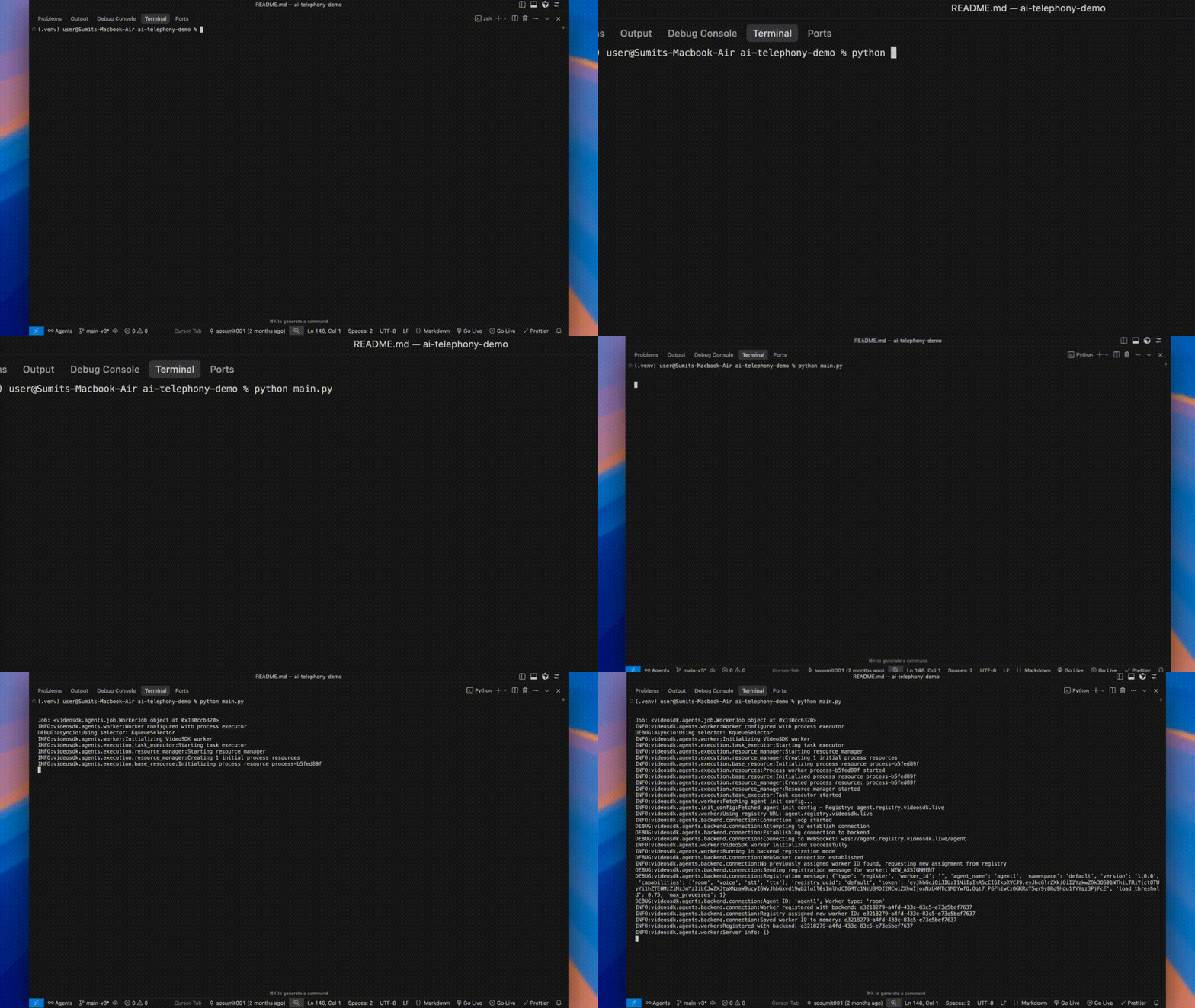
Important: Keep this terminal running! Your agent needs to stay active to handle incoming calls.
Connect Your AI Phone Agent to the Phone Network
1. Set up an Inbound Gateway
- In the VideoSDK Dashboard ↗, go to
Telephony>Inbound Gatewaysand click Add. - Name the gateway, add your phone number, and copy the generated Inbound Gateway URL.
- In your SIP provider's dashboard (e.g., Twilio ↗), Search for "Elastic SIP Trunk", click on it and create a new SIP Trunk, In Termination section, create "Termination SIP URI" and copy it.
- Paste this URL into the Origination SIP URI field.

2. Set up an Outbound Gateway
- In VideoSDK, go to
Telephony>Outbound Gatewaysand click Add. - Name the gateway and paste the Termination SIP URI from your SIP provider into the Address field.
- Set
TransportasTLSand turn on theMedia Encryption.

3. Create a Routing Rule
- Go to
Telephony>Routing Rulesand click Add. - Configure the rule:
- Gateway: Choose the gateway you just created.
- Agent Type: Set to
Self Hosted. - Agent ID: Enter
agent1(this matches the agent_id in your main.py file). - Click Create to link the gateway to your agent.

Making an Inbound Call
Once your routing rule is configured, you can test your AI agent by making an inbound call:
- Call your SIP provider number (the number you configured in your Inbound Gateway)
- Your AI agent will automatically answer and start the conversation
- The agent will greet you with: "Hello! I'm your real-time AI avatar assistant. How can I help you today?"
- You can have a conversation with the AI agent using natural speech
- The agent will respond using the Gemini Live model with voice synthesis
Making an Outbound Call
To trigger an outbound call from your agent, you can make a simple API request to the VideoSDK SIP endpoint.
Use a POST request with a VideoSDK JWT token (generated from your VIDEOSDK_API_KEY and VIDEOSDK_SECRET_KEY) for authorization. In the body, specify the gatewayId (from your Outbound Gateway) and the phone number to call in sipCallTo.
curl --request POST \
  --url <https://api.videosdk.live/v2/sip/call> \
  --header 'Authorization: YOUR_VIDEOSDK_TOKEN' \
  --header 'Content-Type: application/json' \
  --data '{
    "gatewayId": "gw_123456789",
    "sipCallTo": "+14155550123"
  }'
Next Step
That's it! You've successfully built a Python AI agent, run it locally, and connected it to the global telephone network for both inbound and outbound calls. Simply make a call to your SIP provider number and your AI agent will handle the conversation!
VideoSDK Agents
Build and deploy production-ready AI voice & video agents with VideoSDK. This repo is your central hub for agent templates, feature examples, and everything you need to ship real-world AI-powered applications.
| Resource | Description |
|---|---|
| 🚀 Use Case Examples | Production-ready templates across Customer Support, Healthcare, Tech Support & more |
| ⚡ Feature Examples | Always up-to-date examples showcasing the latest VideoSDK Agent features |
| 📖 AI Agents Docs | Full guides, concepts & API references to get you started |
⭐ If this helps you, star this repo and
videosdk-live/agents— it keeps us motivated to ship more!