

Repository
videodb-capture-quickstart
Give your AI eyes and ears — capture and understand what's happening on any desktop in real-time. What is VideoDB Capture? What is VideoDB Capture? A real-time desktop capture SDK · License unknown · Install via pip · Maintenance unknown
- License
- Unknown
- App
- Use Case
- Focusd
- Focusd
- Call.md
- Call.md
Specs
- AppUse Case
- FocusdFocusd
- Call.mdCall.md
- BloomBloom
- AppDescription
- Node.js Quickstart⚡ Minimal example to get started fast
- Python Quickstart🐍 Python version of quickstart
README





<br />

VideoDB Capture SDK
Give your AI eyes and ears — capture and understand what's happening on any desktop in real-time. Explore the docs » View Examples · Quick Start · Report Bug
</p>
Table of Contents
- What is VideoDB Capture?
- What You Can Build
- Architecture
- Core Concepts
- What You Get
- Installation
- Prerequisites
- Quick Start
- Community & Support
What is VideoDB Capture?
A real-time desktop capture SDK that lets your AI see and hear what's happening on a user's screen.
VideoDB Capture gives AI agents eyes and ears—stream screen, mic, and system audio for real-time processing, delivering structured insights (transcripts, visual descriptions, semantic indexes) in under 2 seconds.
How it works:
- Your backend creates sessions and mints short-lived tokens (API key stays secure on server)
- Desktop client streams media using the token (never sees your API key)
- VideoDB Cloud runs AI processing and delivers events via webhooks + WebSocket
- You control what AI pipelines to run (transcription, visual indexing, audio indexing)
🎬 What You Can Build
The flow: Backend creates session & token → Desktop streams media → Webhooks trigger AI → You get live events
Featured Applications
Each app below is fully functional and can be run locally. They demonstrate different use cases:
| App | Use Case | What It Does |
|---|---|---|
| Pair Programmer | 👁️ Agentic Skill for Coding Agents | Turn your coding agent into a screen aware, voice aware, context rich collaborator. Works with Claude Code, Cursor, Codex, and other skill compatible agents. |
| Focusd | 📊 Productivity Tracking | Records your screen all day, understands what you're working on, generates session summaries and daily recaps with actionable insights. |
| Call.md | 💼 Meeting Intelligence | Real-time AI meeting assistant with dual-channel transcription, live assists, MCP integration, and automated summaries. |
| Bloom | 🎥 Screen Recording | Local-first screen recorder with AI processing. Record, upload to VideoDB, and query with natural language. |
Quickstart Examples
| App | Description |
|---|---|
| Node.js Quickstart | ⚡ Minimal example to get started fast |
| Python Quickstart | 🐍 Python version of quickstart |
💡 New to VideoDB? Start with the Node.js Quickstart or Python Quickstart to understand the basics, then explore the featured apps.
Architecture
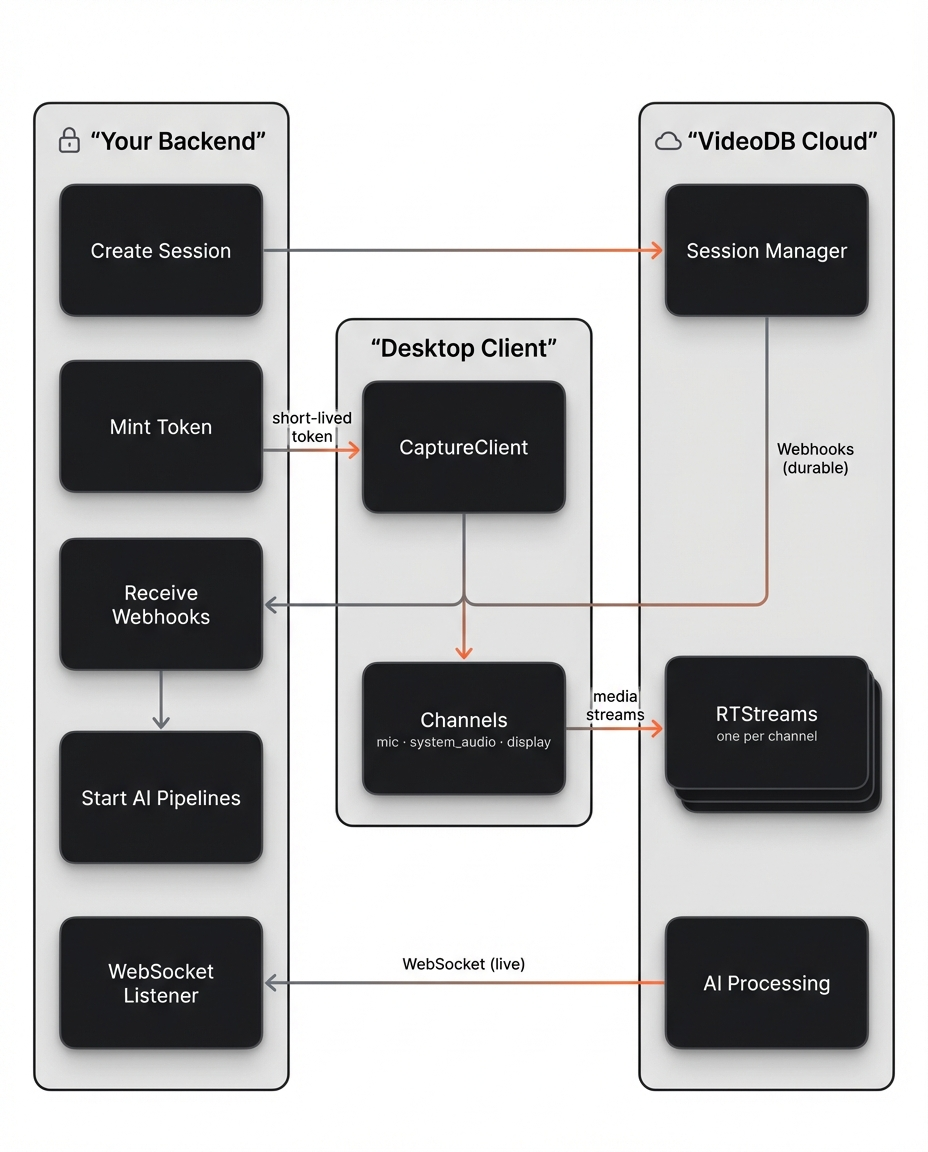
Key insight: You control the AI. When you get the capture_session.active webhook, you decide which RTStreams to process and what prompts to use.
Core Concepts
- Backend: Creating sessions & minting tokens (secure, server-side)
- Desktop Client: Capturing & streaming media (client-side, uses session token)
- Control Plane: Webhooks for durable session lifecycle events (
active,stopped,exported) - Realtime Plane: WebSockets for live transcripts, indexes, and UI updates
- CaptureSession (
cap-xxx): Container for one capture run - RTStream (
rts-xxx): Real-time stream per channel where you start AI pipelines - Channel: Recordable source like
mic:default,system_audio:default,display:1
What You Get
Your backend receives real-time structured events:
{"channel": "transcript", "data": {"text": "Let's schedule the meeting for Thursday", "is_final": true}}
{"channel": "scene_index", "data": {"text": "User is viewing a Slack conversation..."}}
{"channel": "audio_index", "data": {"text": "Discussion about scheduling a team meeting"}}
All events include timestamps. Build timelines, search past moments, or trigger actions in real-time.
Installation
# Node.js
npm install videodb

# Python
pip install "videodb[capture]"
Prerequisites
- Get an API Key: Sign up at console.videodb.io
- Set Environment Variable:
export VIDEO_DB_API_KEY=your_api_key
🚀 Quick Start
The SDK works in a 4-step flow:
Step 1: Backend Creates Session
Node.js
import { connect } from 'videodb';
const conn = connect();
const ws = await conn.connectWebsocket();
await ws.connect();

const session = await conn.createCaptureSession({
  endUserId: "user_abc",
  callbackUrl: "https://your-backend.com/webhooks/videodb",
  wsConnectionId: ws.connectionId,
  metadata: { app: "my-app" }
});

const token = await conn.generateClientToken(600);
console.log({ sessionId: session.id, token });
Python
import videodb
conn = videodb.connect()

session = conn.create_capture_session(
    end_user_id="user_abc",
    collection_id="default",
    callback_url="https://your-backend.com/webhooks/videodb",
    metadata={"app": "my-app"}
)

token = conn.generate_client_token(expires_in=600)
print(f"Session: {session.id}, Token: {token}")
Step 2: Desktop Starts Capture
The desktop client uses the token to stream media. It never sees your API key.
Node.js
import { CaptureClient } from 'videodb/capture';

const client = new CaptureClient({ sessionToken: token });

await client.requestPermission('microphone');
await client.requestPermission('screen-capture');

const channels = await client.listChannels();
const micChannel = channels.mics.default;
const displayChannel = channels.displays.default;

await client.startSession({
  sessionId: session.id,
  channels: [
    {
      channelId: micChannel.id,
      type: 'audio',
      record: true,
      transcript: true
    },
    {
      channelId: displayChannel.id,
      type: 'video',
      record: true
    }
  ]
});
Python
import asyncio
from videodb.capture import CaptureClient

async def main():
    client = CaptureClient(client_token=token)

    await client.request_permission("microphone")
    await client.request_permission("screen_capture")

    channels = await client.list_channels()
    mic = channels.mics.default
    display = channels.displays.default

    mic.store = True
    display.store = True

    await client.start_session(
        capture_session_id=session.id,
        channels=[mic, display],
        primary_video_channel_id=display.id
    )

asyncio.run(main())
Step 3: Backend Triggers AI Pipelines
VideoDB sends webhooks when the session is active. Use this to start AI processing.
Node.js
// Webhook handler: Start AI on active streams
if (payload.event === "capture_session.active") {
  const cap = await conn.getCaptureSession(payload.capture_session_id);

  // Start transcription on mic
  const mic = cap.getRtstream("mics")[0];
  await mic.startTranscript();
  await mic.indexAudio({ prompt: "Extract action items" });

  // Start visual indexing on screen
  const screen = cap.getRtstream("displays")[0];
  await screen.indexVisuals({ prompt: "Describe screen activity" });
}
Python
# Webhook handler: Start AI on active streams
if payload["event"] == "capture_session.active":
    cap = conn.get_capture_session(payload["capture_session_id"])

    # Start transcription on mic
    if mics := cap.get_rtstream("mic"):
        mics[0].start_transcript()
        mics[0].index_audio(prompt="Extract action items")

    # Start visual indexing on screen
    if displays := cap.get_rtstream("screen"):
        displays[0].index_visuals(prompt="Describe screen activity")
Step 4: Backend Receives Live Events
Connect via WebSocket to consume real-time transcripts and insights.
Node.js
const ws = await conn.connectWebsocket();
await ws.connect();

// Receive live events
for await (const ev of ws.receive()) {
  if (ev.channel === "transcript") {
    console.log(`Transcript: ${ev.data.text}`);
  }
}
Python
ws_wrapper = conn.connect_websocket()
ws = await ws_wrapper.connect()

# Receive live events
async for ev in ws.receive():
    if ev["channel"] == "transcript":
        print(f"Transcript: {ev['data']['text']}")
Community & Support
- Docs: docs.videodb.io
- Issues: GitHub Issues
- Discord: Join community
- Console: Get API key
Made with ❤️ by the VideoDB team