

Repository
sfguide-getting-started-with-cortex-agents
Getting Started with Cortex Agents This project utilizes Snowflake Cortex Agents to analyze sales conversations and extract actionable insights. By leveraging semantic search and A · License unknown · Maintenance unknown
- License
- Unknown
README
Getting Started with Cortex Agents
Overview
This project utilizes Snowflake Cortex Agents to analyze sales conversations and extract actionable insights.
By leveraging semantic search and AI-driven analytics, the platform enables sales teams to gain deeper visibility into
customer interactions, sales performance, and deal outcomes.
The core functionalities include:
- Sales conversation analysis using Snowflake Cortex Search
- Semantic search over sales data utilizing Cortex Analyst
- Use Cortex Agents to use both under one API
In this quickstart you will:
- Create a Cortex Search Service
- Create a Semantic Model for Cortex Analyst
- Create a Data Agent that can use Cortex Search and Cortex Analyst
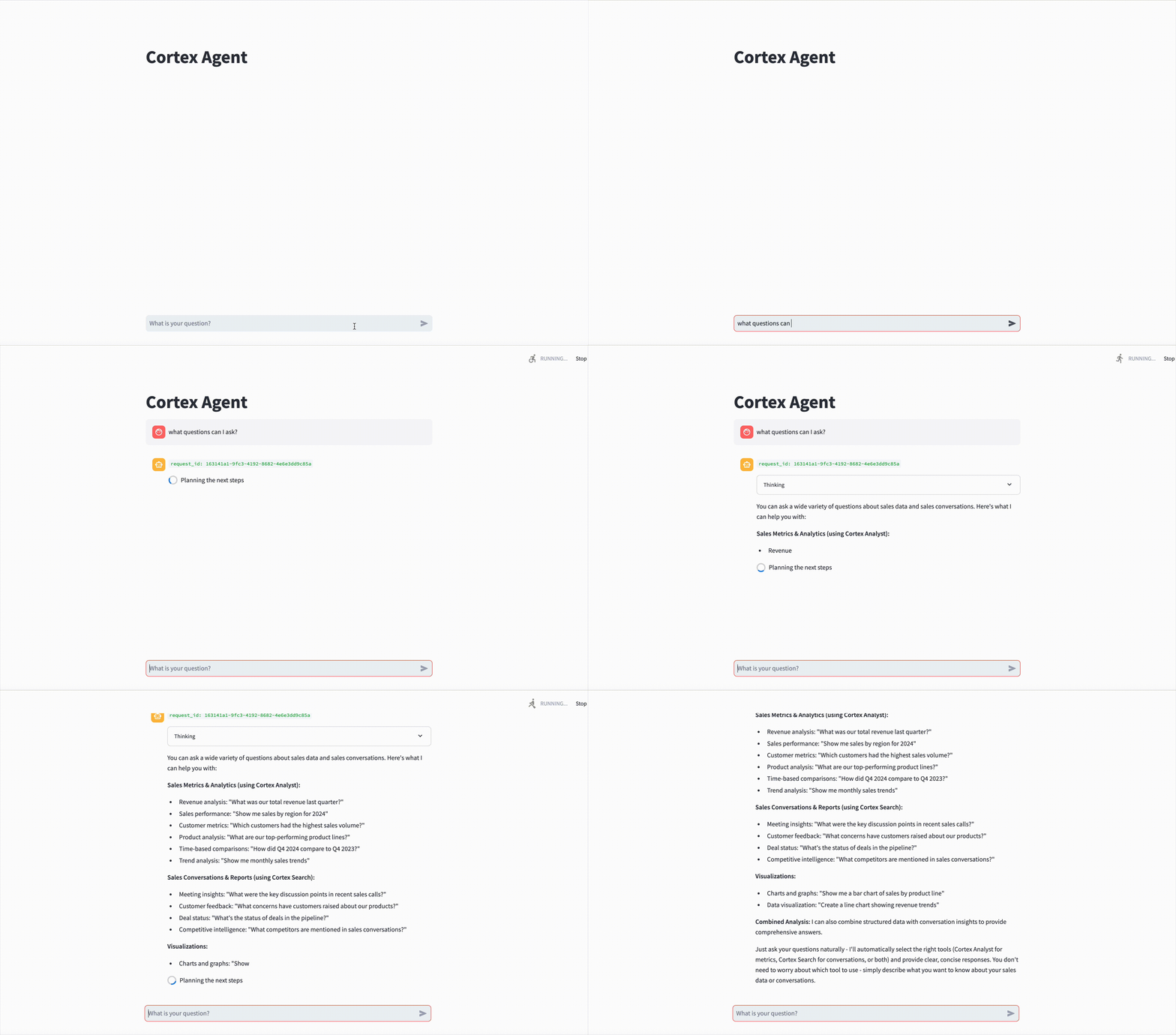
- Create a streamlit application to chat with the Agent via the API
Step-By-Step Guide
You can follow this guide here or in the QuickStart Guide
1. Run setup script
First, let's get your account setup with some sample data. Run the script in setup.sql in a worksheet, with
snowsql, or any other way you prefer.
If you with to use a pre-existing database, schema, and warehouse, skip the first two steps of the setup script.
2. Upload semantic model
Upload the Semantic Model yaml sales_metrics_model.yaml.
In Snowsight:
- Navigate to Data (Or Catalog » Database Explorer) » Databases » SALES_INTELLIGENCE » DATA » Stages » MODELS
- Click "+ Files" in the top right
- Browse and select sales_metrics_model.yaml file
- Click "Upload"
Or with snowsql run: PUT file://sales_metrics_model.yaml @sales_intelligence.data.models AUTO_COMPRESS=false;
3. Create a PAT token to call the Snowflake REST APIs
In Snowsight:
- Click on your profile (bottom left corner) » Settings » Authentication
- Under
Programmatic access tokens, clickGenerate new token - Select
Single Roleand selectsales_intelligence_role - Copy and save the token for later (you will not be able to see it again)
4. Create the Agent
Run the following command on your terminal to create an Agent via the REST API, replacing the PAT token and account URL.
You can find your account URL in Snowsight: Click on your profile (bottom left corner) » Account » View account details.
curl -X POST https://{ACCOUNT_URL}/api/v2/databases/snowflake_intelligence/schemas/agents/agents \
-H 'Content-Type: application/json' \
-H 'Accept: application/json' \
-H 'Authorization: Bearer {PAT_TOKEN}' \
-d @create_agent.json
Alternatively, you can create the Agent in Snowsight navigating to AI & ML » Agents » Create Agent (see step by step
in the QuickStart Guide).
After creating you can chat with the Agent via Snowflake Intelligence.
In Snowsight, click on AI & ML » Snowflake Intelligence, select the SALES_INTELLIGENCE_AGENT in the chat bar, and ask
any questions you'd like!
5. Run the streamlit
Now that you have created your agent, run the sample streamlit to interact with it.
Make sure to populate the PAT and HOST params correctly.
(Note: this guide was built using Python 3.11)
python3 -m venv venv
source venv/bin/activate
pip3 install -r requirements.txt

CORTEX_AGENT_DEMO_PAT=<PAT> \
CORTEX_AGENT_DEMO_HOST=<ACCOUNT_URL> \
CORTEX_AGENT_DEMO_DATABASE="SNOWFLAKE_INTELLIGENCE" \
CORTEX_AGENT_DEMO_SCHEMA="AGENTS" \
CORTEX_AGENT_DEMO_AGENT="SALES_INTELLIGENCE_AGENT" \
streamlit run data_agent_demo.py
The streamlit uses python code auto-generated using https://openapi-generator.tech/. It creates the pydantic classes in
/models for the request and response objects based on the OpenAPI spec at cortexagent-run.yaml. You can regenerate
those files by running the script openapi-generator.sh (assuming you have docker installed and running locally).