

Repository
Benchmarking-YOLOv8-on-Raspberry-PI-reComputer-r1000-and-AIkit-Hailo-8L
This repository provides benchmarks and performance evaluations of the YOLO (You Only Look Once) model running on the Raspberry Pi Compute Module 4 (CM4) with an AI kit.
README
Benchmarking-YOLOv8-on-Raspberry-PI-reComputer-r1000-and-AIkit-Hailo-8L
This repository demonstrates object detection model using YOLOv8 on a Raspberry Pi CM4 with Hailo Acceleration. The Raspberry Pi AI Kit enhances the performance of the Raspberry Pi and unlock its potential in artificial intelligence and machine learning applications, like smart retail, smart traffic and more. Although the Raspberry AI Kit is designed for Raspberry Pi 5, we have experimented it on our CM4-powered edge gateway. Excited about turning our edge device into an intelligent IoT gateway!
Hardware Preparation
reComputer R1000: Raspberry Pi CM4 Gateway, 4GB RAM, 32GB eMMC

Raspberry Pi AI Kit

M.2 hat Raspberry Pi 5(Only need for Raspberry Pi 5)

Install Hailo-8L on the reComputer R1000
step 1. Install the Hailo-8L on the Raspberry Pi CM4
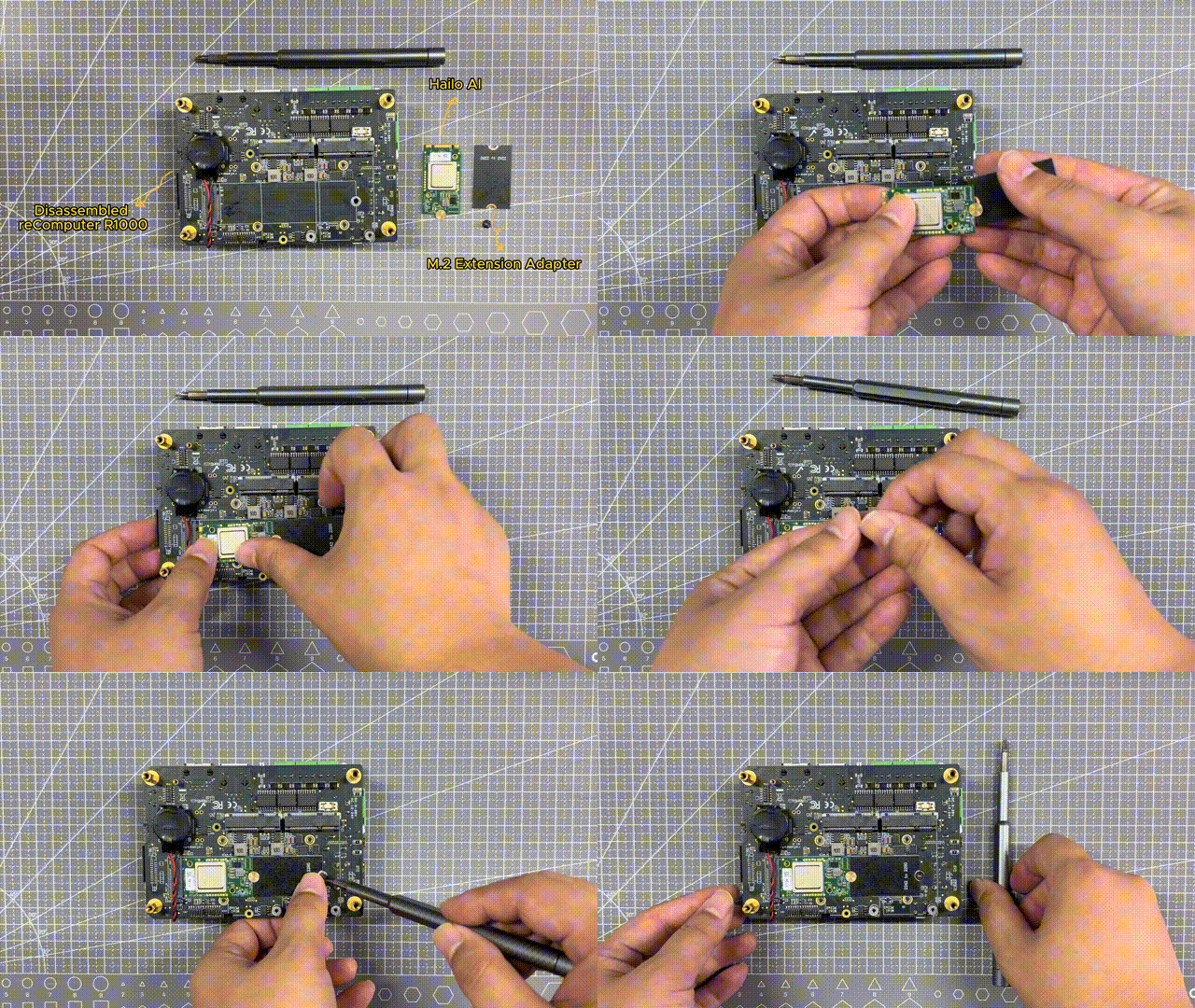
Step 2. Switch to use X11 backend
sudo apt update
sudo apt full-upgrade
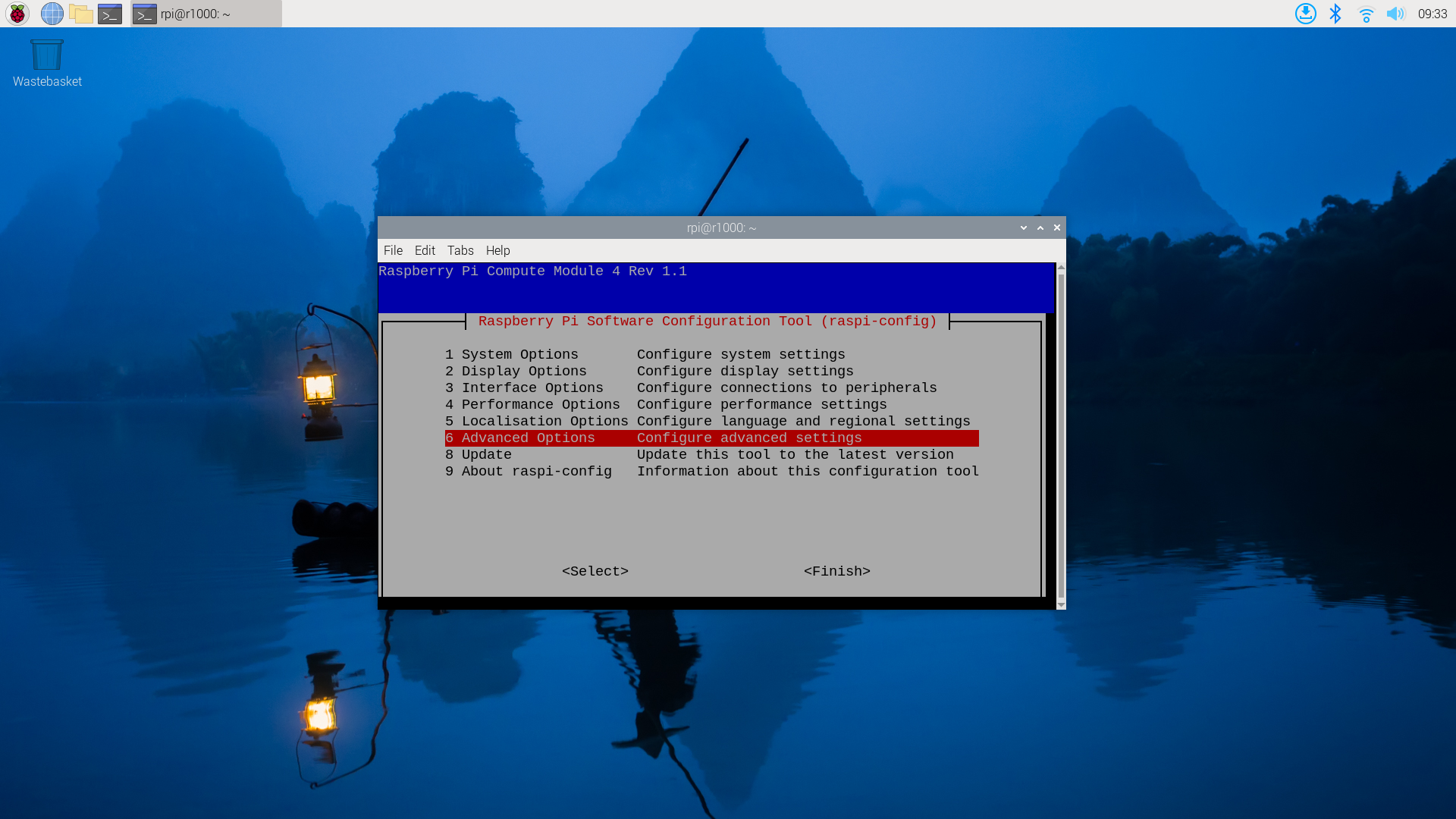
sudo raspi-config
Select option "6 Advanced Options":
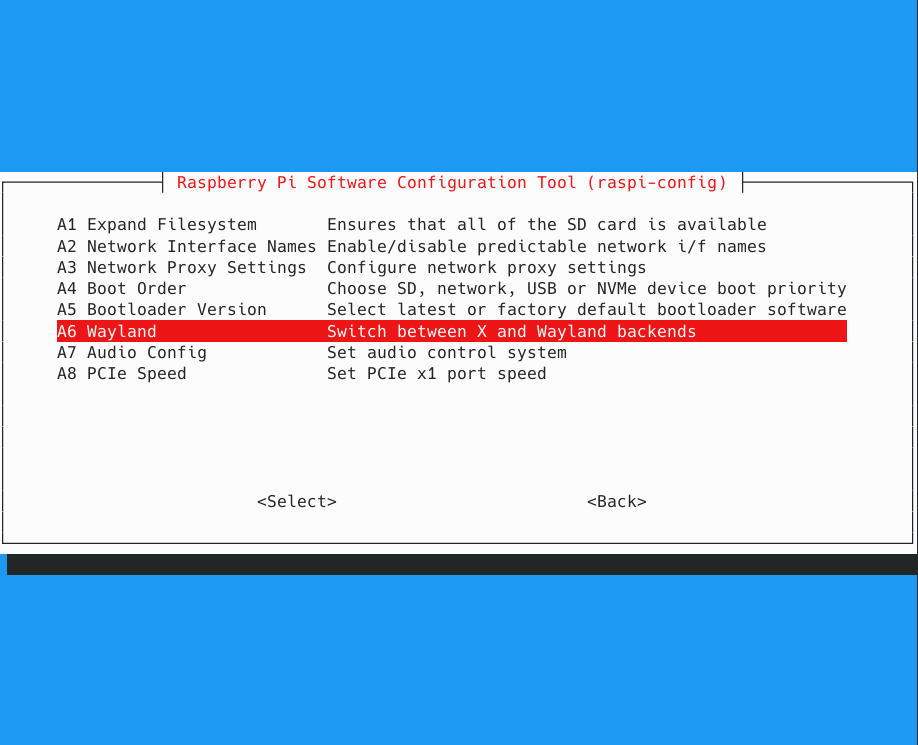
Then select option "A6 Wayland":
Choose "W1 X11" to use X11 backend:
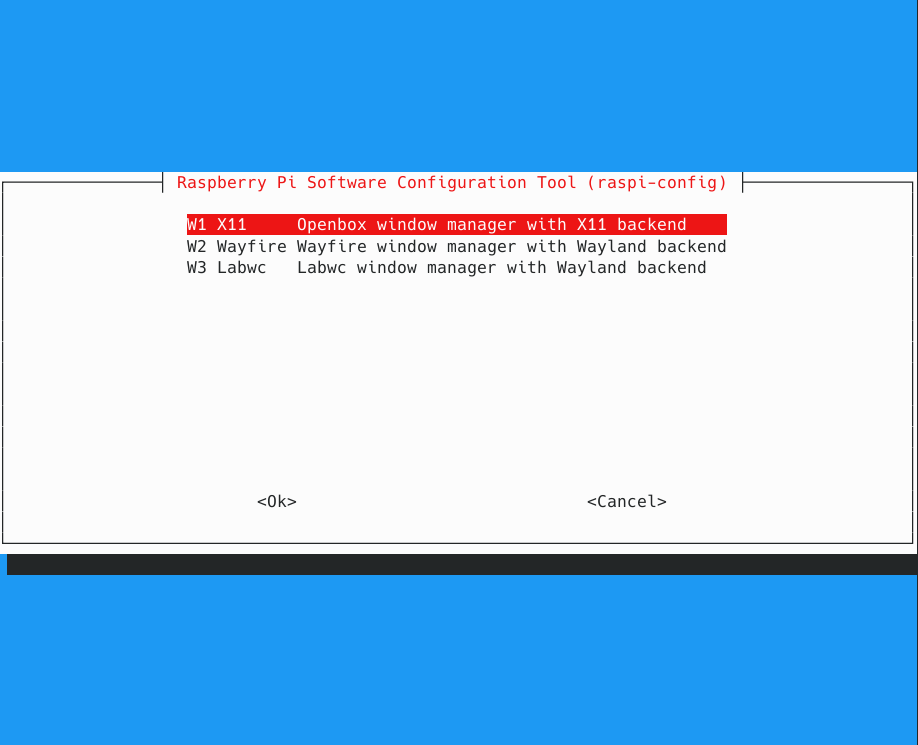
Click "OK" to exit.
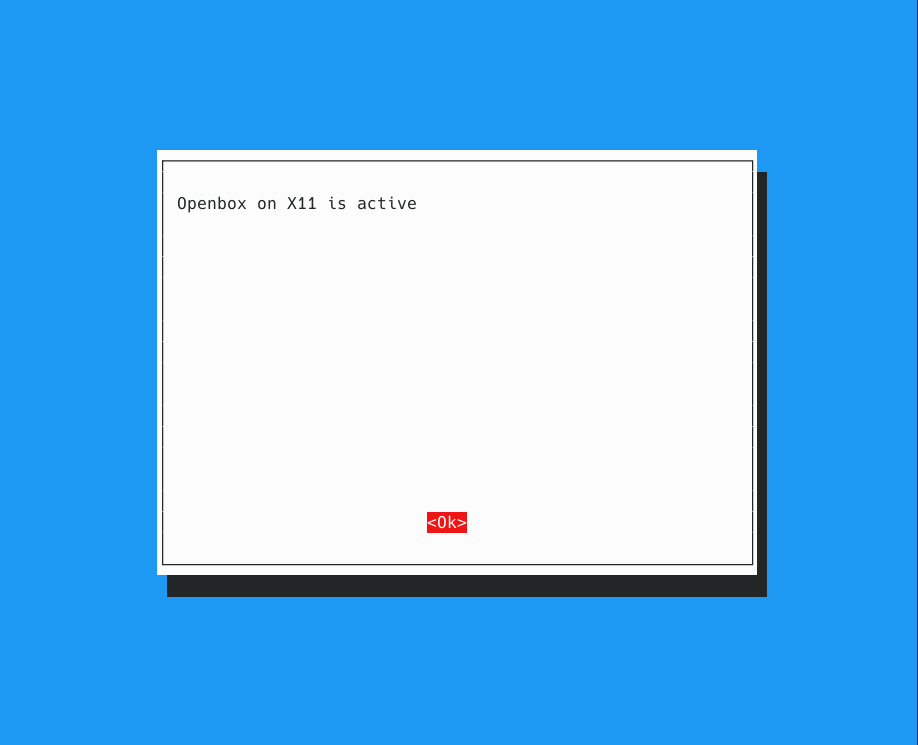
Step 3. Update system & Set pcie to gen3
Select option "6 Advanced Options":
Then select option "A8 PCIe Speed":
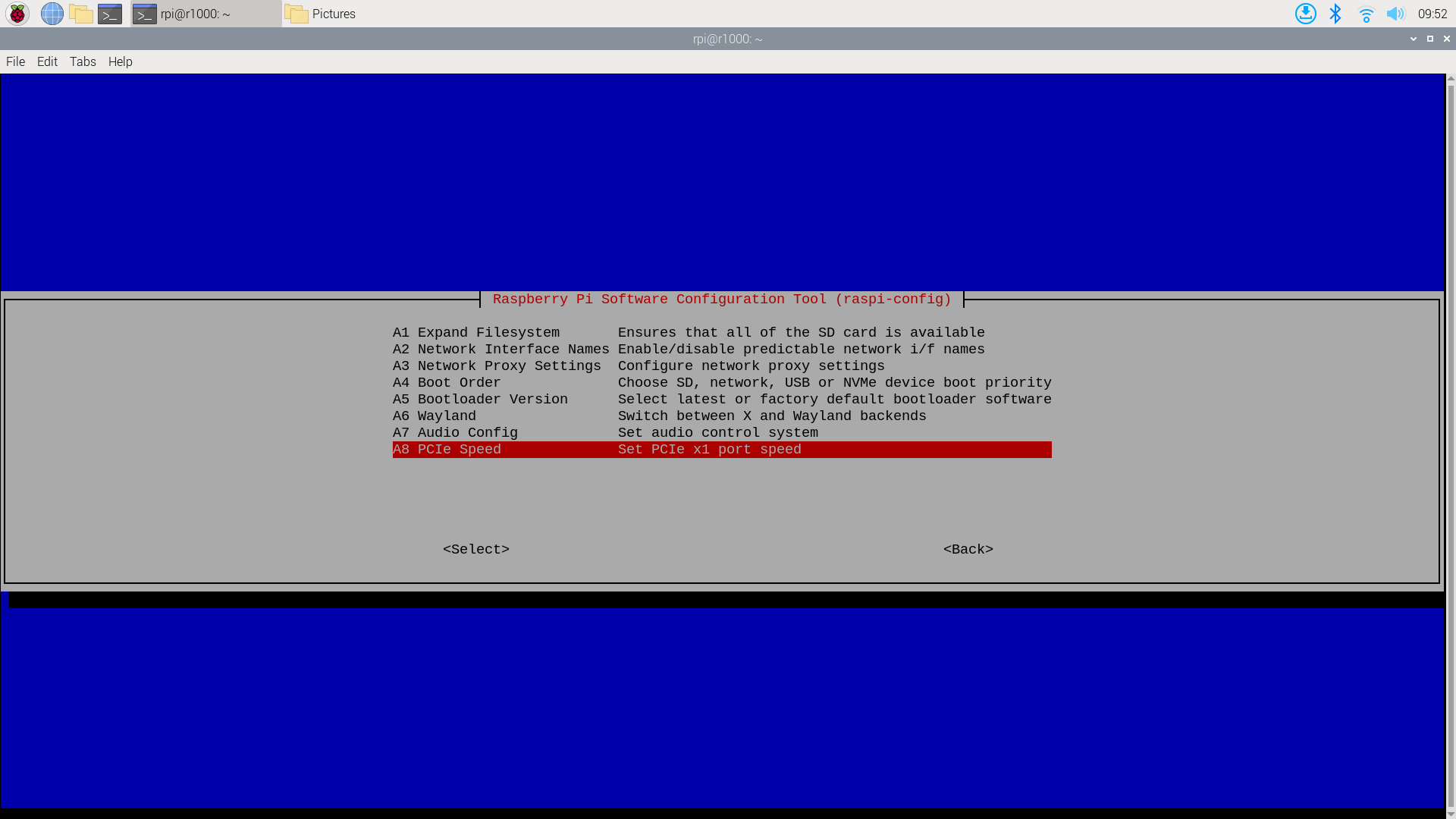
Choose "Yes" to enable PCIe Gen 3 mode:
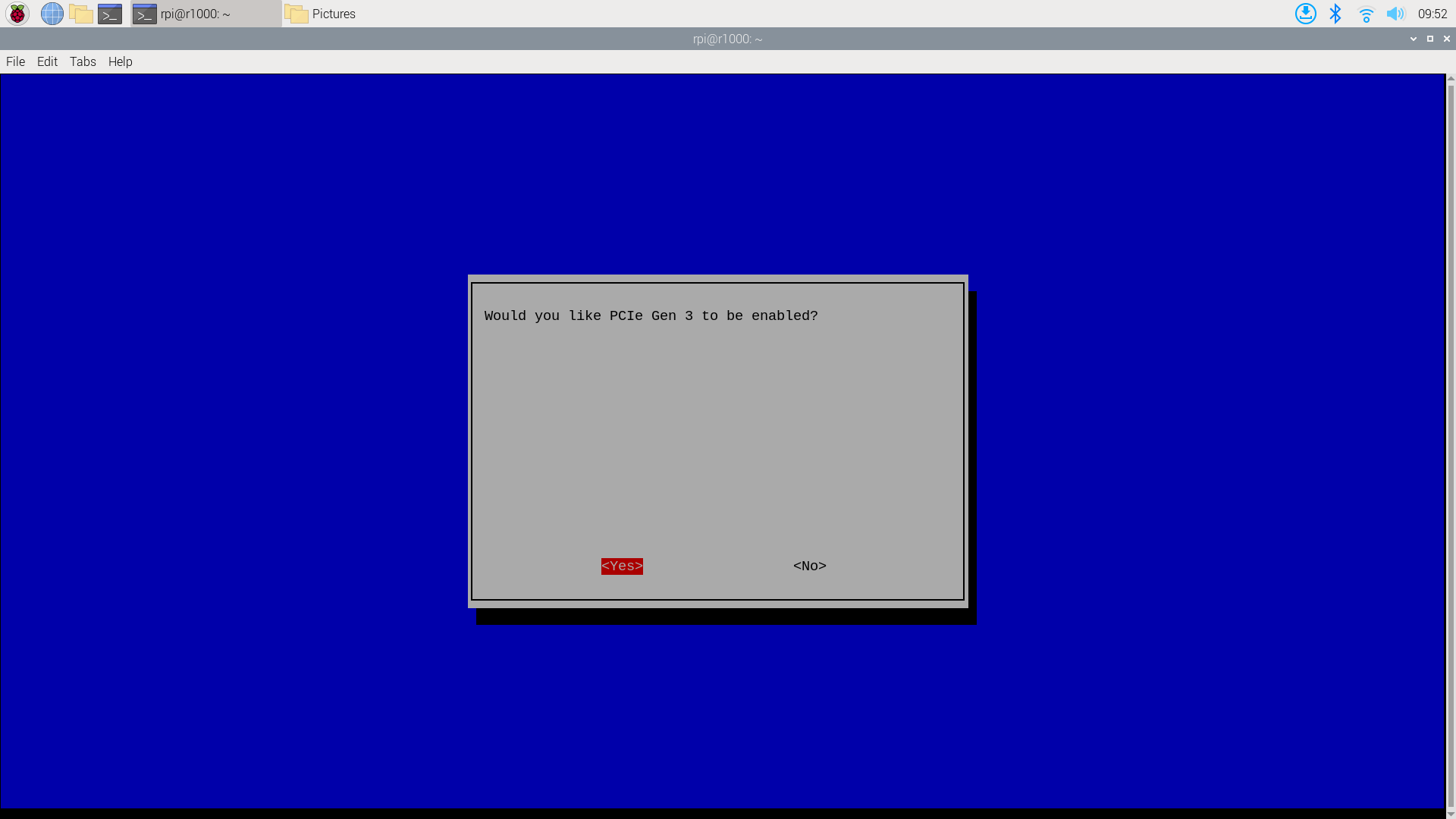
Click "Finish" to exit.
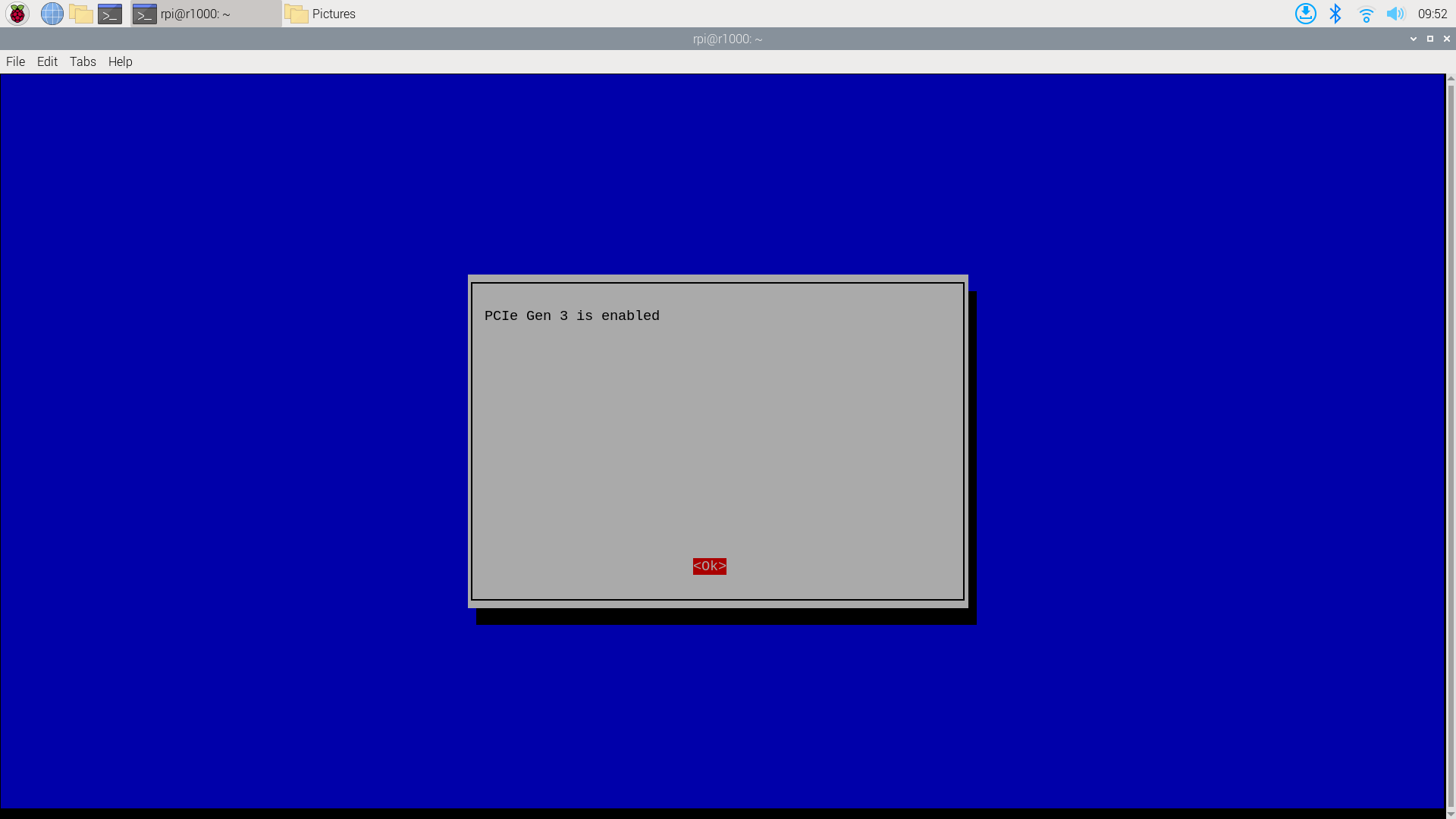
Step 4. Install Hailo Software & Verify Installation
Install hailo-all and reboot
sudo apt install hailo-all
sudo reboot
Check that the Hailo software is installed correctly by running the following command:
hailortcli fw-control identifyThe true result is as follows:

Check hailo hardware is installed correctly by running the following command:
lspci | grep HailoThe true result is as follows:

Install AI kit on Respberry Pi5
Step 1. Install the Hailo-8L on the Raspberry Pi 5
Please reference Respberry Pi 5 to install AI kit on Respberry Pi5.

Step 2. Install Hailo Software & Verify Installation
Install hailo-all and reboot
sudo apt install hailo-all
sudo reboot
Check that the Hailo software is installed correctly by running the following command:
hailortcli fw-control identifyThe true result is as follows:
Check hailo hardware is installed correctly by running the following command:
lspci | grep HailoThe true result is as follows:
Step 3. Set pcie to gen2/gen3(gen3 is faster than gen2)
Add follows to /boot/firmware/config.txt
#Enable the PCIe external connector

dtparam=pciex1

#Force Gen 3.0 speeds

dtparam=pciex1_gen=3
[!Note]
If you want to use gen2,please commentdtparam=pciex1_gen=3
Run this project
Run object detection AI kit
Step 1. Install the repository
git clone https://github.com/Seeed-Projects/Benchmarking-YOLOv8-on-Raspberry-PI-reComputer-r1000-and-AIkit-Hailo-8L.gitStep 2. The following command to run the object
cd Benchmarking-YOLOv8-on-Raspberry-PI-reComputer-r1000-and-AIkit-Hailo-8L
bash ./run.sh object-detection
Result
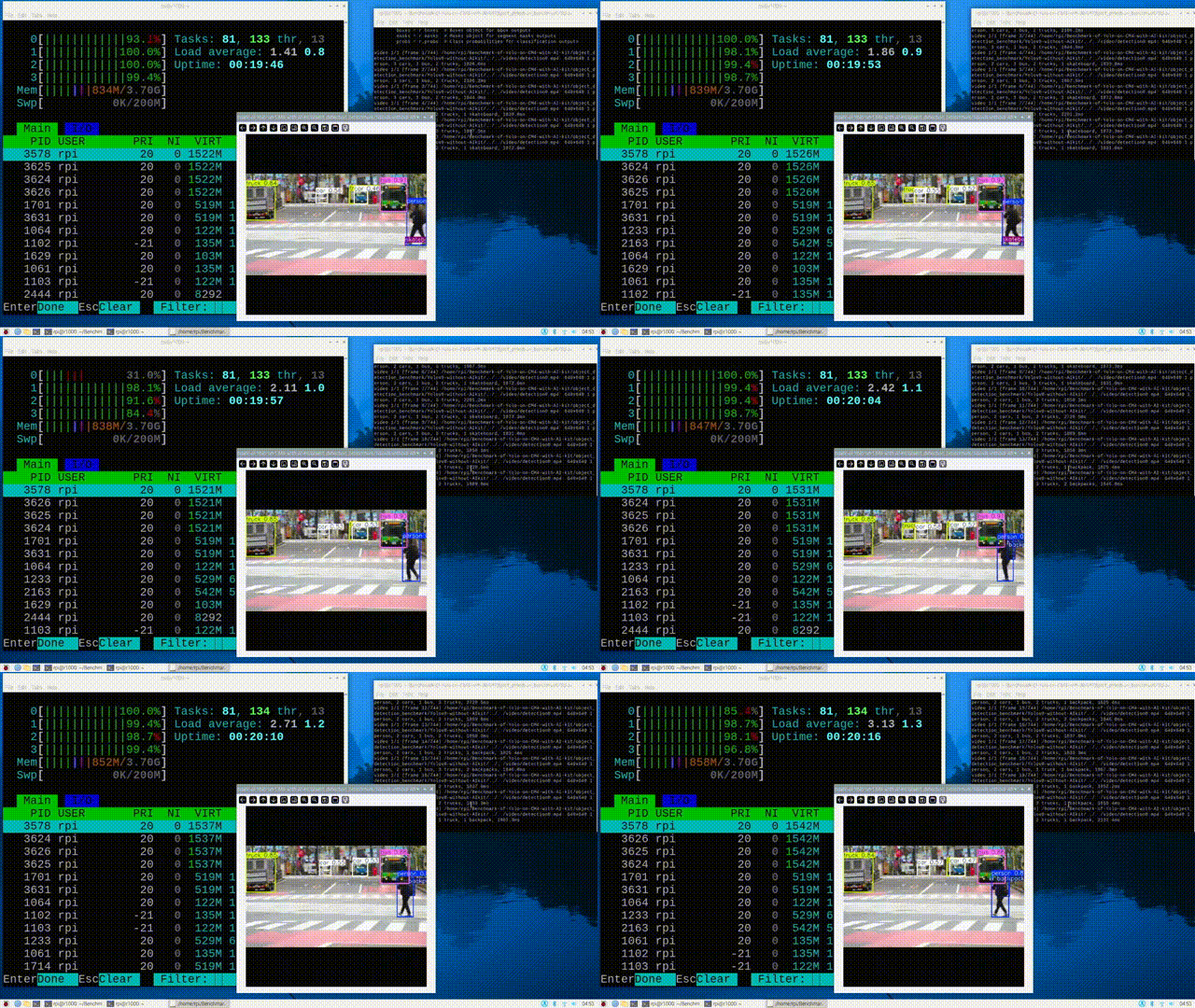
Run object detection with AI kit
Step 1. Install the repository
git clone https://github.com/Seeed-Projects/Benchmarking-YOLOv8-on-Raspberry-PI-reComputer-r1000-and-AIkit-Hailo-8L.gitStep 2. The following command to run the object
cd Benchmarking-YOLOv8-on-Raspberry-PI-reComputer-r1000-and-AIkit-Hailo-8L
bash ./run.sh object-detection-hailo
Result
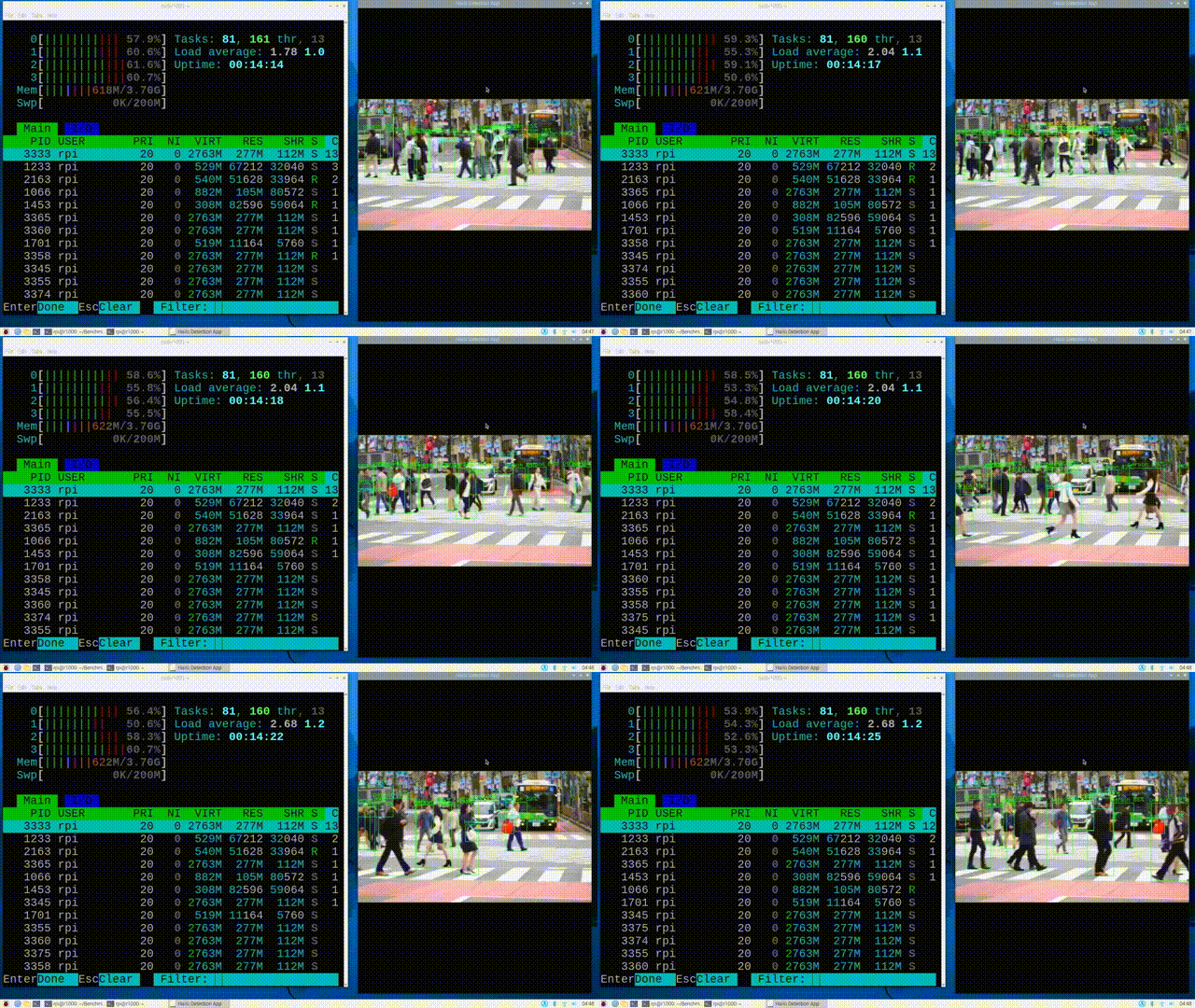
Run pose estimation without AI kit
Step 1. Install the repository
git clone https://github.com/Seeed-Projects/Benchmarking-YOLOv8-on-Raspberry-PI-reComputer-r1000-and-AIkit-Hailo-8L.gitStep 2. The following command to run the object
cd Benchmarking-YOLOv8-on-Raspberry-PI-reComputer-r1000-and-AIkit-Hailo-8L
bash ./run.sh pose-estimation
Result
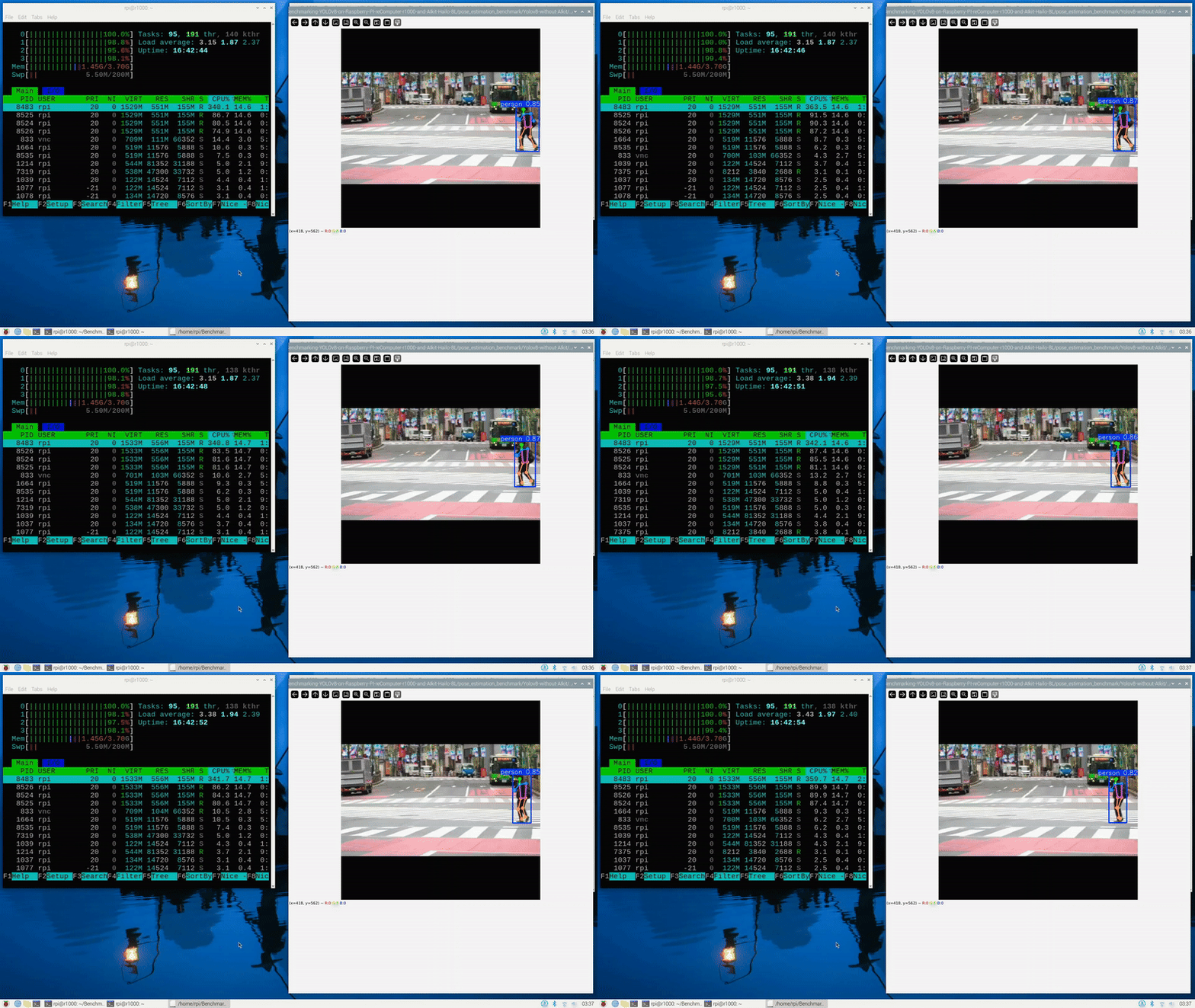
Run pose estimation with AI kit
Step 1. Install the repository
git clone https://github.com/Seeed-Projects/Benchmarking-YOLOv8-on-Raspberry-PI-reComputer-r1000-and-AIkit-Hailo-8L.gitStep 2. The following command to run the object
cd Benchmarking-YOLOv8-on-Raspberry-PI-reComputer-r1000-and-AIkit-Hailo-8L
bash ./run.sh pose-estimation-hailo
Result
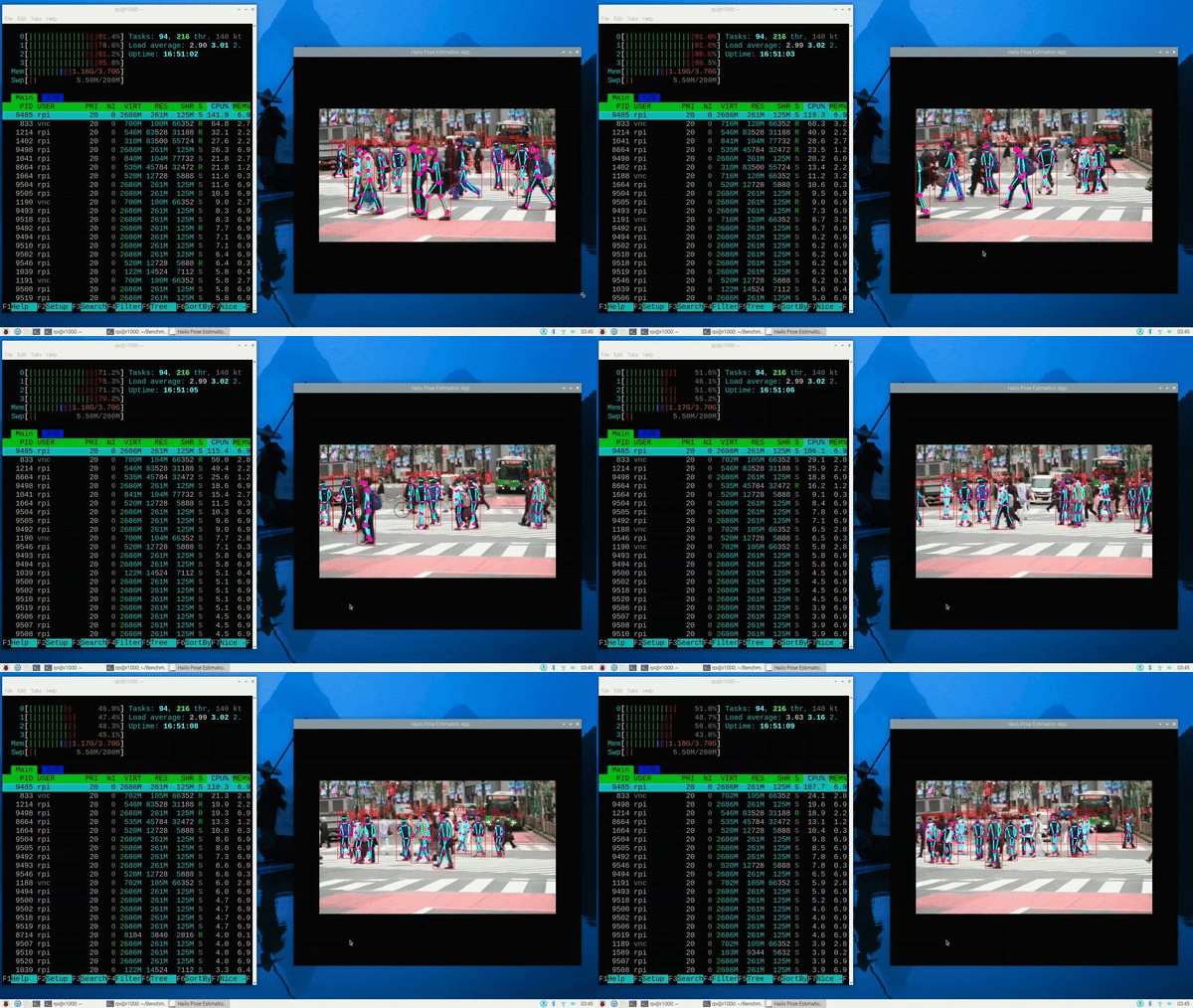
Results
we test Yolov8s, with 640*640 input and int8 format. And we also test Yolov8s int8 on Jetson Orin NX 16GB with TensorRT accelerate. The result is shown as below:
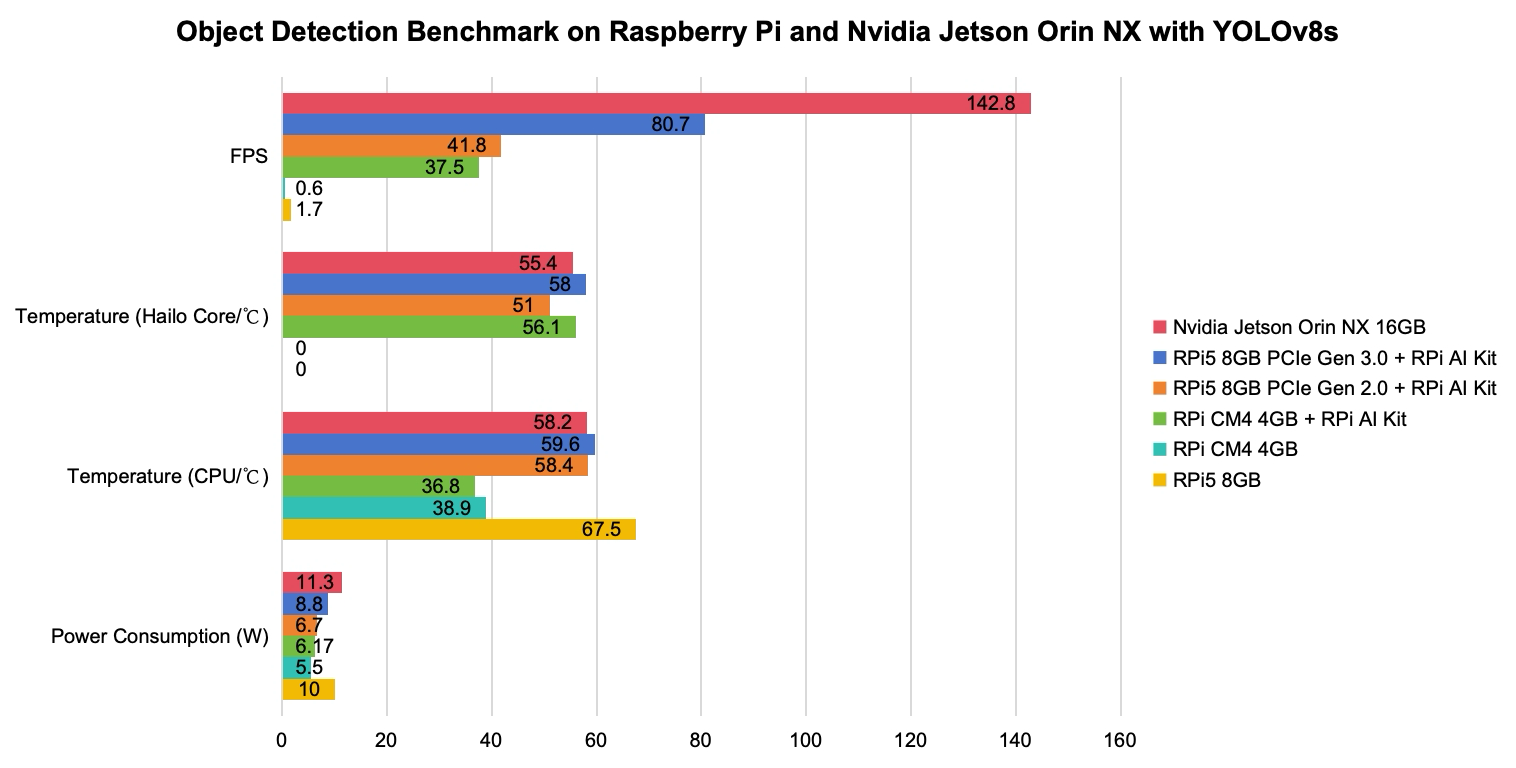
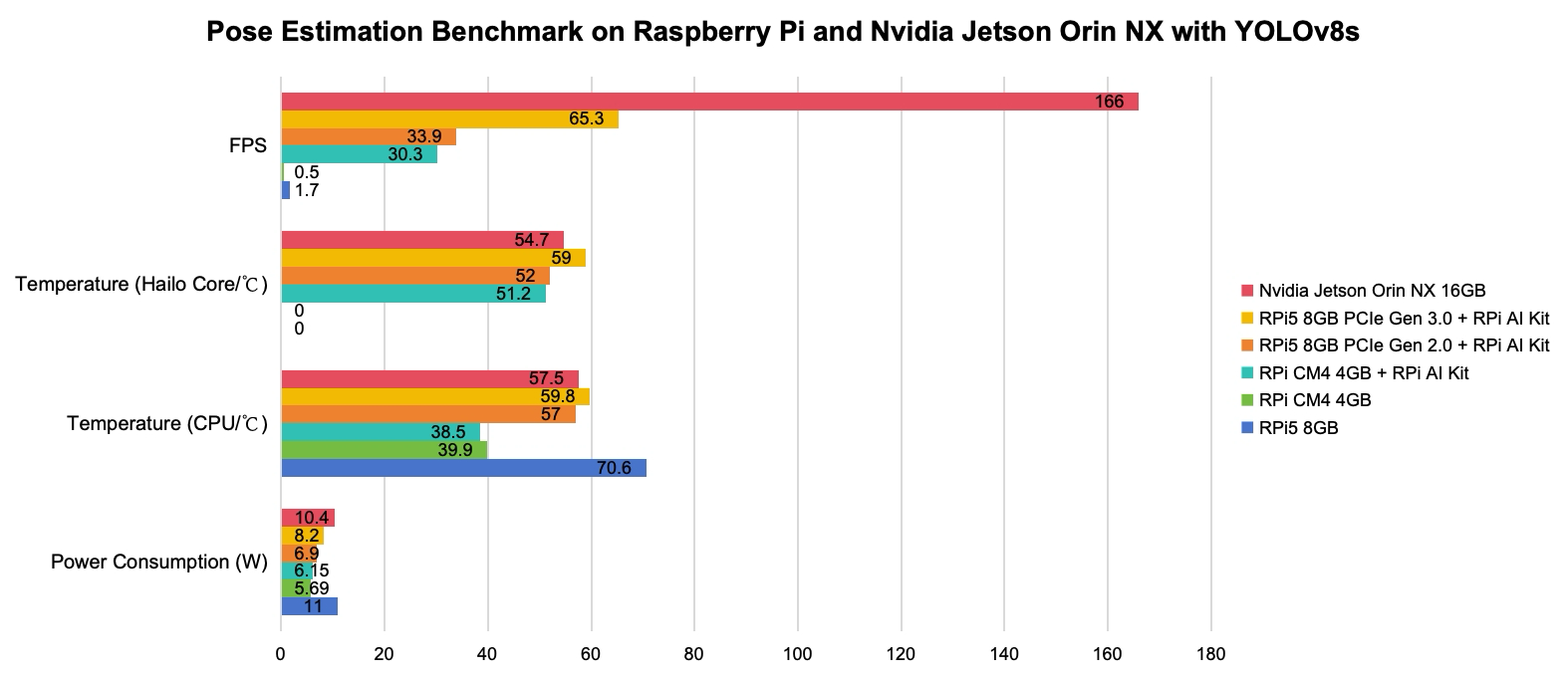
M.2 hat Raspberry Pi 5 (Only need for Raspberry Pi 5)
1
-
Install Hailo-8L on the reComputer R1000