

Repository
ansible-playbook-k8s-wordpress-mysql
wordpress Ansible-Playbook-K8-Wordpress-MySQL
README
Automating Kubernetes Cluster on AWS using Ansible and deploying WordPress with MySQL on k8s cluster

View all Roadmaps · Best Practices · Questions
USE-CASE
- Create Ansible Playbook to launch 3 AWS EC2 Instance
- Create Ansible Playbook to configure Docker over those instances
- Create Playbook to configure K8S Master, K8S Worker Nodes on the above created EC2 Instances using kubeadm
- Launch a WordPress and MySQL database connected to it in the respective slaves
- Expose the WordPress pod and the client able to hit the WordPress IP with its respective port.
Pre-requisite: (FOR RHEL-8)
- Controller node should be setup with ansible installation and configuration, when controller node is RHEL8
- Create one
IAMuser having Administrator Access and note down theiraccess keyandsecret key - Create one
Key pairin(.pem)format on AWS Cloud, download it in your local system and transfer it over RHEL-8 throughWinSCP.
STEP 1 : Ansible Installation and Configuration
Install Ansible on Base OS (RHEL8), configure ansible configuration file.
To do this use below commands-
yum install python3 -y

pip3 install ansible -y

vim /etc/ansible/ansible.cfg
NOTE: Python should be installed on your OS to setup Ansible.
Write below commands in your configuration ansible.cfg file. For this you can prefer any editor like vi, vim, gedit-
[defaults]
inventory=/root/ip.txt  #inventory path
host_key_checking=False
command_warnings=False
deprecation_warnings=False
ask_pass=False
roles_path= /root/roles      #roles path
force_valid_group_names = ignore
private_key_file= /root/awskey.pem   #your key-pair
remote_user=ec2-user

[privilege_escalation]
become=True
become_method=sudo
become_user=root
become_ask_pass=False
STEP 2 : Create Ansible Roles
🔶 Go inside your roles workspace
cd /rolesUse Below commands to create 3 different roles
- For Kubernetes Cluster
- For Kubernetes Master
- For Kubernetes Slaves
# ansible-galaxy init
ansible-galaxy init kube_cluster
ansible-galaxy init k8s_master
ansible-galaxy init k8s_slave
ansible-galaxy init wordpress_mysql
### STEP 3 : Write role for Kubernetes Cluster
🔶 Go inside the tasks folder. We have to write entire tasks inside this folder
cd /roles/kube_cluster/tasks
vim main.yml
> 🔶 I am going to create cluster over `Amazon Linux instances`.
Write below source code inside it--
name: Installing boto & boto3 libraries
pip:
name: "{{ item }}"
state: present
loop: "{{ lib_names }}" -
name: Creating Security Group for K8s Cluster
ec2_group:
name: "{{ sg_name }}"
description: Security Group for allowing all port
region: "{{ region_name }}"
aws_access_key: "{{ access_key }}"
aws_secret_key: "{{ secret_key }}"
rules:- proto: all
cidr_ip: 0.0.0.0/0
rules_egress: - proto: all
cidr_ip: 0.0.0.0/0
- proto: all
-
name: Launching three EC2 instances on AWS
ec2:
key_name: "{{ keypair }}"
instance_type: "{{ instance_flavour }}"
image: "{{ ami_id }}"
wait: true
group: "{{ sg_name }}"
count: 1
vpc_subnet_id: "{{ subnet_name }}"
assign_public_ip: yes
region: "{{ region_name }}"
state: present
aws_access_key: "{{ access_key }}"
aws_secret_key: "{{ secret_key }}"
instance_tags:
Name: "{{ item }}"
register: ec2
loop: "{{ instance_tag }}" -
name: Add 1st instance to host group ec2_master
add_host:
hostname: "{{ ec2.results[0].instances[0].public_ip }}"
groupname: ec2_master -
name: Add 2nd instance to host group ec2_slave
add_host:
hostname: "{{ ec2.results[1].instances[0].public_ip }}"
groupname: ec2_slave -
name: Add 3rd instance to host group ec2_slave
add_host:
hostname: "{{ ec2.results[2].instances[0].public_ip }}"
groupname: ec2_slave -
name: Waiting for SSH
wait_for:
host: "{{ ec2.results[2].instances[0].public_dns_name }}"
port: 22
state: started
#### Explanation of Source Code:
1. We are using `pip` module to install two packages — `boto` & `boto3`, because these packages has the capability to contact to AWS to launch the EC2 instances.

2. `ec2_group` module to create Security Group on AWS.

3. `ec2` module to launch instance on AWS.
> `register` keyword will store all the Metadata in a variable called `ec2` so that in future we can parse the required information from it.

> `loop` which again using one variable which contains one list.

> `item` keyword we are calling the list values one after another.

> `add_host` module which has the capability to create one dynamic inventory while running the playbook.

> `hostname` keyword tells the values to store in the dynamic host group.

> `wait_for` module to hold the playbook for few seconds till all the node’s SSH service started.

> `access key` and `secret key` are stored inside `vault` files to hide it from other users.

🔶 Go inside the vars folder. We have to write entire variables inside this folder.

> We can directly mention variables inside tasks file but it is good practice to write them inside `vars` files so that we can change according to our requirements.
cd /roles/kube_cluster/vars
vim main.yml
Write below source code inside it-instance_tag:
- master
- slave1
- slave2
lib_names:
- boto
- boto3
sg_name: Allow_All_SG
region_name: ap-south-1
subnet_name: subnet-49f0e521
ami_id: ami-010aff33ed5991201
keypair: awskey
instance_flavour: t2.small
### STEP 4 : Write role for Kubernetes Master
🔶 Following are the steps which have to include in role for configuring the k8s master-

1. Installing docker and iproute-tc

2. Configuring the Yum repo for Kubernetes

3. Installing kubeadm, kubelet & kubectl program

4. Enabling the docker and Kubernetes

5. Pulling the config images

6. Configuring the docker daemon.json file

7. Restarting the docker service

8. Configuring the Ip tables and refreshing sysctl

9. Starting kubeadm service

10. Setting HOME directory for .kube Directory

11. Copying file config file

12. Installing Addons e.g flannel

13. Creating the token

14. Store output of token in a file.

🔶 Go inside the tasks folder. We have to write entire tasks inside this folder
cd /roles/k8s_master/tasks
vim main.yml
Write below source code inside it--
name: "Installing docker and iproute-tc"
package:
name:- docker
- iproute-tc
state: present
-
name: "Configuring the Yum repo for kubernetes"
yum_repository:
name: kubernetes
description: Yum for k8s
baseurl: https://packages.cloud.google.com/yum/repos/kubernetes-el7-x86_64
enabled: yes
gpgcheck: yes
repo_gpgcheck: yes
gpgkey: https://packages.cloud.google.com/yum/doc/yum-key.gpg https://packages.cloud.google.com/yum/doc/rpm-package-key.gpg -
name: "Installing kubeadm,kubelet kubectl program"
yum:
name:- kubelet
- kubectl
- kubeadm
state: present
-
name: "Enabling the docker and kubenetes"
service:
name: "{{ item }}"
state: started
enabled: yes
loop:- kubelet
- docker
-
name: "Pulling the config images"
shell: kubeadm config images pull -
name: "Confuring the docker daemon.json file"
copy:
dest: /etc/docker/daemon.json
content: |
{
"exec-opts": ["native.cgroupdriver=systemd"]
} -
name: "Restarting the docker service"
service:
name: docker
state: restarted -
name: "Configuring the Ip tables and refreshing sysctl"
copy:
dest: /etc/docker/daemon.json
content: |
{
"exec-opts": ["native.cgroupdriver=systemd"]
} -
name: "systemctl"
shell: "sysctl --system" -
name: "Starting kubeadm service"
shell: "kubeadm init --ignore-preflight-errors=all" -
name: "Creating .kube Directory"
file:
path: $HOME/.kube
state: directory -
name: "Copying file config file"
shell: "cp -i /etc/kubernetes/admin.conf $HOME/.kube/config"
ignore_errors: yes -
name: "Installing Addons e.g flannel"
shell: "kubectl apply -f https://raw.githubusercontent.com/coreos/flannel/master/Documentation/kube-flannel.yml" -
name: "Creating the token"
shell: "kubeadm token create --print-join-command"
register: token -
debug:
msg: "{{ token.stdout }}"
Explanation of Source Code:
1.We need to install kubeadm program on our master node to setup K8s cluster.
-
We are installing
Docker,Kubeadm&iproute-tcpackages on our Master Instance. -
servicemodule is used to start the docker & kubelet service. -
commandmodule to run kubeadm command which will pull all the Docker Images required to run Kubernetes Cluster. -
We need to change our Docker default cgroup to
systemd, otherwise kubeadm won't be able to setup K8s cluster. To do that at first usingcopymodule we are creating one file/etc/docker/daemon.json& putting some content in it. -
Next using
commandmodule we are initializing the cluster & then usingshellmodule we are setting upkubectlcommand on our Master Node. -
Next using
commandmodule I deployedFlannelon the Kubernetes Cluster so that it create the overlay network setup. -
Also the 2nd
commandmodule is used to get the token for the slave node to join the cluster. -
Using
registerI stored the output of 2ndcommandmodule in a variable calledtoken. Now this token variable contain the command that we need to run on slave node, so that it joins the master node.
STEP 5 : Write role for Kubernetes Slaves
🔶 Following are the steps which have to include in role for configuring the k8s slaves-
-
Installing docker and iproute-tc
-
Configuring the Yum repo for Kubernetes
-
Installing kubeadm,kubelet kubectl program
-
Enabling the docker and Kubernetes
-
Pulling the config images
-
Configuring the docker daemon.json file
-
Restarting the docker service
-
Configuring the IP tables and refreshing sysctl
-
Copy the join command which we store while configuring master
🔶 Go inside the tasks folder. We have to write entire tasks inside this folder
cd /roles/k8s_slave/tasks

vim main.yml
Write below source code inside it-
- name: "Installing docker and iproute-tc"
  package:
     name:
         - docker
         - iproute-tc
     state: present

- name: "Configuring the Yum repo for kubernetes"
  yum_repository:
     name: kubernetes
     description: Yum for k8s
     baseurl: https://packages.cloud.google.com/yum/repos/kubernetes-el7-\$basearch
     enabled: yes
     gpgcheck: yes
     repo_gpgcheck: yes
     gpgkey: https://packages.cloud.google.com/yum/doc/yum-key.gpg https://packages.cloud.google.com/yum/doc/rpm-package-key.gpg

- name: "Installing kubeadm,kubelet kubectl program"
  yum:
     name:
        - kubelet
        - kubectl
        - kubeadm
     state: present

- name: "Enabling the docker and kubenetes"
  service:
     name: "{{ item }}"
     state: started
     enabled: yes
  loop:
        - kubelet
        - docker

- name: "Pulling the config images"
  shell: kubeadm config images pull

- name: "Confuring the docker daemon.json file"
  copy:
    dest: /etc/docker/daemon.json
    content: |
      {
      "exec-opts": ["native.cgroupdriver=systemd"]
      }

- name: "Restarting the docker service"
  service:
     name: docker
     state: restarted

- name: "Configuring the Ip tables and refreshing sysctl"
  copy:
    dest: /etc/sysctl.d/k8s.conf
    content: |
      net.bridge.bridge-nf-call-ip6tables = 1
      net.bridge.bridge-nf-call-iptables = 1

- name: "systemctl"
  shell: "sysctl --system"

- name: joining to Master
  command: "{{ hostvars[groups['ec2_master'][0]]['token']['stdout'] }}"
STEP 6 : Write role for Wordpress and MySQL Setup
🔶 Following are the steps which have to include in role for configuring the Wordpress-
🔶 Go inside the files folder of wordpress_mysql role. We have to write entire configuration files inside this folder.
🔶 We have to create 5 files here to create pods, setup of PVC and secrets' file.
cd /roles/wordpress_mysql/files

vim wordpress.yml

vim pvc_wordpress.yml

vim mysql.yml

vim pvc_mysql.yml

vim secret.yml
🔶 Write Below source to configure Wordpress installation part inside wordpress.yml file
apiVersion: v1
kind: Service
metadata:
  name: wordpress
  labels:
    app: wordpress
spec:
  ports:
    - port: 80
      nodePort: 30333
  selector:
    app: wordpress
    tier: frontend
  type: LoadBalancer
---
apiVersion: apps/v1 # for versions before 1.9.0 use apps/v1beta2
kind: Deployment
metadata:
  name: wordpress
  labels:
    app: wordpress
spec:
  selector:
    matchLabels:
      app: wordpress
      tier: frontend
  strategy:
    type: Recreate
  template:
    metadata:
      labels:
        app: wordpress
        tier: frontend
    spec:
      volumes:
      - name: wordpress-persistent-storage
        persistentVolumeClaim:
          claimName: wordpress-pv-claim
      containers:
      - image: wordpress:4.8-apache
        name: wordpress
        env:
        - name: WORDPRESS_DB_HOST
          value: wordpress-mysql
        - name: WORDPRESS_DB_PASSWORD
          valueFrom:
            secretKeyRef:
              name: mysqlsecret
              key: password
        ports:
        - containerPort: 80
          name: wordpress
        volumes:
        volumeMounts:
        - name: wordpress-persistent-storage
          mountPath: /var/www/html
🔶 Write Below source to setup PVC for Wordpress in pvc_wordpress.yml file.
apiVersion: v1
kind: PersistentVolumeClaim
metadata:
   name: wordpress-pv-claim
   labels:
        app: wordpress
        tier: frontend
spec:
   storageClassName: ""
   resources:
        requests:
             storage: 1Gi
   accessModes:
     - ReadWriteOnce
---

apiVersion: v1
kind: PersistentVolume
metadata:
  name: wordpress-pv
spec:
  storageClassName: ""
  capacity:
     storage: 1Gi
  accessModes:
    - ReadWriteOnce
  hostPath:
    path: /wordpressdata
🔶 Write Below source to configure MYSQL installation part inside mysql.yml file
apiVersion: v1
kind: Service
metadata:
  name: wordpress-mysql
  labels:
    app: wordpress
spec:
  ports:
    - port: 3306
  selector:
    app: wordpress
    tier: mysql
  clusterIP: None
---
apiVersion: apps/v1 # for versions before 1.9.0 use apps/v1beta2
kind: Deployment
metadata:
  name: wordpress-mysql
  labels:
    app: wordpress
spec:
  selector:
    matchLabels:
      app: wordpress
      tier: mysql
  strategy:
    type: Recreate
  template:
    metadata:
      labels:
        app: wordpress
        tier: mysql
    spec:
      volumes:
      - name: mysql-persistent-storage
        persistentVolumeClaim:
          claimName: mysql-pv-claim
      containers:
      - image: mysql:5.6
        name: mysql
        env:
        - name: MYSQL_ROOT_PASSWORD
          valueFrom:
            secretKeyRef:
              name: mysqlsecret
              key: password
        - name: MYSQL_USER
          value: udit
        - name: MYSQL_DATABASE
          value: task23db
        ports:
        - containerPort: 3306
          name: mysql
        volumeMounts:
        - name: mysql-persistent-storage
          mountPath: /var/lib/mysql
🔶 Write Below source to setup PVC for MySQL in pvc_mysql.yml file.
apiVersion: v1
kind: PersistentVolumeClaim
metadata:
   name: mysql-pv-claim
   labels:
        app: wordpress
        tier: mysql
spec:
   storageClassName: ""
   resources:
        requests:
             storage: 1Gi
   accessModes:
     - ReadWriteOnce
---

apiVersion: v1
kind: PersistentVolume
metadata:
  name: msql-pv
spec:
  storageClassName: ""
  capacity:
     storage: 1Gi
  accessModes:
    - ReadWriteOnce
  hostPath:
    path: /mysqldata
🔶 Lastly, create a secrete file secret.yml which will contain the password of the MySQL database-
apiVersion: v1
kind: Secret
metadata:
  name: Suraj
data:
   password: Mysqlpass@2001
🔶 Go inside the tasks folder. We have to write entire tasks inside this folder
cd /roles/wordpress_mysql/tasks

vim main.yml
🔶 Write below source code inside it-
  - name: Copying Wordpress and MySQL files to K8s Master Node
    copy:
        src: "{{ item }}"
        dest: /root/
    loop:
        - mysql.yml
        - pvc_mysql.yml
        - pvc_wordpress.yml
        - secret.yml
        - wordpress.yml

  - name: Creating directory over which MySQL container mounts the PersistentVolume at /var/lib/mysql.
    file:
        path: /mysqldata
        state: directory

  - name: Creating directory over which WordPress container mounts the PersistentVolume at /var/www/html.
    file:
        path: /wordpressdata
        state: directory

  - name: Configuration and Setup of Wordpress and MySQL
    shell: "kubectl create -f /root/{{ item }}"
    loop:
        - mysql.yml
        - pvc_mysql.yml
        - pvc_wordpress.yml
        - wordpress.yml
STEP 7 : Write Ansible Vault Files
🔶 Go to your roles workspace
🔶 Run below command and create vault file
# ansible-vault create .yml

ansible-vault create cred.yml
🔶 It will ask to provide one vault password & provide as per your choice.
🔶 Then, open it with editor, create two variables in this file & put your AWS access key & secret key as values.
For example:
access_key: ABCDEFGHIJKLMN
secret_key: abcdefghijklmn12345
🔶 Save the file with command (:wq).
STEP 8 : Create Setup file
Now it's finally the time to create the setup.yml file inside same workspace which we gonna run to setup this entire infrastructure on AWS.
- hosts: localhost
  gather_facts: no
  vars_files:
         - cred.yml
  tasks:
         - name: "Running kube_cluster role"
           include_role:
                name: kube_cluster

- hosts: ec2_master
  gather_facts: no
  tasks:
    - name: Running K8s_Master Role
      include_role:
        name: k8s_master

- hosts: ec2_slave
  gather_facts: no
  tasks:
    - name: Running K8s_Slave Role
      include_role:
        name: k8s_slave

- hosts: ec2_master
  gather_facts: no
  tasks:
    - name: Running Wordpress-MySQL Role
      include_role:
        name: wordpress_mysql
🔶 Write proper
hostname,vault file nameandrole name.
STEP 9 : RUN your Ansible Playbook
🔶 use below commands to run your ansible playbook.
ansible-playbook setup.yml --ask-vault-pass🔶 Next it will prompt you to pass the password of your Ansible Vault (cred.yml file), provide your password.


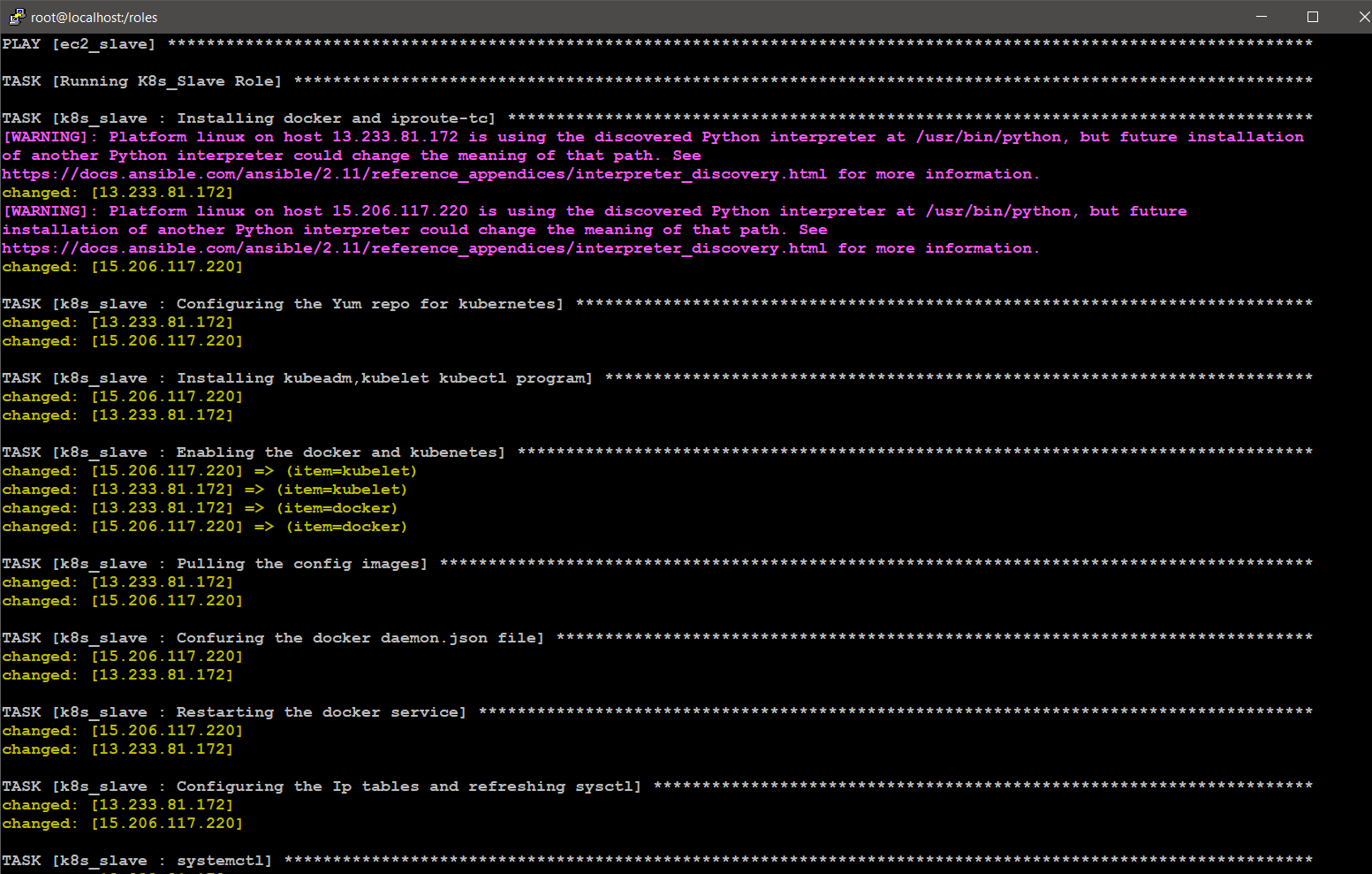
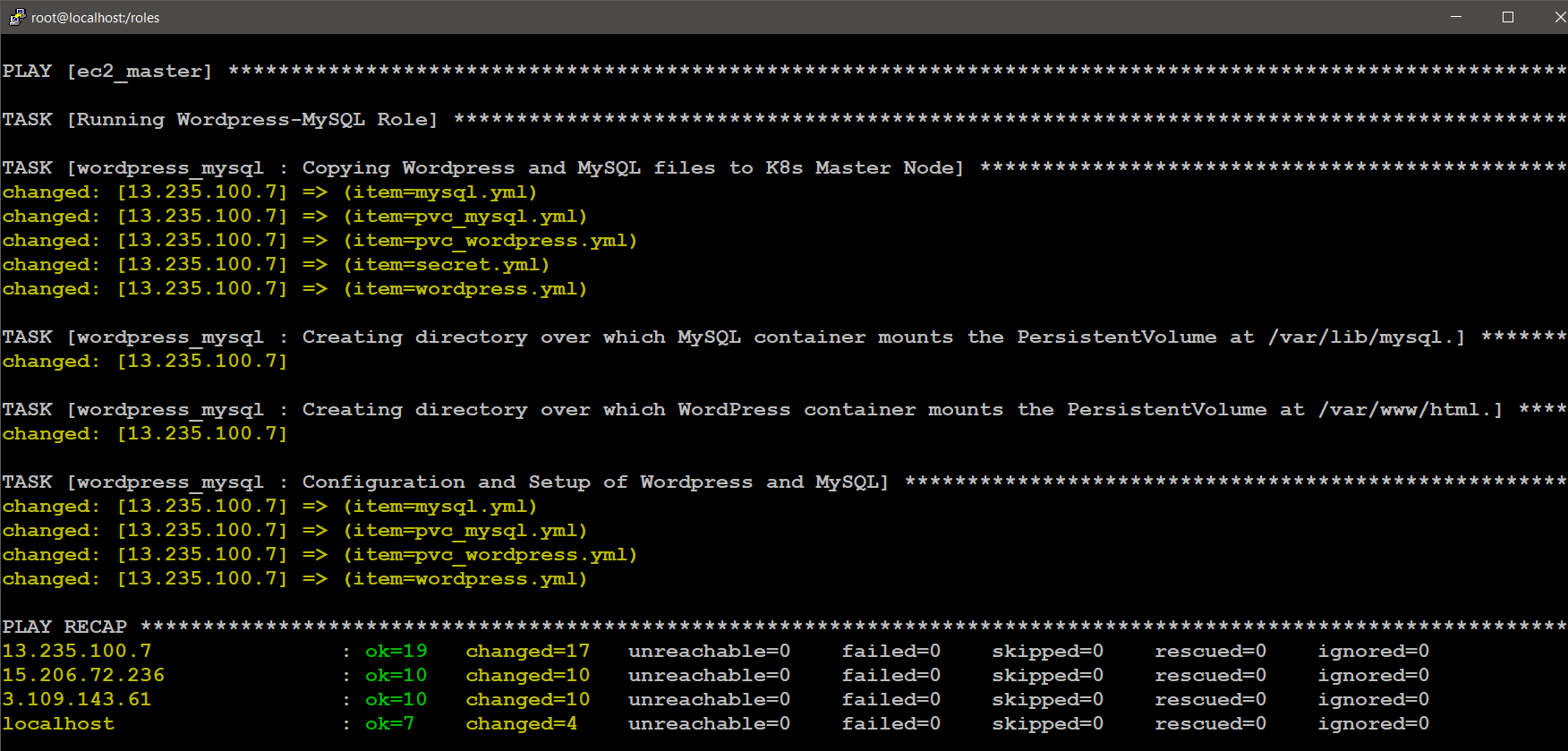
YAY!, IT RUN SUCCESSFULLY AND SETUP ENTIRE INFRASTRUCTURE

STEP 8 : TESTING...
🔶 Now lets check our multi-node cluster is using below commands
kubectl get nodes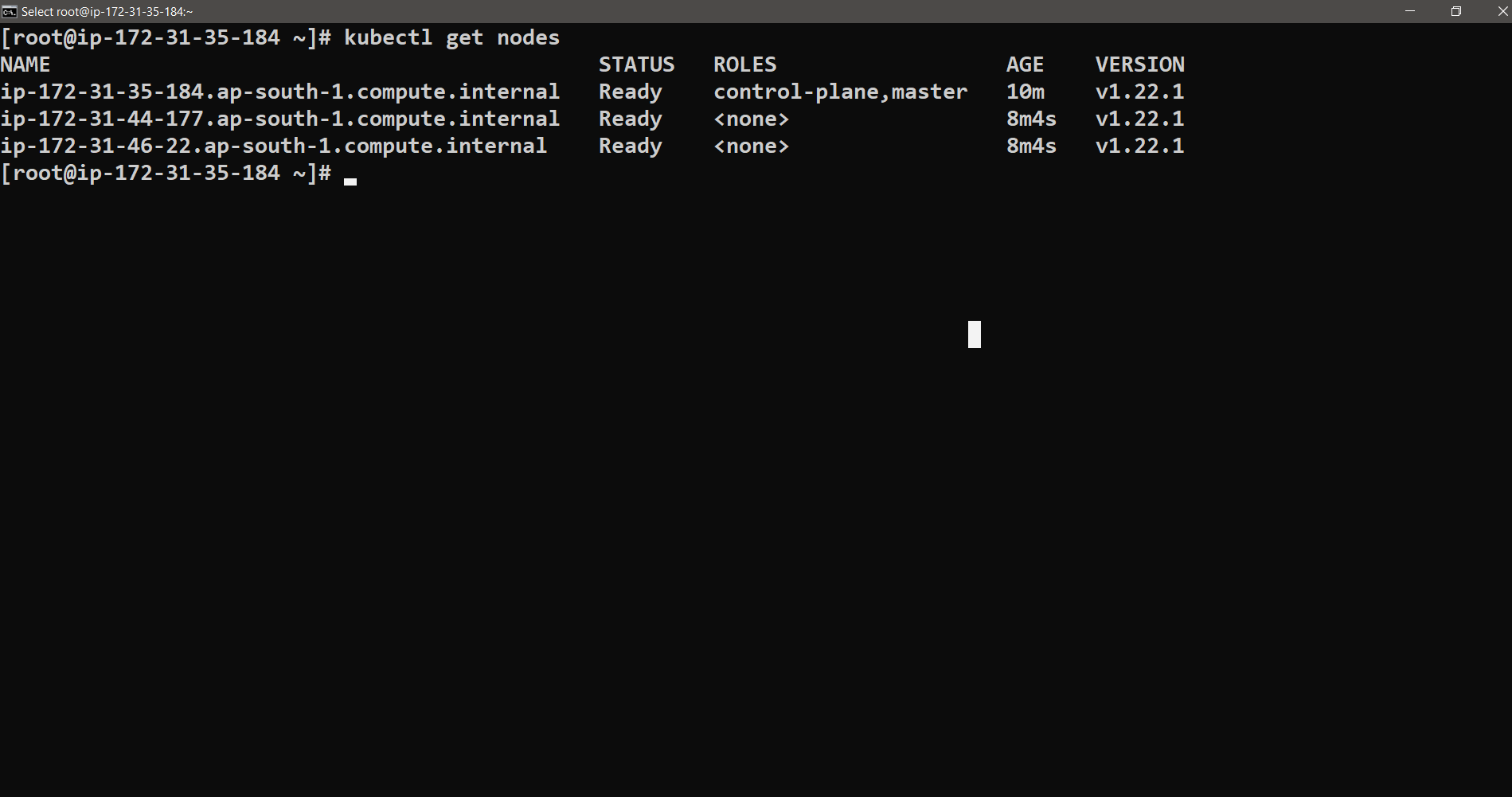
🚀 I'm are always open to your feedback. Please contact as bellow information:
[Contact ]
- [Name: nho Luong]
- Skype
- Github
- Email Address

License
- Nho Luong (c). All Rights Reserved.🌟