

Repository
AI_chat_bot_2_4
A retro Windows XP‑style UI for the ESP32‑2432S024C (240×320 TFT + capacitive touch). Includes a draggable desktop, AI chat over Wi‑Fi, a retro paint app, Notes, Trash, and Settings with manual time control. Optional mouse control from a laptop is supported via a lightweight UDP bridge.
README
AI_chat_bot (ESP32 XP style Touch UI)
A retro Windows XP style desktop UI for the ESP32‑2432S024C (240×320 TFT) with capacitive touch.
Includes a desktop, AI chat over Wi‑Fi, a retro paint app, Notes, Trash, Settings, and a Wikipedia‑style page.
Features
- XP style desktop with draggable icons
- AI chat app (cloud inference)
- Retro paint app with tools, shapes, and palette
- Wi‑Fi scan/connect app with on‑screen keyboard
- Notes app with save/load
- Trash with restore for deleted icons
- Settings (brightness, auto‑WiFi, manual time)
- Static Wikipedia‑style “Windows XP” page with local image
- Optional mouse control from laptop over Wi‑Fi (UDP)
Hardware
- ESP32‑2432S024C (ILI9341, 240×320)
- Capacitive touch (CST820/GT911 depending on board)
- USB power
3D Printed Case / Desk
I printed a mini setup for the device using these models:
- Display case: https://www.printables.com/model/1120657-ibm-ps2-color-display-8512-tft-28-inch-640x480-ras
- Desk: https://www.printables.com/model/1377926-miniatur-schreibtisch-simple-desk-3d-druckbares-mo
What This Is (And Isn’t)
This is not the real Windows XP OS.
It is a lightweight custom UI that mimics the XP look and feel.
The AI runs in the cloud (Cloudflare Worker), not on the ESP32.
Apps Overview
Desktop
- Draggable icons for each app.
- Start menu style launcher.
- Taskbar with time and status icons.
AI Chat
- Sends your prompt to a Cloudflare Worker endpoint.
- Shows AI responses in a simple chat view.
- HIDE/SHOW button toggles the on‑screen keyboard.
- Responses are trimmed to fit the small screen.
Wi‑Fi
- Scans for 2.4 GHz networks.
- On‑screen keyboard for SSID/password.
- Connect and reconnect behavior is handled inside the app.
Paint
- Simple retro paint program.
- Multiple colors and tools.
- Draw with touch or mouse.
Notes
- Simple text notes on one screen.
- Save / Load / Clear.
- Text stored in ESP32 NVS (flash).
Trash
- Drag any icon to Trash to “delete” it.
- Restore deleted icons.
Settings
- Brightness control.
- Auto‑WiFi toggle.
- Manual time set (Hour / Minute).
- SAVE button closes Settings.
Wikipedia‑Style Page
- Static page styled like Wikipedia.
- Uses local image data in flash.
AI Chat Setup (Token stored in NVS)
The AI chat uses a Cloudflare Worker endpoint.
A token is stored in ESP32 flash (NVS) using Preferences.
On first boot:
- Open Serial Monitor (115200).
- Paste your token when prompted.
You can also manage the token later:
SET_TOKEN <token>CLEAR_TOKEN
Cloudflare Worker (Reference)
Example Worker code is included in:
cloudflare_worker/worker.js
You must set AUTH_TOKEN in your Cloudflare Worker environment variables.
Mouse Control (Optional)
You can control the UI with your laptop mouse over Wi‑Fi (no USB host needed).
- Ensure ESP32 and laptop are on the same Wi‑Fi network.
- Install dependency:
pip3 install pygame
- Run the bridge:
python3 mouse_bridge_window.py <ESP32_IP>
Notes:
- The mouse works inside the bridge window.
- Click = touch. Wheel scrolls chat/notes.
How It Works
- Wi‑Fi app scans and connects to 2.4 GHz networks.
- AI requests are sent to a Cloudflare Worker endpoint.
- Responses are trimmed to fit on the small screen.
- The “Wikipedia” app is a static page styled like the real site.
Storage / Memory
- UI assets (wallpaper, icons) are stored in flash as .h arrays.
- Settings and notes are stored in NVS (flash).
- The ESP32 does not store or run the AI model locally.
Dependencies (Libraries)
TFT_eSPIfor screen drawing.bb_captouchfor capacitive touch.ArduinoJsonfor AI JSON responses.WiFi,WiFiClientSecure,HTTPClientfor HTTPS requests.Preferencesfor token/settings in flash.WiFiUdpfor optional mouse input.
Build / Upload
- Install libraries:
TFT_eSPIbb_captouchArduinoJson
- Configure TFT_eSPI pins for ESP32‑2432S024C.
- Open
AI_chat_bot_2.4.inoin Arduino IDE. - Upload.
Notes
- ESP32 supports only 2.4 GHz Wi‑Fi.
- Touch pins can vary by board revision.
- AI chat requires a valid token.
- Mouse bridge requires Python + pygame.
Troubleshooting
- If upload fails, reduce upload speed (115200 or 230400).
- If AI returns HTTP 401, re‑set the token in Serial.
- If Wi‑Fi doesn’t connect, ensure 2.4 GHz and correct password.
Photos:
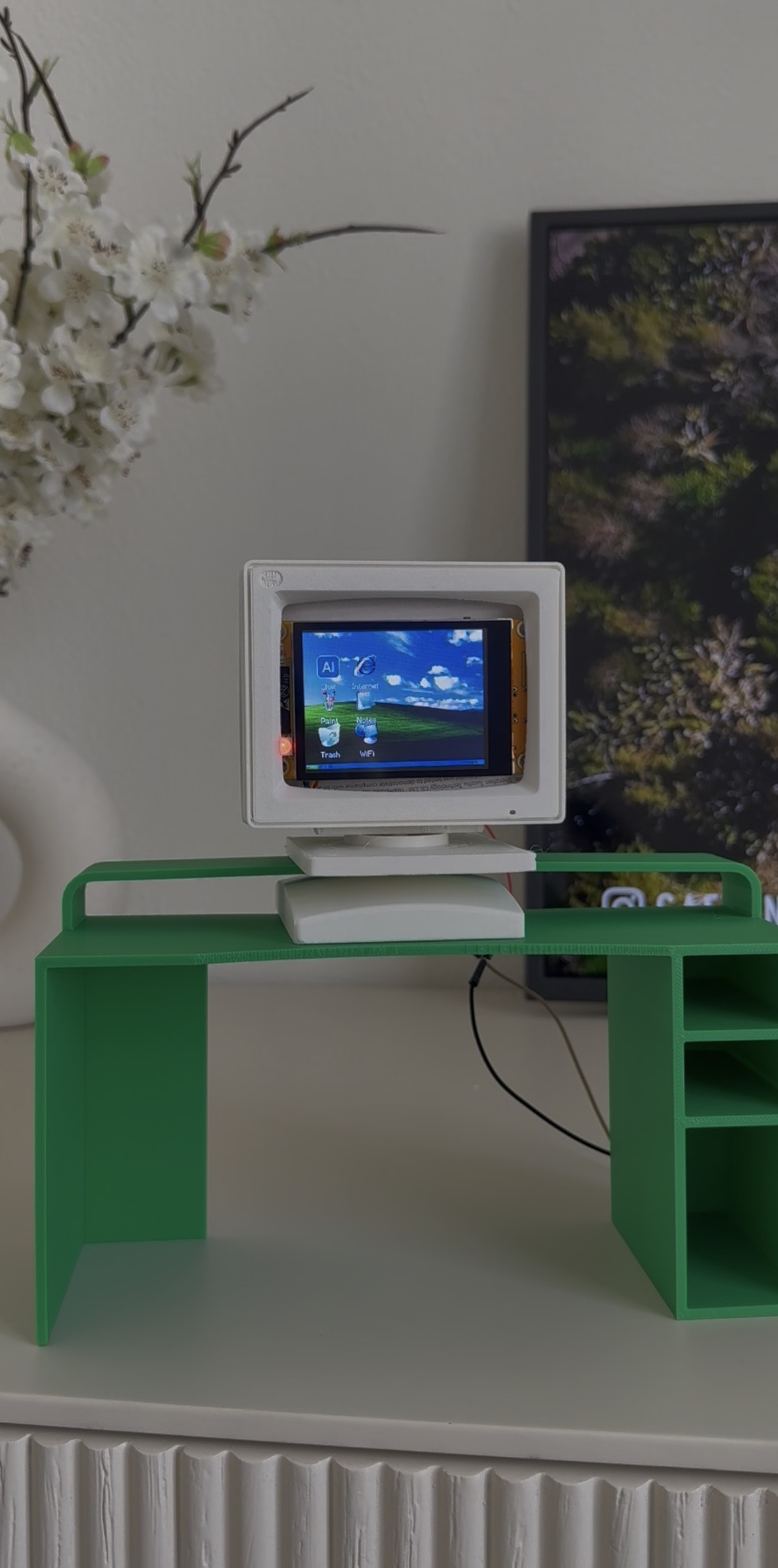
Desk + printed case.

Welcome splash.

Main XP‑style desktop.

Wi‑Fi scan view.

AI chat when Wi‑Fi is not connected.

Connected state.

AI chat over Wi‑Fi.

Retro paint app.

Static Wikipedia‑style page.