

README
Inference Benchmarker
The best tool for benchmarking inference engines and LLM performance
Benchmarking inference servers for text generation models presents unique challenges.
The performance of LLM models can vary greatly depending on factors like input prompts,
decoding strategies, hardware specifications, and server configurations.
Inference Benchmarker is designed to streamline this process by providing a comprehensive benchmarking tool
that evaluates the real-world performance of text generation models and servers.
With Inference Benchmarker, you can easily test your model's throughput and efficiency under various workloads,
identify performance bottlenecks, and optimize your deployment for production environments.
It can be used to benchmark any text generation server that exposes an OpenAI-compliant API.
Features
- Broad Compatibility: Benchmarks any text generation server with an OpenAPI-compliant chat API.
- Automatic Sweep Mode: Detects maximum throughput and sweeps in-between.
- Open-Loop Benchmarking: Uses constant arrival rates to simulate real-world workloads.
- Benchmark profiles: Presets to benchmark for different model use cases (eg. chat, summarization, code completion...).
- High-Performance: Built with Rust 🦀 for high-performance benchmarking.
- JSON Output: Delivers performance results in a structured, easy-to-analyze format.
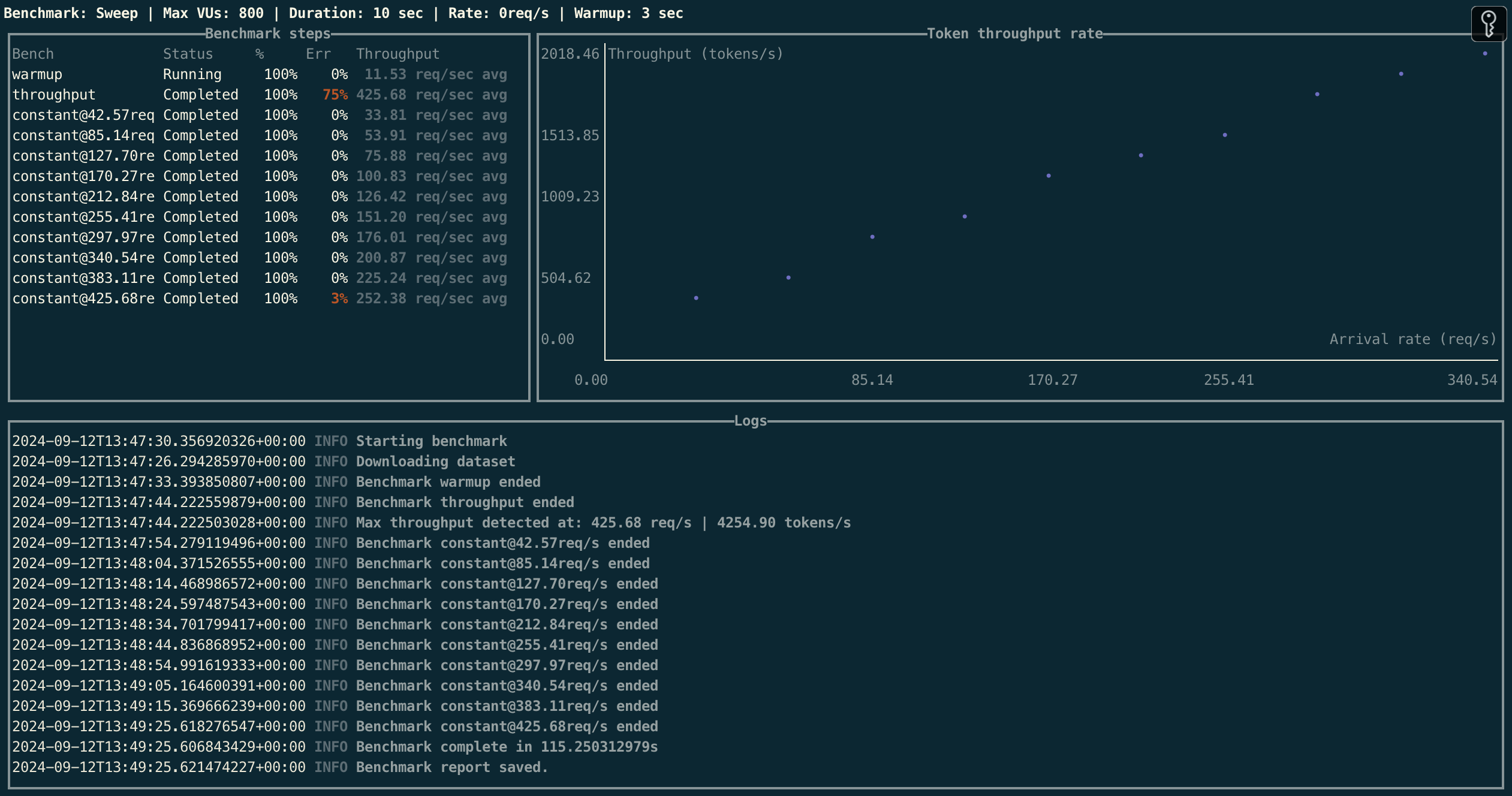
Table of contents
- Inference Benchmarker
Get started
Install
If you have cargo already installed:
cargo install --git https://github.com/huggingface/inference-benchmarker/Or download the latest released binary
Or you can run docker images.
Run a benchmark
1. Start an inference server
TGI
MODEL=meta-llama/Llama-3.1-8B-Instruct
HF_TOKEN=<your HF READ token>

docker run --gpus all --shm-size 1g -p 8080:80 -e "HF_TOKEN=$HF_TOKEN" \
    ghcr.io/huggingface/text-generation-inference:3.2.1 --model-id $MODEL
vLLM
MODEL=meta-llama/Llama-3.1-8B-Instruct
HF_TOKEN=<your HF READ token>
docker run --runtime nvidia --gpus all \
    --env "HUGGING_FACE_HUB_TOKEN=$HF_TOKEN" \
    -p 8080:8000 \
    --ipc=host \
    vllm/vllm-openai:latest \
    --model $MODEL
2. Run a benchmark
inference-benchmarker \
    --tokenizer-name "meta-llama/Llama-3.1-8B-Instruct" \
    --url http://localhost:8080 \
    --profile chat
Results will be saved in JSON format in current directory.
Configure your benchmark
Profiles
Profiles are presets to benchmark for different model use cases. Available profiles:
chat
Simulates a multi-turn chat scenario in which the model answers to successive user prompts.
The model is prompted with the whole conversation history at each turn. Prefix caching will have a significant impact
on the performance of this benchmark.code-generation
Simulates code-complete scenarios. Model is given large code snippets and asked to complete them with a few tokens
(e.g. a function name, a few code lines).classification
Simulates cases where the model is fed with large chunks of business data or document repeatedly and users
ask simple questions about the content (summarization, classification...).
Those use cases benefit a lot from prefix caching and chunked prefill.fixed-length
Model is sent fixed-length prompts to void the impact of variable-length tokenization on the benchmark.
This is a technical benchmark to evaluate the raw throughput of the model.
Benchmark mode
In default mode, tool runs a sweep benchmark. It first runs a throughput test to find the maximum throughput, then
sweeps on QPS values up to the maximum throughput.
Available modes:
sweep: runs a sweep benchmarkrate: runs a benchmark at a fixed request ratethroughput: runs a benchmark at a fixed throughput (constant VUs)
Example running a benchmark at a fixed request rates:
inference-benchmarker \
    --tokenizer-name "meta-llama/Llama-3.1-8B-Instruct" \
    --max-vus 800 \
    --duration 120s \
    --url http://localhost:8080 \
    --warmup 30s \
    --benchmark-kind rate \
    --rates 1.0 \
    --rates 5.0 \
    --rates 10.0 \
    --prompt-options "num_tokens=200,max_tokens=220,min_tokens=180,variance=10" \
    --decode-options "num_tokens=200,max_tokens=220,min_tokens=180,variance=10"
Dataset configuration
Prompts are sampled for a Hugging Face dataset file, using a subset of ShareGPT
as default. You can specify a different dataset file using
the
--dataset and --dataset-file option.
Dataset is expected to be JSON with the following format:
[
  {
    "conversations": [
      {
        "role": "user",
        "content": "rewrite that entire paragraph in the same style like this one: "
      }
    ]
  }
]
To benchmark with prefix caching, you can use a system prompt that will be sent with each request from a discussion.
[
  {
    "conversations": [
      {
        "role": "system",
        "content": "You are a helpful assistant that makes jokes at each response."
      },
      {
        "role": "user",
        "content": "rewrite that entire paragraph in the same style like this one:"
      }
    ]
  }
]
Prompt configuration
For consistent results you can configure the token count and variance. The tool will sample prompts with the specified
values, sampling token counts from a normal distribution with the specified variance.
--prompt-options "num_tokens=50,max_tokens=60,min_tokens=40,variance=10"Decode options
You can also configure the decoding options for the model. The tool will sample decoding options with the specified
values, sampling token counts from a normal distribution with the specified variance.
--decode-options "num_tokens=50,max_tokens=60,min_tokens=40,variance=10"Deploy on Kubernetes
You can deploy the benchmarking tool on Kubernetes using the provided Helm chart.
Review the values (especially model, HF token and resources), and install the chart:
$ helm install inference-benchmarker ./extra/k8s/inference-benchmarkerDeploy on Slurm
Slurm example is provided in extra/slurm.
Visualize the results
You can use the provided Gradio app to quickly visualize the results.
Considering that JSON results files are in /path/to/results/dir:
$ poetry install
$ cd extra/dashboard
$ poetry run python app.py --from-results-dir /path/to/results/dir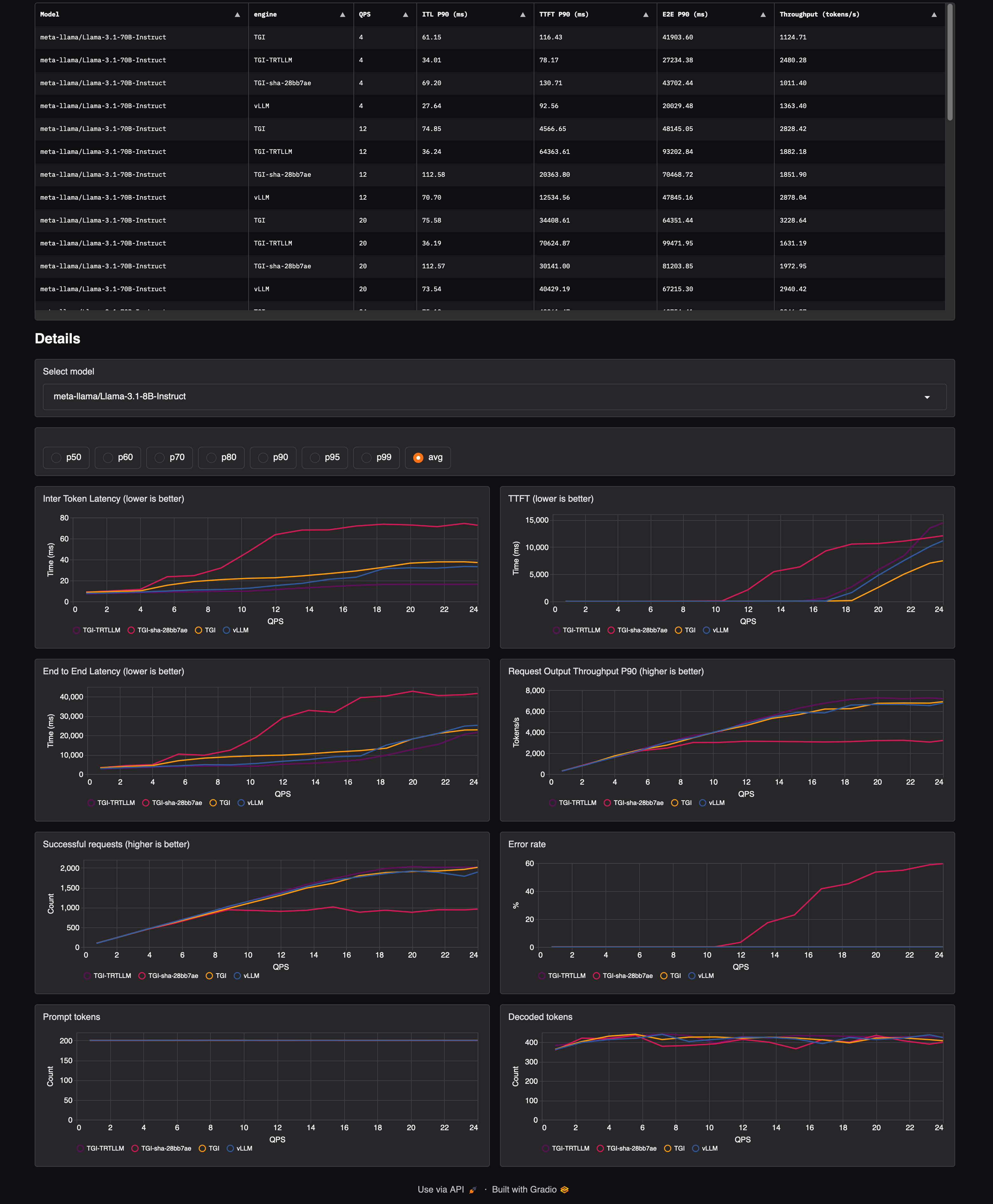
Development
You need Rust installed to build the benchmarking tool.
$ make buildFrequently Asked Questions
-
What's the difference between constant arrival rate and constant virtual user count?
- Constant virtual user count means that the number of virtual users is fixed. Each virtual user can send a
single requests and waits for server response. It's basically simulating a fixed number of users querying the
server. - Constant arrival rate means that the rate of requests is fixed and the number of virtual users is adjusted to
maintain that rate. Queries hit the server independently of responses performances.
Constant virtual user count is a closed loop model where the server's response time dictates the number of
iterations. Constant arrival rate is an open-loop model more representative of real-life workloads. - Constant virtual user count means that the number of virtual users is fixed. Each virtual user can send a
-
Why do I get high error rate when running
thoughputbenchmark?Throughput bench tries to saturate the server with a high request rate. The error rate is high because the server is
not able to handle the request rate or rate limiting the requests.
In the case of TGI, this is controlled by the--max-concurrent-requestsoption. -
What is the influence of CUDA graphs?
CUDA graphs are used to optimize the GPU usage by minimizing the overhead of launching kernels. This can lead to
better performance in some cases, but can also lead to worse performance in others.
If your CUDA graphs are not evenly distributed, you may see a performance drop at some request rates as batch size may
fall in a bigger CUDA graph batch size leading to a lost of compute due to excessive padding. -
I get less tokens generated than expected in a benchmark.
Inference servers use
max_tokensparameter to limit the number of tokens generated. If the model
generates an end-of-sequence token before reachingmax_tokens, the generation will stop.
There is currently no way to guarantee a fixed number of tokens generated without modifying the inference server.
So you may have(successful requests) * max_tokens < generated tokens.