

Repository
foundry-chromeos-device-actions
A Foundry app for managing and securing ChromeOS devices through the Google Admin API
README

ChromeOS Device Actions (Foundry app)
A Foundry application that provides response actions for ChromeOS devices. This application enables security teams to rapidly respond to device incidents through:
- UI-driven response actions directly from the Host Management and Endpoint Detection sidebar
- Creating automated workflow templates for device containment and state management
The current implementation allows users to contain, disable, and re-enable ChromeOS devices, with additional response capabilities planned for future releases.
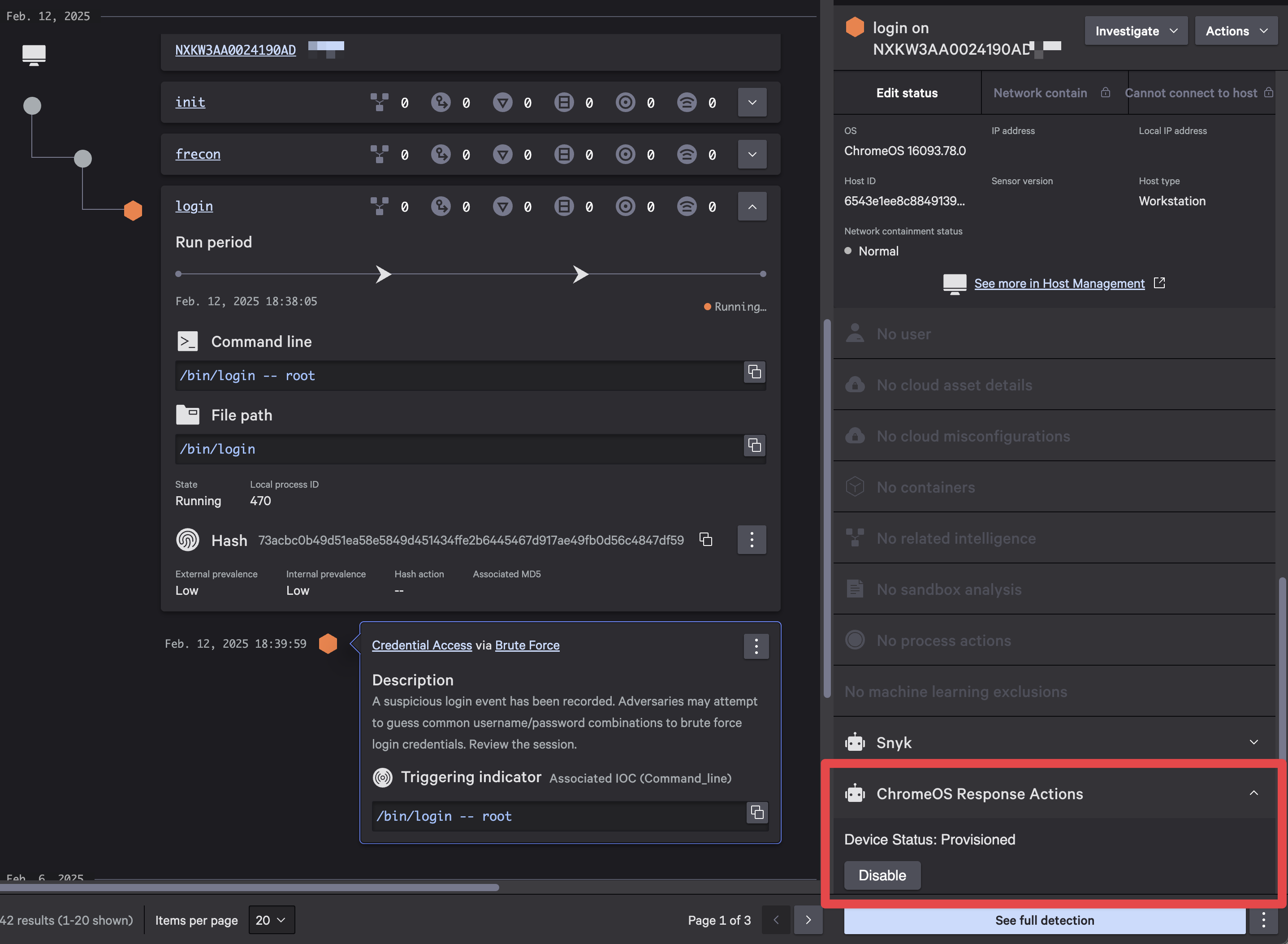
Table of Contents
- Installation
- UI Extension
- User Roles
- Example Custom Fusion Workflows
- Contributing
- Security
- Support
- License
Installation
The application can be installed through Foundry's app import functionality. You'll need appropriate permissions in your Foundry environment, as well as the appropriate GCP service account credentials to import and install the application.
Requirements
-
Falcon Roles:
- Falcon Administrator
-
GCP Service Account Credentials
-
Create a service account:
- Navigate to the Google Cloud Console
- Go to "IAM & Admin" > "Service Accounts"
- Click "Create Service Account" and follow the official documentation
- Download the JSON key file for authentication
Make sure to note the email address of the service account
-
Associate the service account with proper roles:
- The service account must be associated with a role in Google Admin
Make sure to use the email address of the service account when assigning the role
- The service account must be associated with a role in Google Admin
-
Required API scopes:
- Ensure the service account has the following API scopes:
Manage ChromeOS Devices- For managing ChromeOS devicesOrganizational Units -> read- For viewing organizational units
- Ensure the service account has the following API scopes:
-
-
Target Containment OU Path
- The path to a dedicated Organizational Unit (OU) for device containment, ideally one that enforces stricter security controls.
Paths can be specified as either the full path of the organizational unit or its ID.
Examples:
- /MyParent/ChromeOS_Quarantine
- id:01234567890
- The path to a dedicated Organizational Unit (OU) for device containment, ideally one that enforces stricter security controls.
-
Google Admin Customer ID
- You can find this in account settings
Download the app
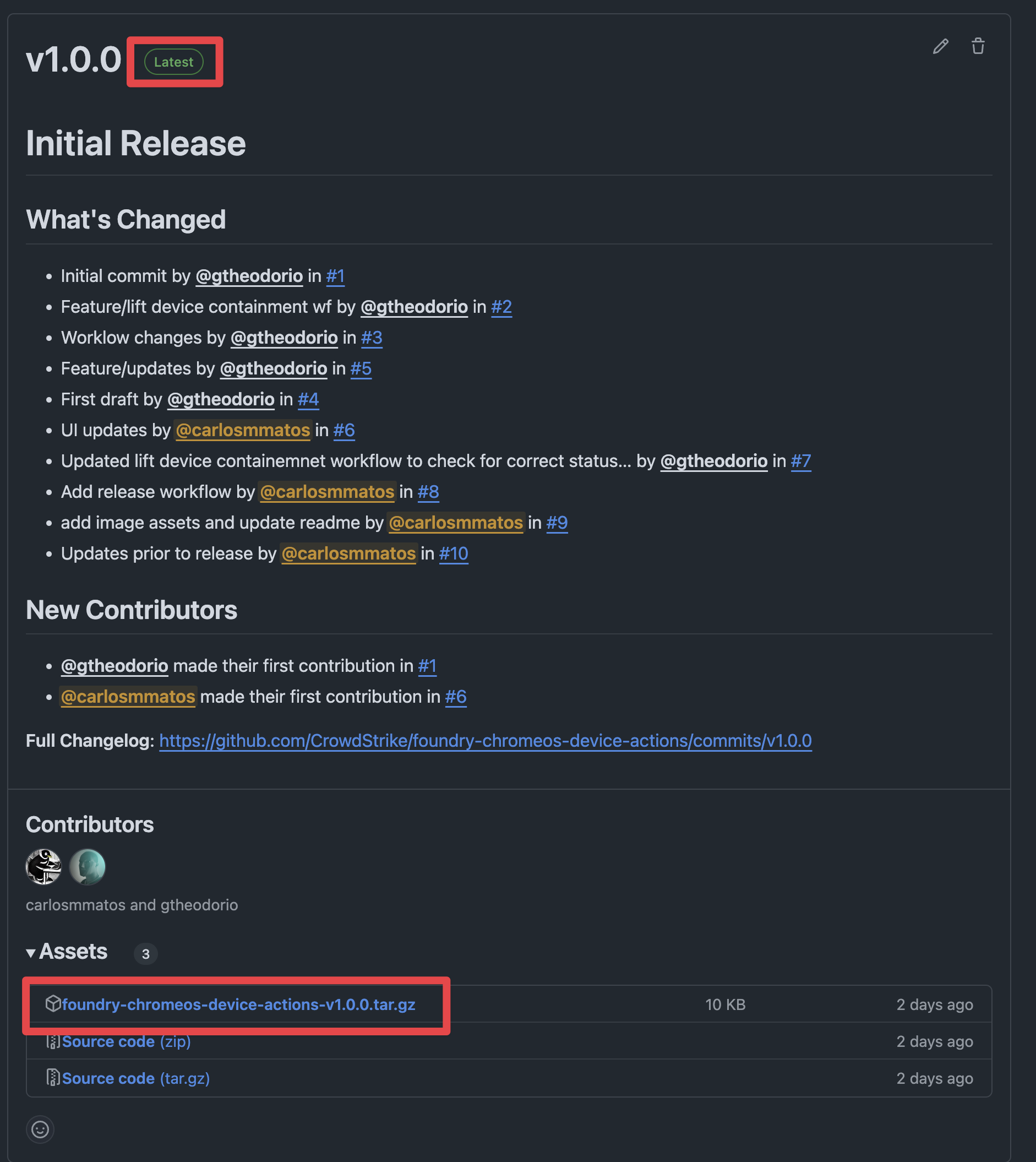
The Foundry app is exported as a release artifact upon creation of new releases. To download the app:
- Navigate to the Releases page
- Download the latest
foundry-chromeos-device-actions-<version>.tar.gzunder Assets
- Save the file to your local machine
Import the app into Foundry
[!WARNING]
There are limitations to importing apps in Foundry:
- You can't import multiple deployment versions of the same app
- Editing an exported file before importing it can cause the file to become invalid. Instead of editing the exported file, edit the app after import.
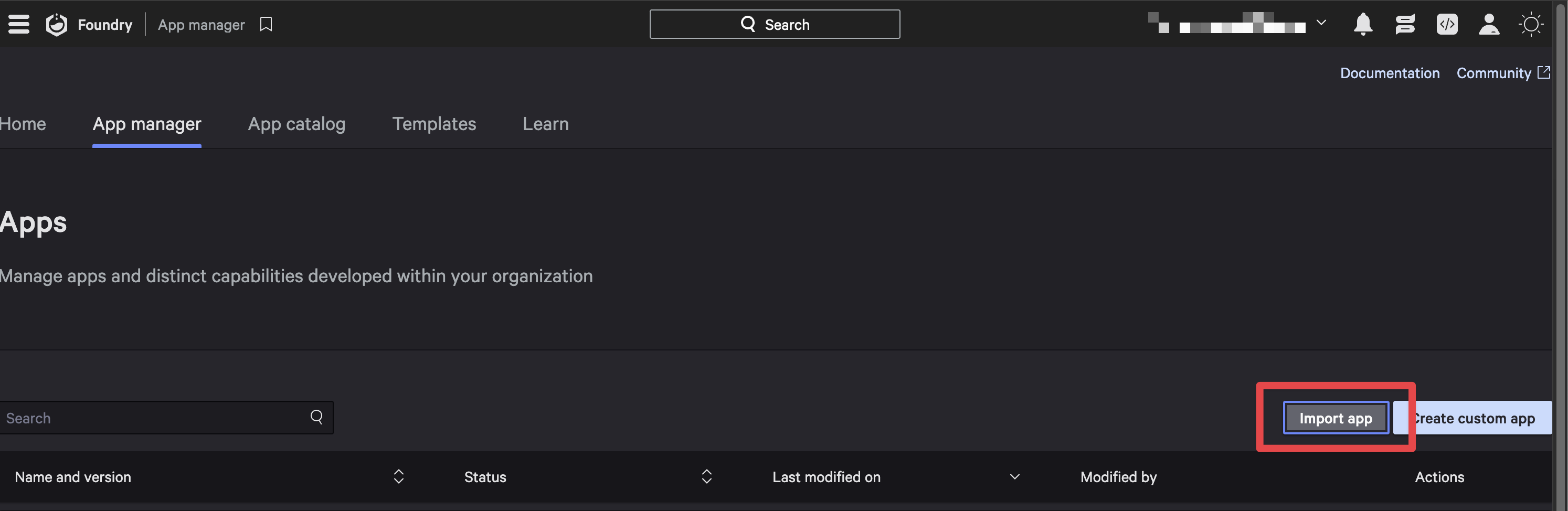
- On the Falcon console, navigate to Foundry -> Foundry -> App manager
- Click on Import app
- Click Upload file and select the downloaded
foundry-chromeos-device-actions-<version>.tar.gzfile from the previous section - (Optionally) modify the app name
- Click Import to complete the import process
[!NOTE]
A message is displayed when deployment begins, and another message is displayed when deployment is complete.The deployment is automatically assigned a type of Major, with a version of 1.0.0. The change log reads Major: App Imported.
Release the app
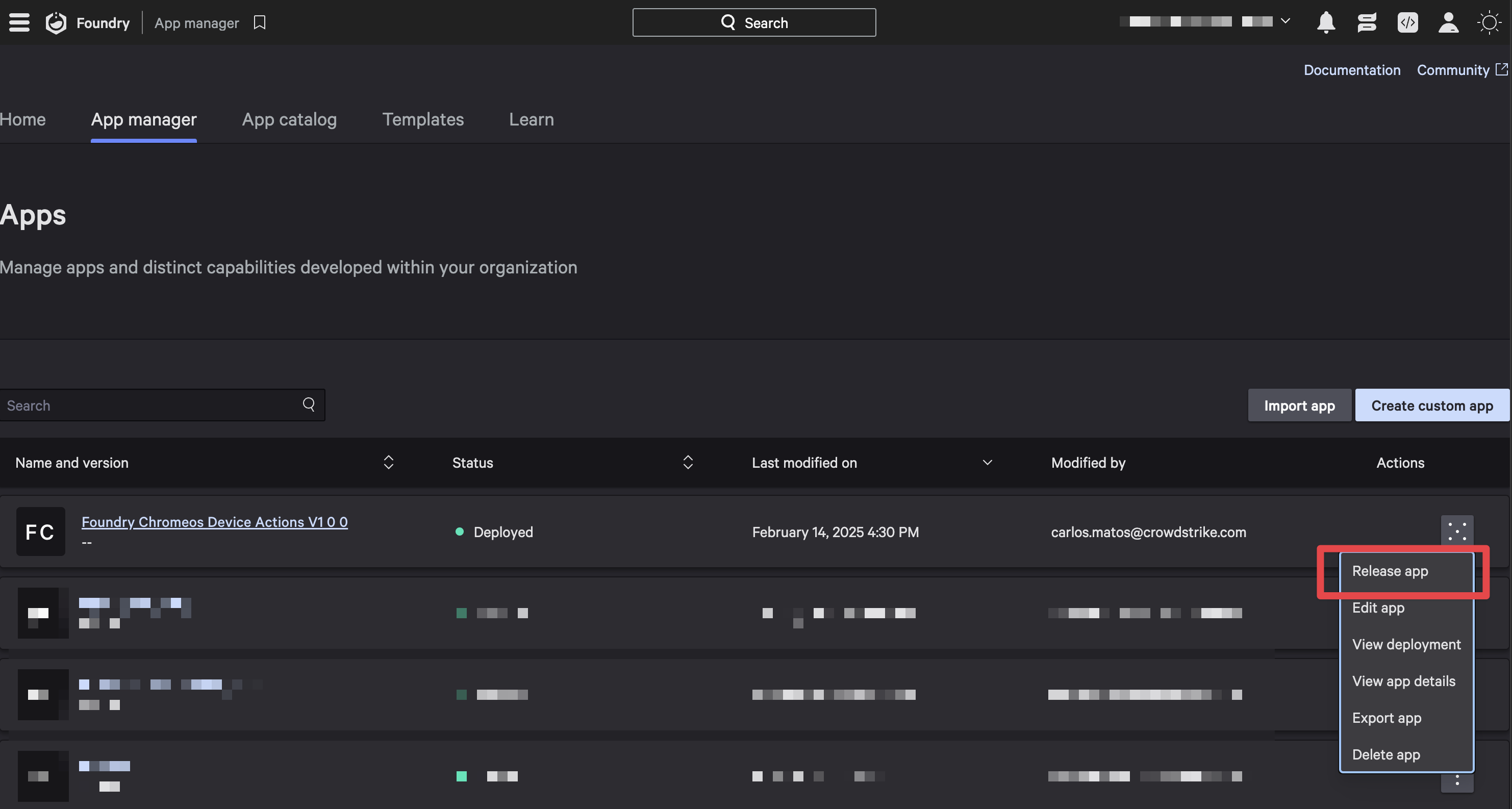
Release a deployment version of the app to make it available for installation and use in your CID. To release the app:
- In App manager click the Open menu (3 dots) for the deployment you want to release and select Release app
- Select Major for change type, add any notes you would like to and click Release
This will take you to the App overview page after a successful release.
Install the app
To install the Foundry app and make it available to your CID:
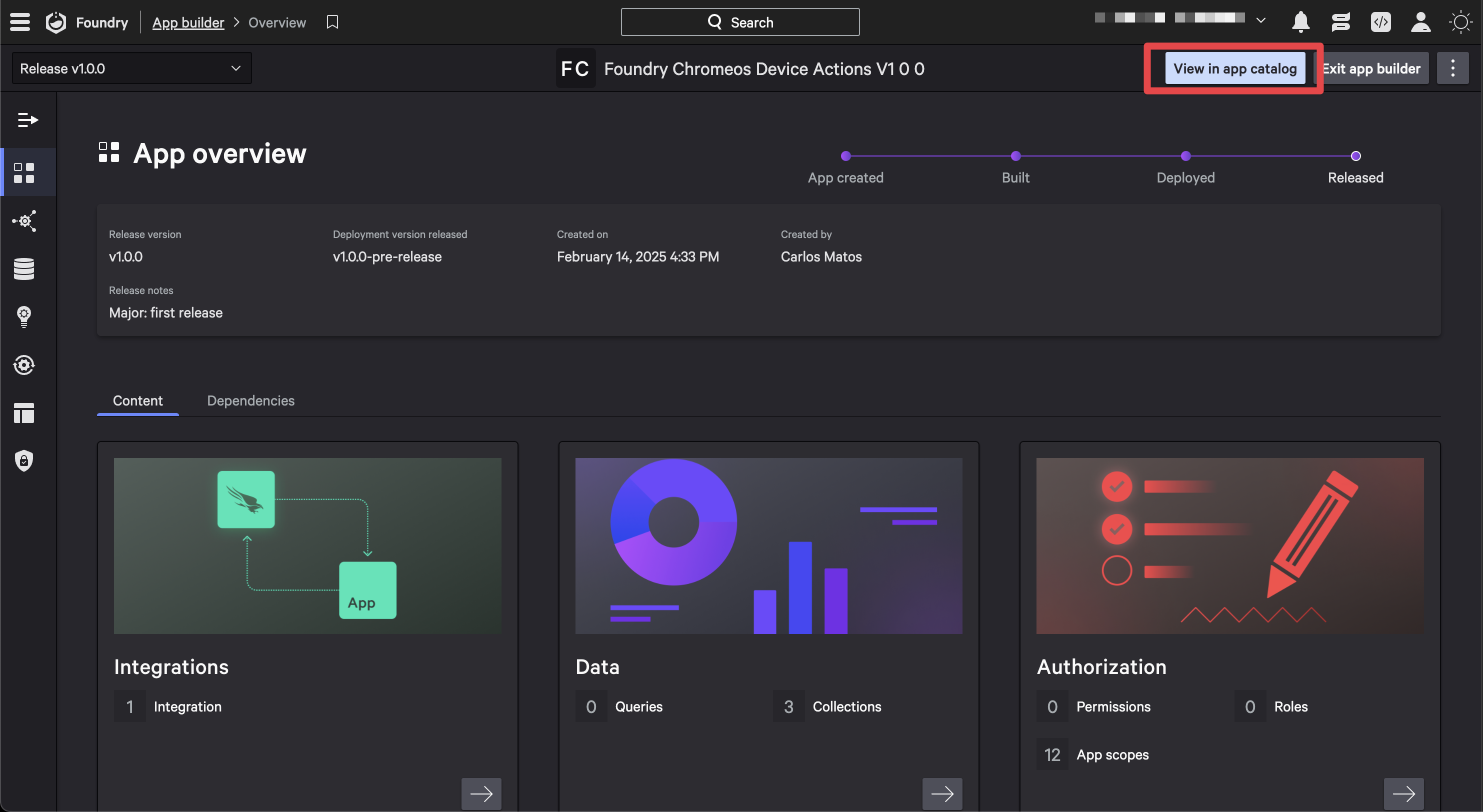
- In the App overview page, select View in app catalog to navigate to the app catalog for the Chrome Device Actions app
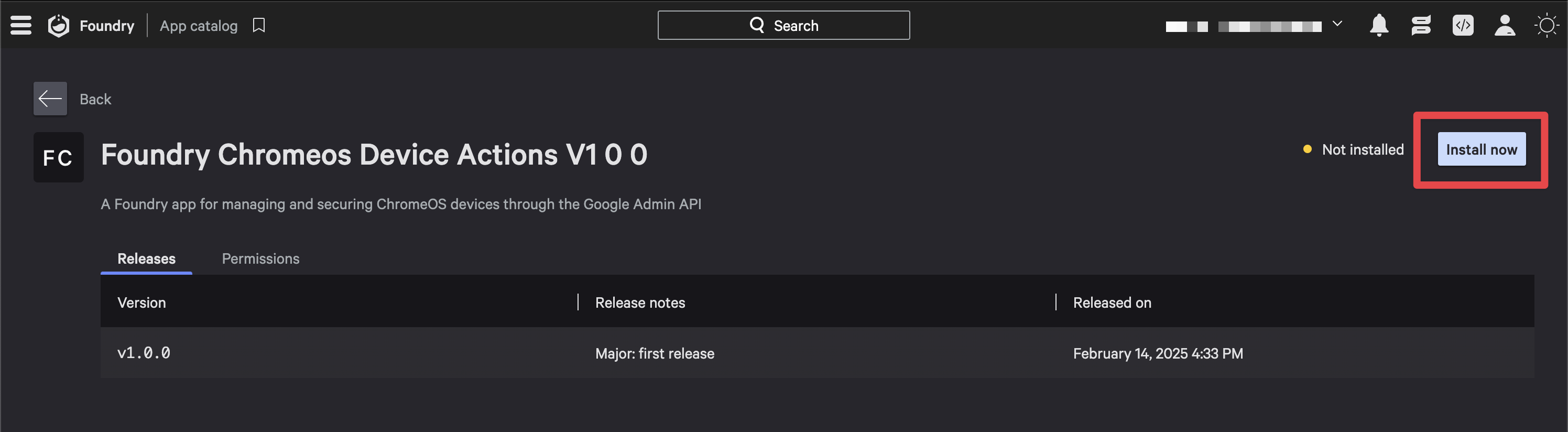
- Click Install now to start the installation process
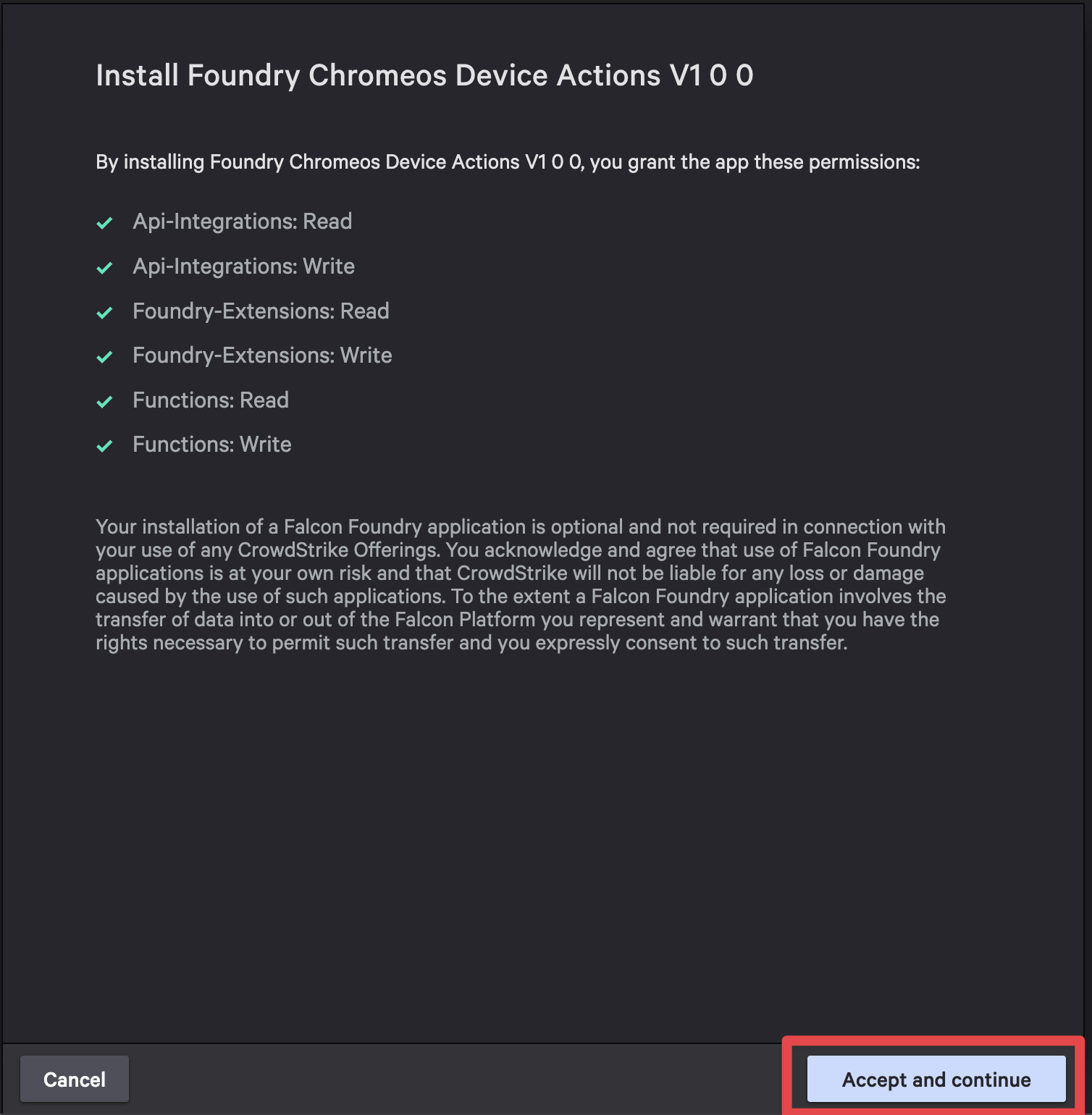
- The application permissions will be displayed. Review them and click Save and install to complete the installation
- Fill our your Google Service Account information
- Enter a name for your service account credentials
- Upload your service account JSON key file
- Enter your Google Workspace customer ID
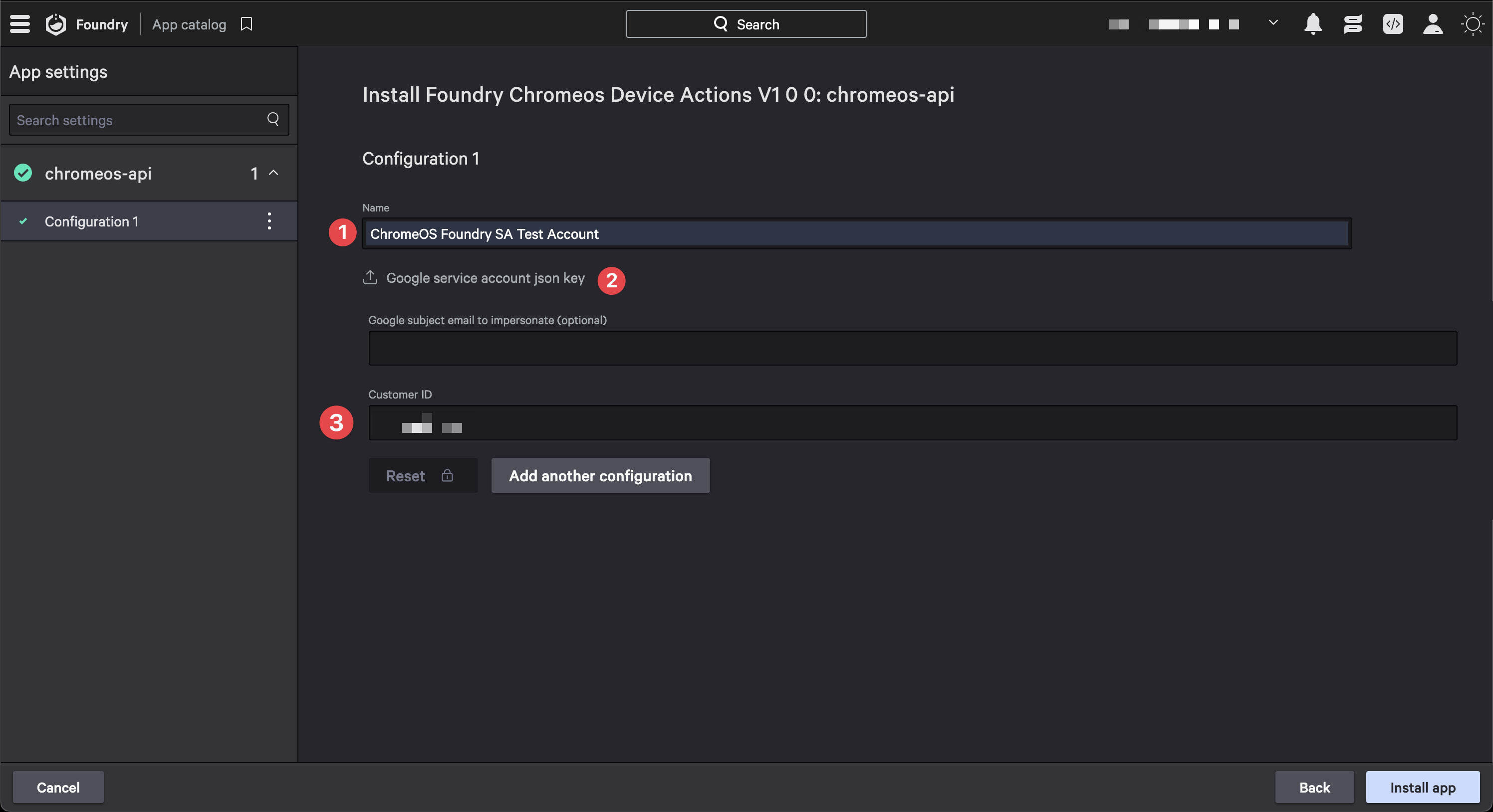
- Click Install app to complete the installation
UI Extension
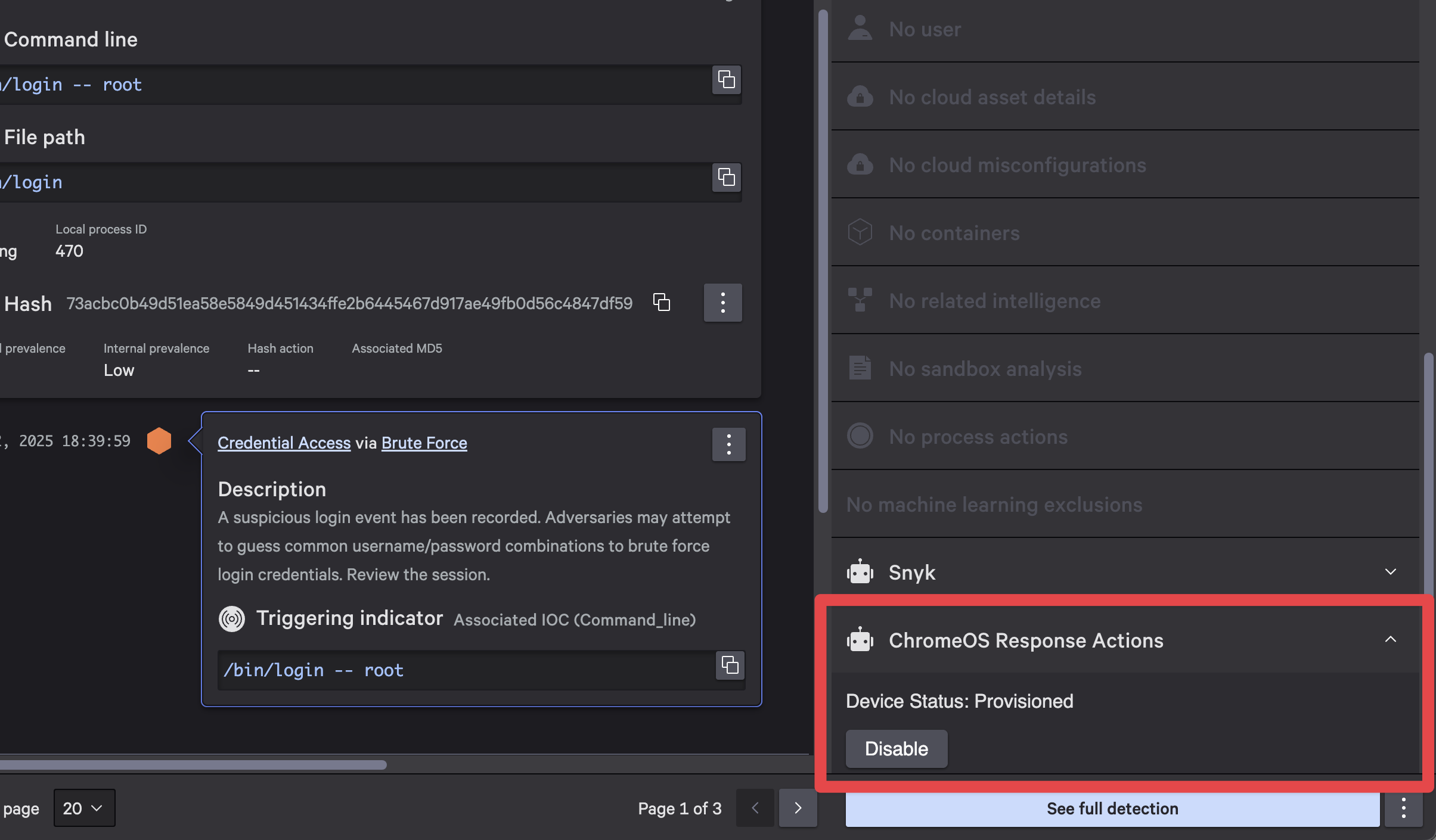
The ChromeOS Device Actions (Foundry app) includes a UI Extension that provides a side panel interface in the Host Management and Endpoint detections pages. This panel allows security teams to quickly perform ChromeOS management actions directly from the CrowdStrike console without switching to the Google Admin console.
The extension allows security teams to perform actions such as disabling devices and enabling devices directly from the CrowdStrike console.
User Roles
The ChromeOS Device Actions app includes a predefined role that can be assigned to users:
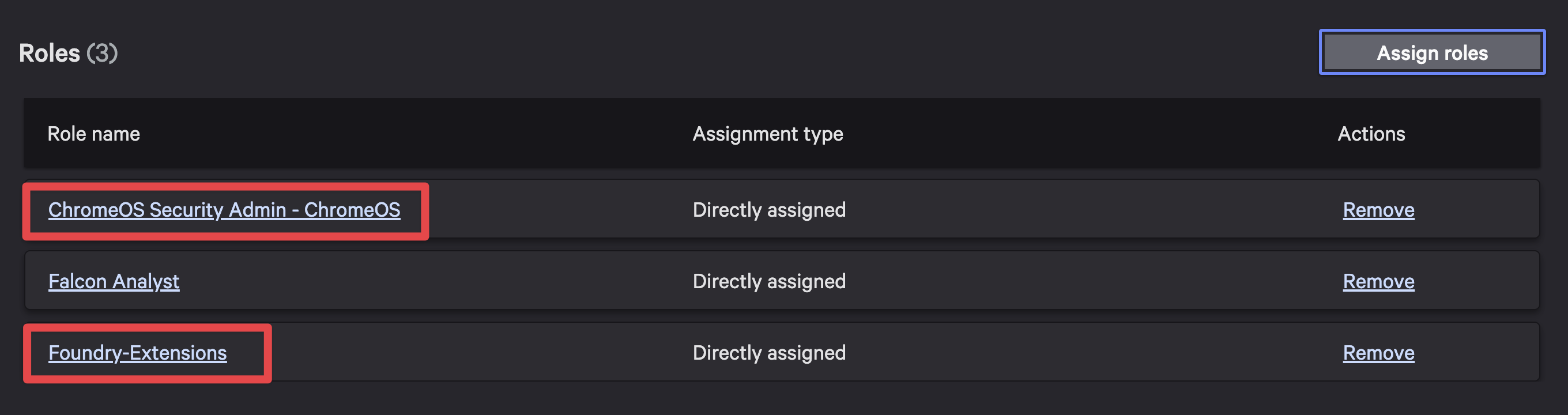
- ChromeOS Security Admin: This role has permissions to enable and disable ChromeOS devices using the ChromeOS Device Actions UI extension.
In order to leverage this role properly, users need to be assigned this role, along with the Foundry-Extensions built-in role in the CrowdStrike console under User Management.
[!NOTE]
Administrators should ensure that only authorized personnel are granted this role to maintain security controls over ChromeOS device management actions.
Example Custom Fusion Workflows
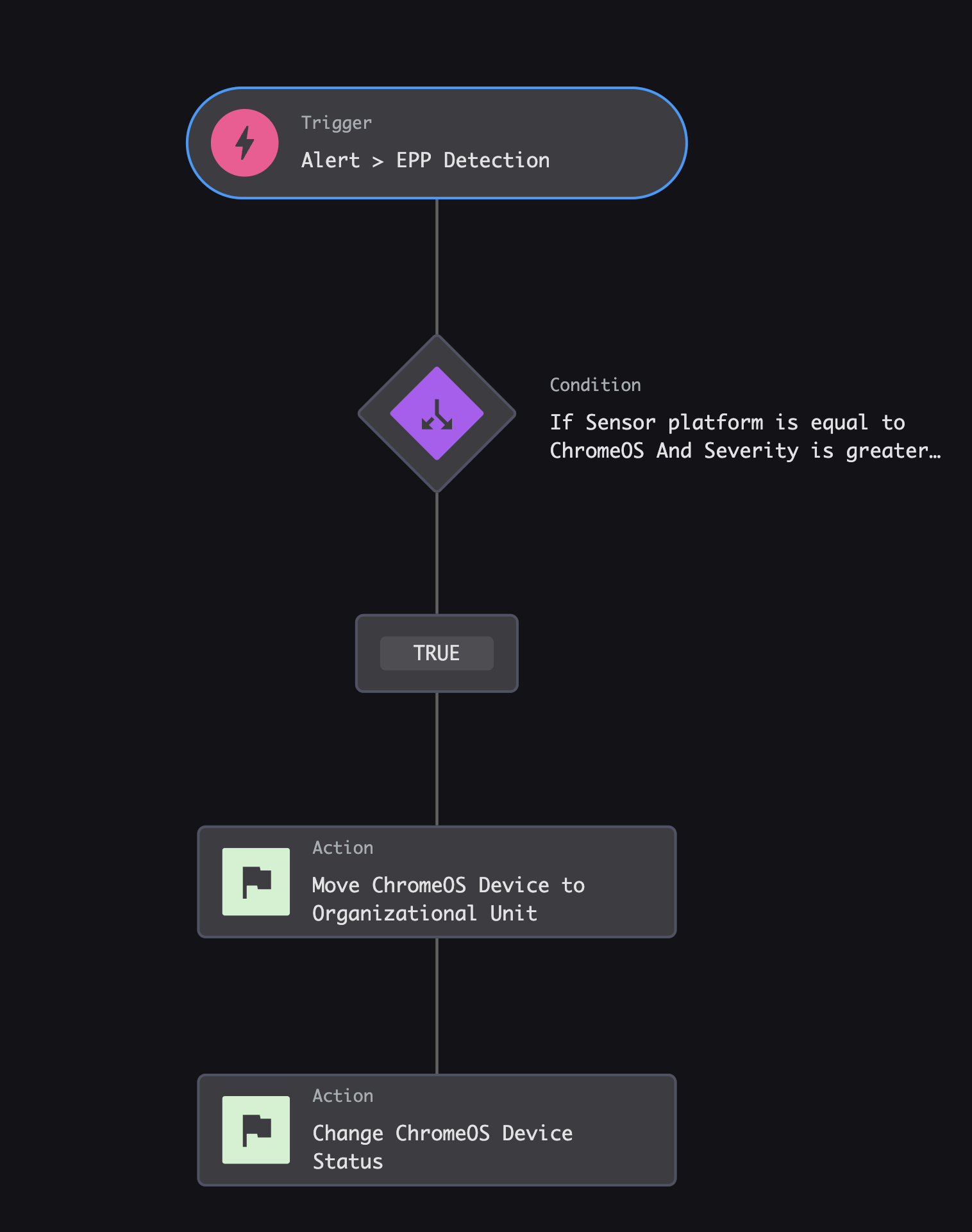
The Chrome Device Actions app can be integrated with Fusion workflows to automate ChromeOS device management tasks. Here are some example workflows:
Automated Response to ChromeOS Security Incidents
Workflow is triggered by a detection
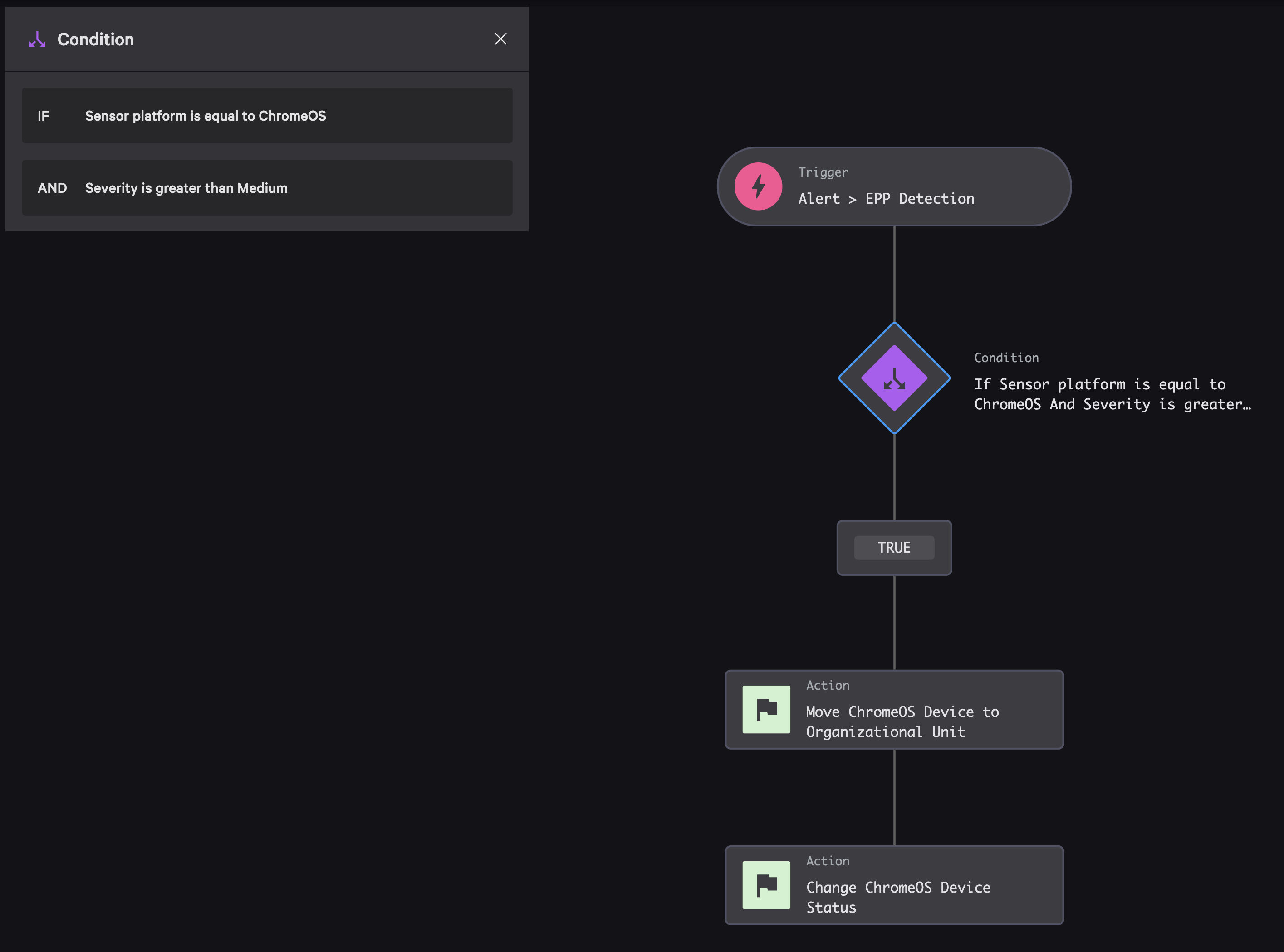
Workflow Condition Details
The condition checks if the detection's platform is ChromeOS and if the severity is high or critical.
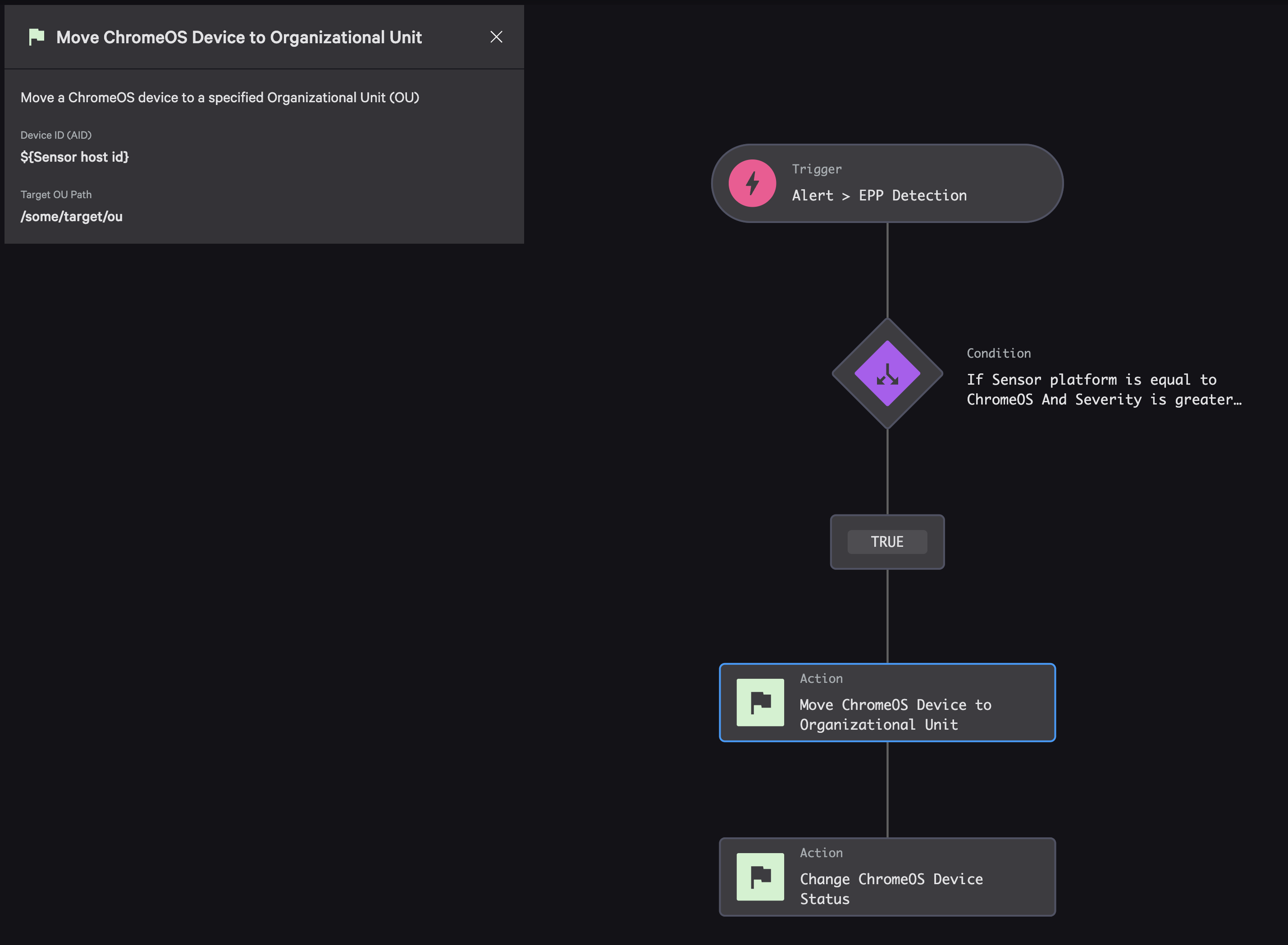
Workflow Action (Move Device)
This workflow action takes the device ID from the EPP Detection trigger and a target OU path as input.
- Device ID (AID): configured as a workflow variable from:
Alerts -> EPP Detection -> Sensor host id - Target OU Path: manual input to your containment OU path
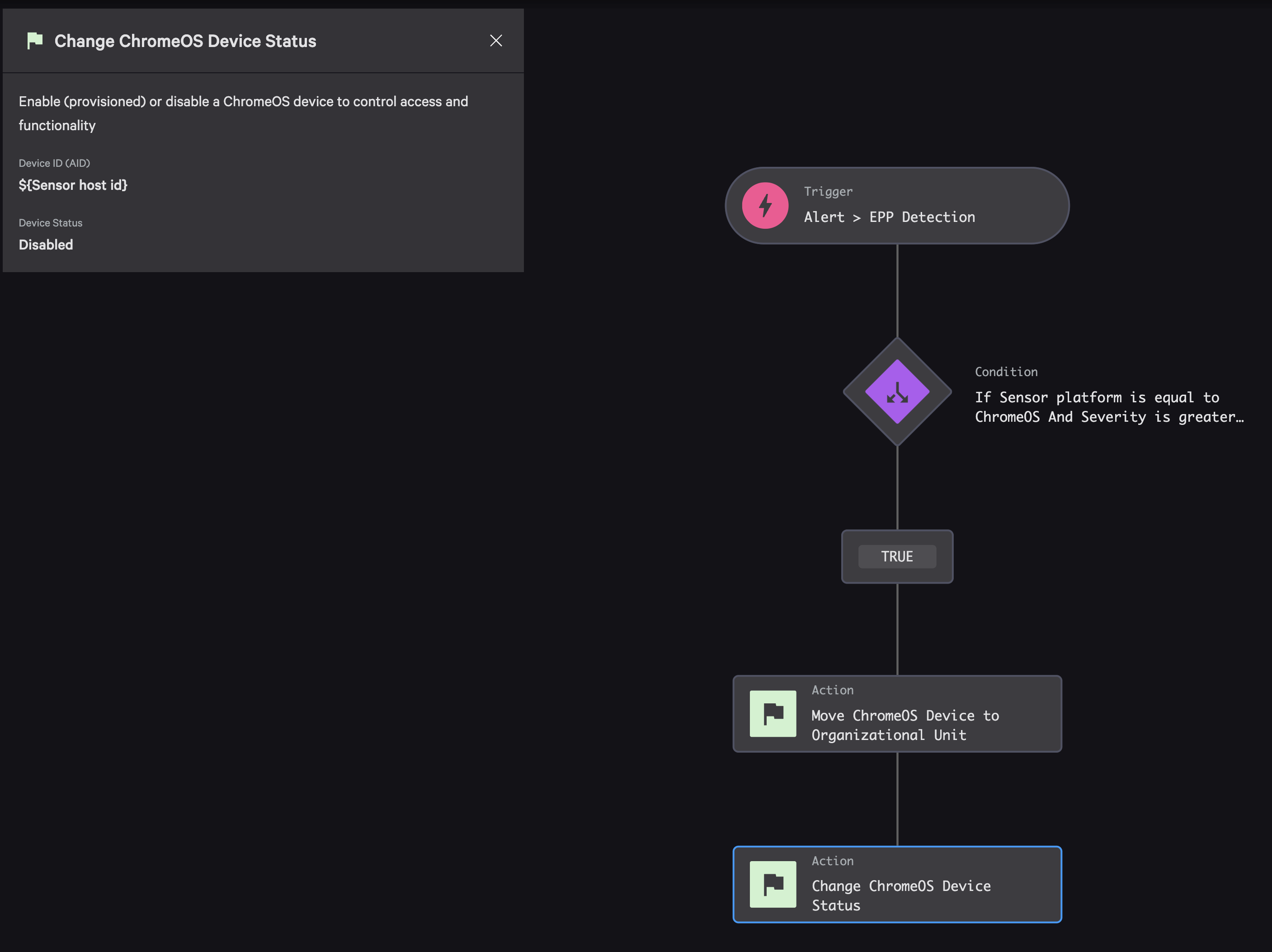
Workflow Action (Disable Device)
This workflow action takes the device ID from the EPP Detection trigger and the target device state as input. In this example we are setting the status/state to Disabled.
- Device ID (AID): configured as a workflow variable from:
Alerts -> EPP Detection -> Sensor host id - Device Status: drop down list for device state
Contributing
Security
See the SECURITY.md file for more details about our Security Policy.
Support
ChromeOS Device Actions (Foundry app) is a community-driven, open source project designed to provide the ability to contain, enable, disable, and gather ChromeOS device information. While not a formal CrowdStrike product, ChromeOS Device Actions (Foundry app) is maintained by CrowdStrike and supported in partnership with the open source developer community.
For additional support, please see the SUPPORT.md file.
License
This project is licensed under the MIT License