

README
AEM Sidekick
Browser extension for authoring AEM sites
Status





Installation
- Go to the Chrome Web Store
- Click Add to Chrome
- Confirm by clicking Add extension
- Click the extensions icon next to Chrome's address bar to see a list of all extensions:

- Verify that there's an icon like this:

- Click the pin button next to it to make sure it always stays visible.
Development
Install Dependencies
$ npm installBuild and Test Locally
- Start the development server to trigger a build on each code change:
$ npm run build:watch - Open Chrome and navigate to
chrome://extensions - Turn on Developer mode at the top right of the header bar
- Click the Load unpacked button in the action bar
- Navigate to the
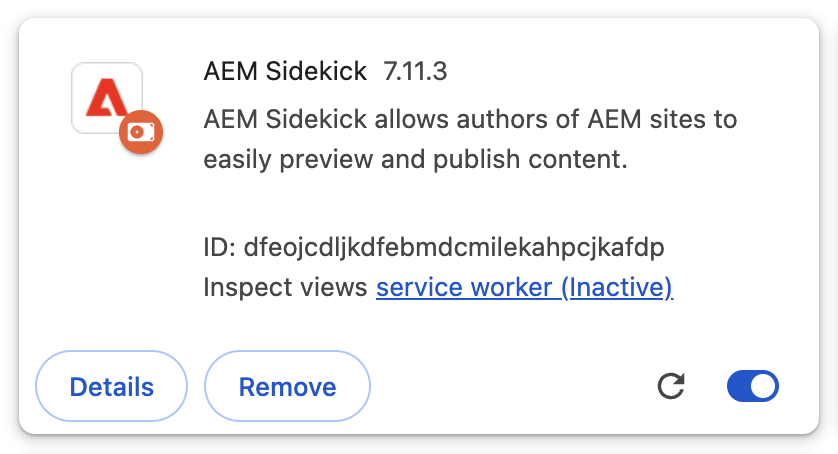
dist > chromefolder and click Select to install and activate the Sidekick extension. - Verify that your Extensions page displays a card like this:
- Click the extensions icon next to Chrome's address bar to see a list of all extensions:
- Verify that there's an icon like this:
- Click the pin icon next to it to make sure it always stays visible.
Code Changes
- Keep
npm run build:watchrunning during development. The build usually takes between 1 and 3 seconds. - Changes to the application (everything under
app) require a reload of the tab. - Changes to the service worker (
background.jsand its includes) require a reload of the extension by clicking the reload icon on the extension card.
Run All Tests
$ npm testDebug Browser Tests
$ npm run test:watchLint
$ npm run lintBuild All
$ npm run buildBuild Chrome
$ npm run build:chrome...
Deployment
...