Verdict

A quick read before you dig into the full page.

Best if
You are podcast editors and need: Automatically edit multi-camera podcast recordings
Skip if
You need a free plan with no credit card
Pick this when
Paid · $29/mo

Overview

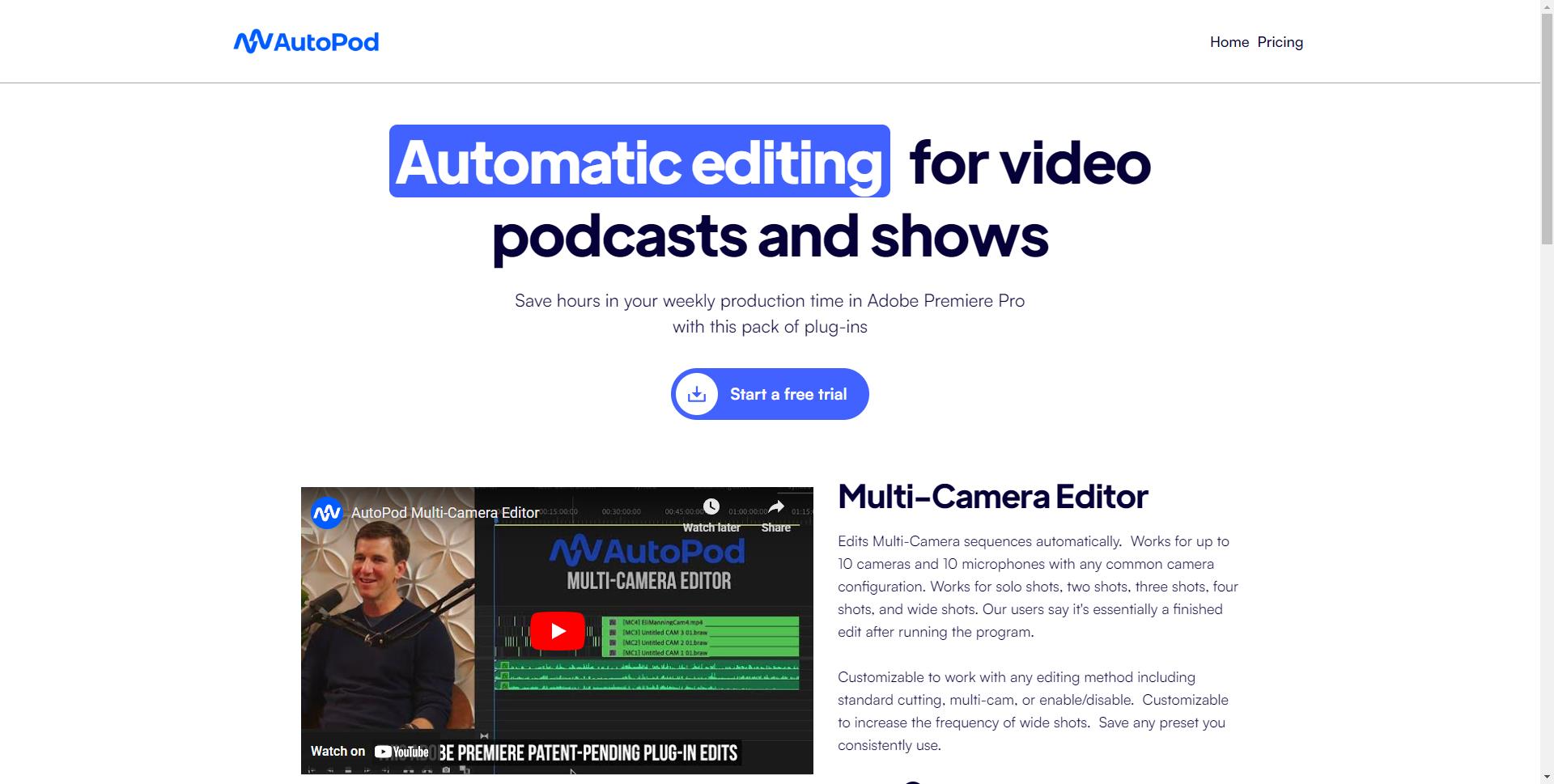
AutoPod is a set of Adobe Premiere Pro plug-ins designed for video podcast and video show editors. It automates tasks such as multi-camera editing, social clip creation, and jump cut editing based on silence. AutoPod helps save time in weekly production by automating processes editors often find tedious.

AutoPod screenshot

Best for

Short scenarios where AutoPod tends to shine.

  • Automatically edit multi-camera podcast recordings.

    Best for Podcast editors

  • Create engaging social media clips from longer videos.

    Best for Video show editors

  • Remove silent portions of videos to create jump cuts.

    Best for Social media content creators

Example outputs 1

Sample generations and before/after results for AutoPod.

Access & connections

Where you can use AutoPod.

Platforms

Web

Capabilities

What this tool accepts, produces, and is strongest at.

Highlights

  • Automatic Multi-Camera Editing
  • Social Clip Creation
  • Jump Cut Editing

People also view

Tools that often show up alongside AutoPod in collections and comparisons.

FAQ 11

What is AutoPod?
AutoPod is a set of Adobe Premiere Pro plug-ins designed for video podcast and video show editors. It automates tasks such as multi-camera editing, social clip creation, and jump cut editing based on silence. AutoPod helps save time in weekly production by automating processes editors often find tedious.
How to use AutoPod?
Install the AutoPod plugin for Adobe Premiere Pro. Open a project file in Premiere Pro, navigate to Window -> Extensions, and click on the desired AutoPod app. Use the tools to automatically edit multi-camera videos, create social clips, or add jump cuts based on silence.
What are the system requirements for AutoPod?
If your computer can run Adobe Premiere Pro you should be good. You need Adobe Premiere Pro 2024, 2023, or 2022.
How do I install AutoPod?
After downloading the installer, simply run the installer file. Once completed, close and re-open Adobe Premiere. Open a project file, do not just stay on the landing page. Navigate up top to Window -> Extensions and click on the desired AutoPod app.
How does AutoPod Multi-Camera Editor work?
AutoPod Multi-Camera Editor is based on thousands of hours of podcast footage to edit a podcast similar to a conventional human editor. It takes into account who is speaking, the camera layout, and typical editing conventions.
Does each AutoPod license only work on one computer?
Yes, each license is only allowed to be used with one computer. Whatever machine the key is first activated on will be the machine used. If you need to switch computers you can do so at https://www.autopod.fm/switch-computers
Will AutoPod Multi-Camera work for my camera set-up?
AutoPod works for any common camera layout. Current release supports up to 10 speakers with any combination of single shots, two shots, three shots, and wide shots.
Can I use the Multi-Camera Editor with a single audio source?
No, AutoPod is designed for multiple cameras and multiple unique audio tracks. It needs separate audio tracks to properly make the editing decisions.
Can I use the Multi-Camera Editor with a single speaker?
No, AutoPod is designed for multiple cameras and multiple unique audio tracks.
Is there enterprise pricing available?
There is not enterprise pricing but you could buy multiple keys from the same email.
Is the software available for other editing software such as DaVinci or Final Cut Pro?
Currently AutoPod is released for only Adobe Premiere Pro. There might be future enhancements that include other editing software, but there is no timeline.
AutoPod $29/mo