
GPTBox
GPTBox integrates ChatGPT and DeepSeek into the Windows taskbar for AI assistance in any application.
Source rating 5.0
(72)
1.1k views
1.1k/mo traffic
0 saves
Unknown
Verdict
A quick read before you dig into the full page.
- Best if
- GPTBox integrates ChatGPT and DeepSeek into the Windows taskbar for AI assistance in any application
- Pick this when
- GPTBox integrates ChatGPT and DeepSeek into the Windows taskbar for AI assistance in any application
Overview
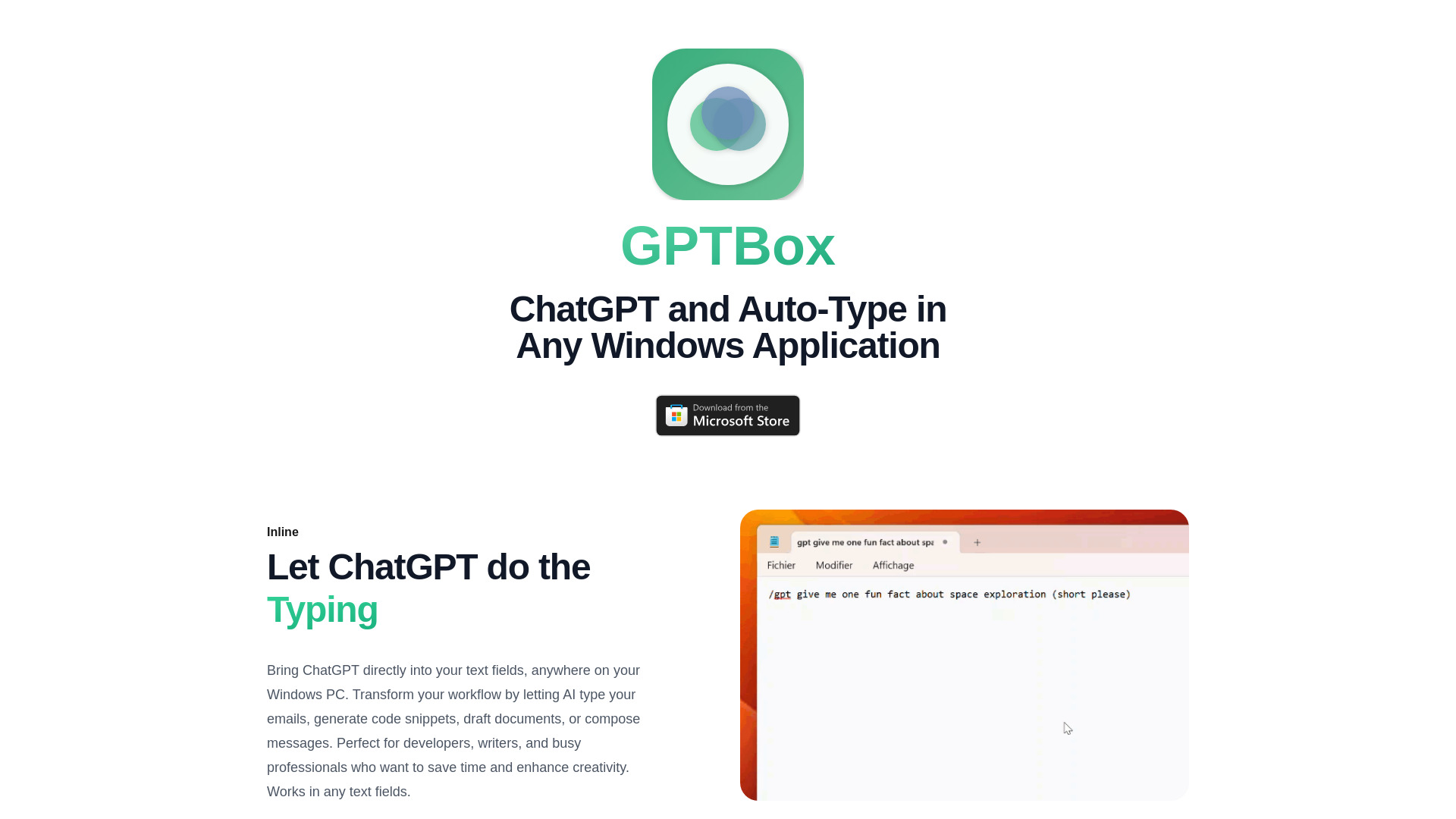
GPTBox is a Windows application that integrates ChatGPT and DeepSeek directly into the Windows taskbar. It allows users to access AI text generation capabilities within any application on their PC, enhancing productivity by enabling AI to type emails, generate code snippets, draft documents, and compose messages. It offers inline typing and global access features, making AI assistance readily available via keyboard shortcuts.
Access & connections
Where you can use GPTBox.
Platforms
Capabilities
What this tool accepts, produces, and is strongest at.
Highlights
- ChatGPT and DeepSeek integration in Windows taskbar
- Inline typing in any Windows application
- Global access via keyboard shortcut
- Support for multiple AI models
FAQ 7
What is GPTBox?
GPTBox is a Windows application that integrates ChatGPT and DeepSeek directly into the Windows taskbar. It allows users to access AI text generation capabilities within any application on their PC, enhancing productivity by enabling AI to type emails, generate code snippets, draft documents, and compose messages. It offers inline typing and global access features, making AI assistance readily available via keyboard shortcuts.
How to use GPTBox?
After installing GPTBox, you can access ChatGPT and DeepSeek either through inline typing within any text field or via a global keyboard shortcut that brings up a convenient dialog. To use ChatGPT, you need an OpenAI API key, and for DeepSeek, you need a DeepSeek API key, both of which can be entered in the GPTBox settings.
Is GPTBox free for Windows users?
GPTBox for Windows offers a free 7-day trial with full access to all features. After your trial period, you'll need to purchase a license to continue using our software.
How do I get an OpenAI API key to use ChatGPT with GPTBox on Windows?
Create an account at OpenAI's platform website (https://platform.openai.com). Once logged in, navigate to the API keys section and generate a new key. Copy this key and enter it in GPTBox's Windows settings panel.
How do I set up Deepseek integration with GPTBox on Windows?
Visit https://platform.deepseek.com/api_keys and create an account if you don't already have one. Generate your API key, then open GPTBox on your Windows PC and navigate to Settings. In the API section, select Deepseek as your provider and paste your key.
Is using ChatGPT with GPTBox on Windows expensive?
API costs are typically around $0.001 per 1000 tokens (roughly 750 words). For most Windows users, this translates to just pennies per day of regular use. We recommend using GPT-4o for daily Windows operations as it offers the best balance of performance and cost.
What Windows versions are compatible with GPTBox?
GPTBox is fully compatible with Windows 10 and Windows 11 operating systems. For the best experience, we recommend running on Windows 10 version 1903 or newer, or any version of Windows 11.
Related tools
Recommended


GPTBox